Onboarding
When you're assigned to a new team, you'll go through a 4-stage onboarding wizard. The wizard walks you through access setup, an access review meeting with Koder Services, the team's knowledge base, and a final Check for Understanding meeting with the team's trainer.
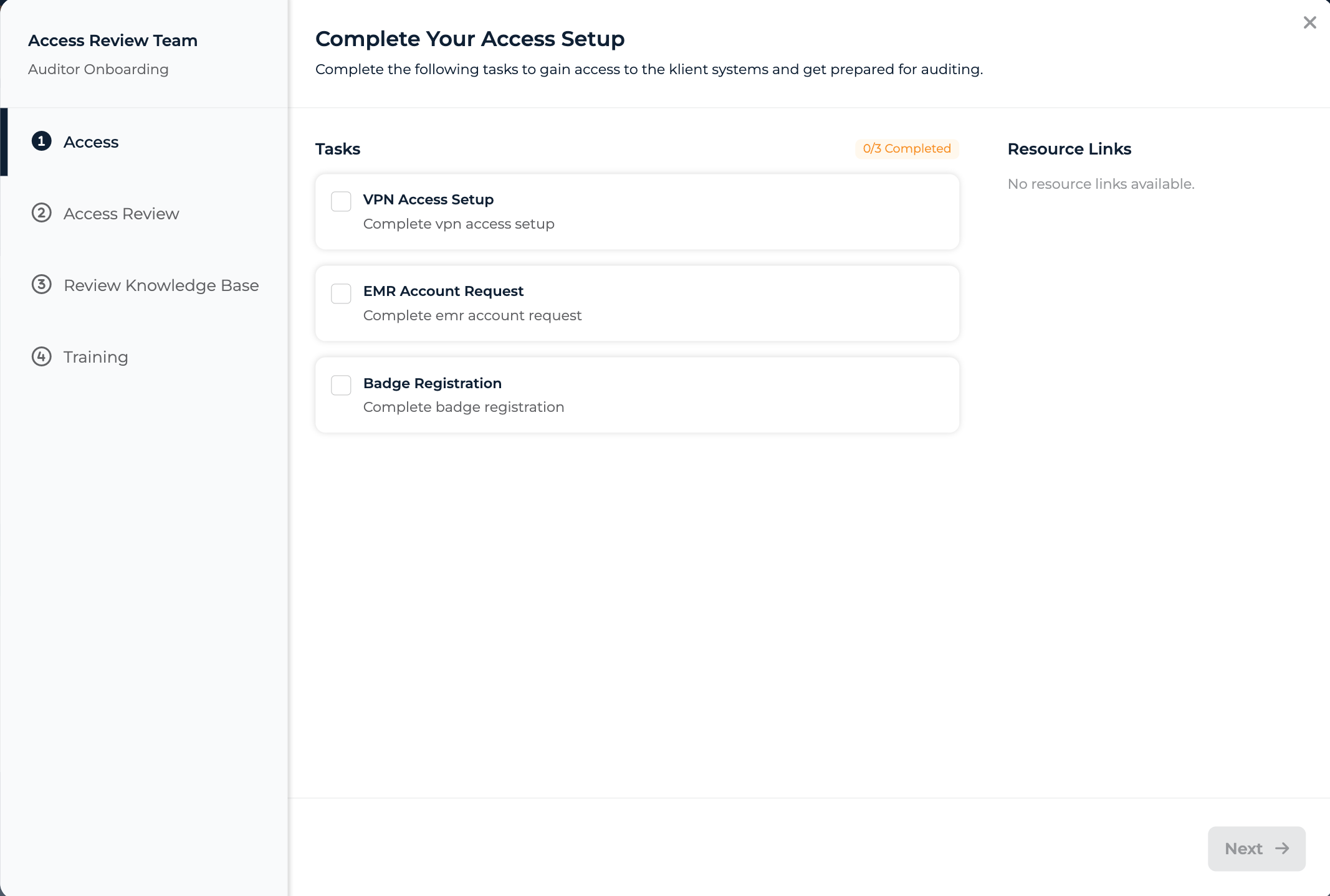
Onboarding wizard with sidebar navigation and team name as the sidebar title
How the Wizard Works
The wizard opens in a modal from your dashboard — click Start Onboarding or Resume Onboarding on the team's row in the Onboarding Teams section. A sidebar on the left lists all four stages with the team name as the title, and the main pane shows the active stage.
Stages unlock in order — each one stays locked until you've met its prerequisites. The Next button in the wizard chrome advances you when a stage is ready. Your progress saves automatically; you can close the modal and return any time.
The four stages
| # | Sidebar label | What you do |
|---|---|---|
| 1 | Access | Complete the access tasks the Klient needs you to do; review Resource Links |
| 2 | Access Review | Meet with Koder Services to verify your access |
| 3 | Review Knowledge Base | Read the team's knowledge base materials |
| 4 | Training | Meet with the team's Trainer for a Check for Understanding |
Stage 1: Access
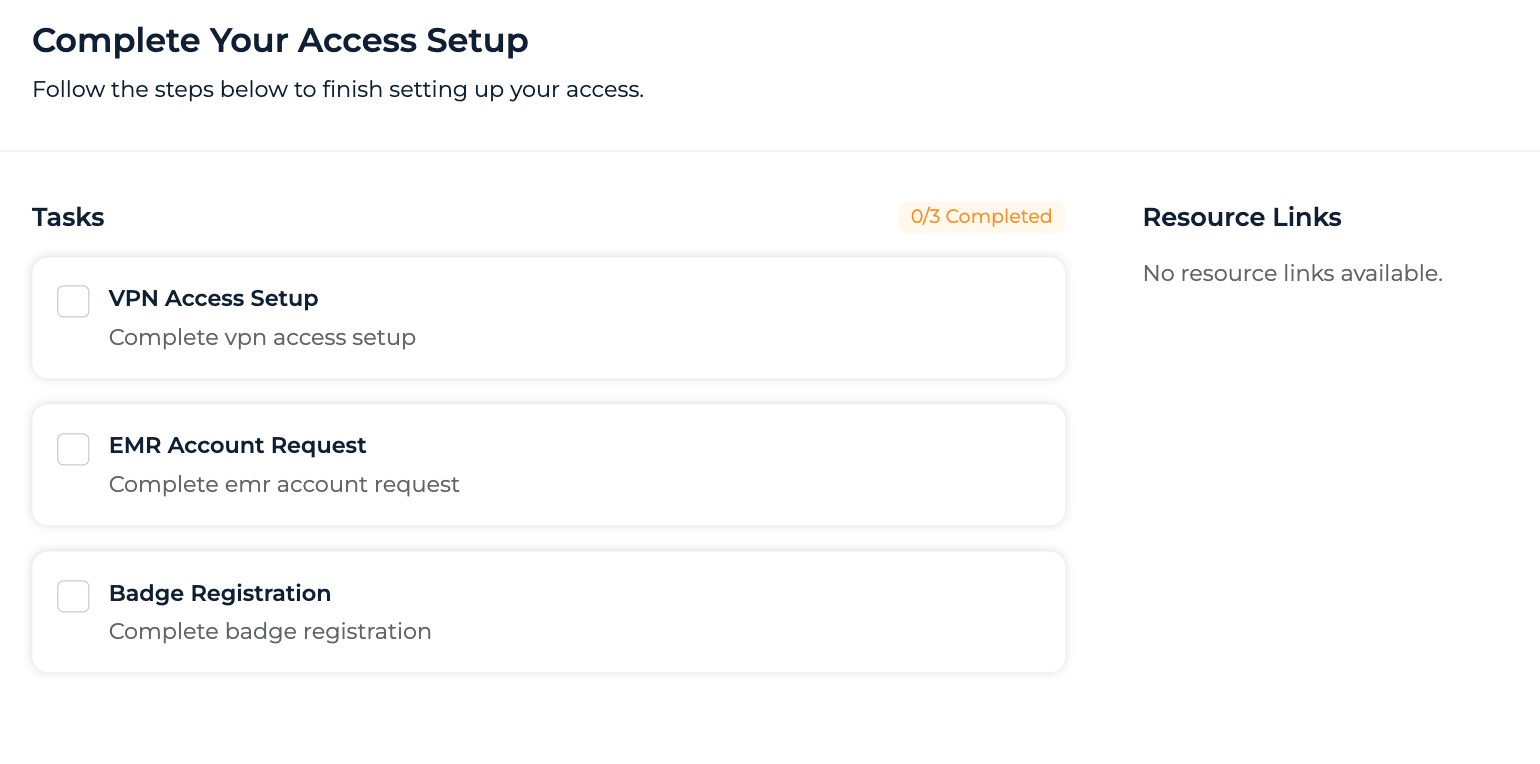
Access stage with the access tasks list on the left and Resource Links on the right
The Access stage is a 2:1 split: the Tasks list on the left and Resource Links on the right.
Tasks
A list of access setup tasks assigned to you. The header shows a status tag like "3/5 Completed" that updates as you check tasks off.
- Check each task as you complete it
- Some tasks may be blocked by prerequisite tasks (yours or your Onboarding Leader's) — those stay disabled until the prerequisite is done
- If the team has no member tasks for you, you'll see "No access tasks required for this team."
Resource Links
Links the Klient has shared (system URLs, reference docs, etc.). If none are set up, you'll see "No resource links available."
Footer messages on Stage 1
Two specific waiting-state messages can appear in the wizard footer:
- Waiting on the Onboarding Leader (admin tasks): "Your tasks are complete — waiting on your Onboarding Leader to finish setting up your access."
- Waiting on Koder Services to advance you: "You're all set for now! We'll let you know when it's time to confirm access."
Important: Koder Services advances you, not the Next button
Even after you check off every task (yours and the Onboarding Leader's), the Access → Access Review transition is owned by Koder Services. You can't push yourself onto Stage 2 — KS reviews the tasks (which can change throughout onboarding) and then advances you. The footer message above is your signal that you're waiting on KS.
Stage 2: Access Review
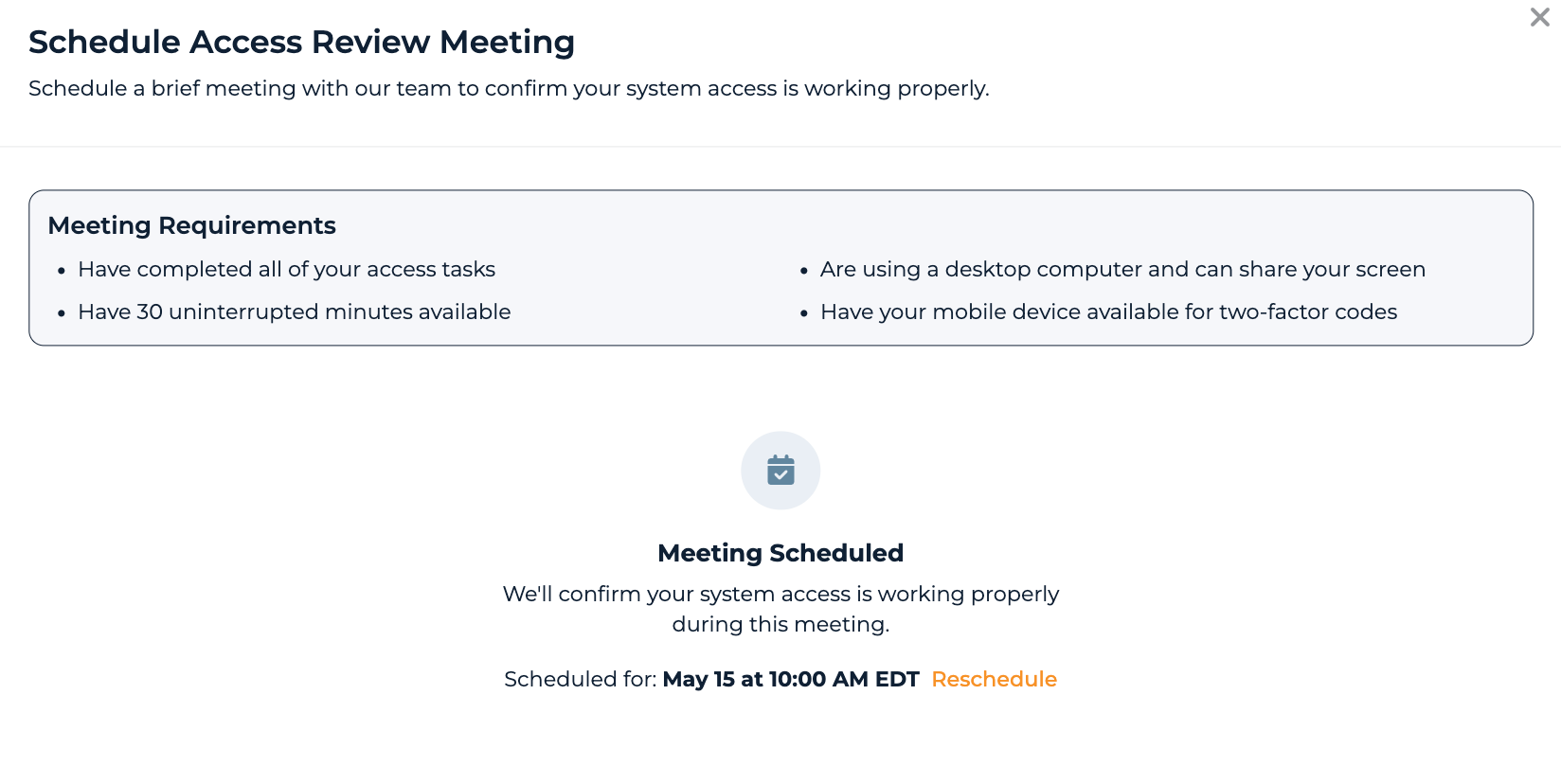
Access Review stage with the Meeting Requirements list and Schedule Meeting action
Schedule a meeting with Koder Services to confirm your access is working end-to-end.
Meeting Requirements
Before scheduling, make sure you:
- Have completed all of your access tasks
- Are using a desktop computer and can share your screen
- Have 30 uninterrupted minutes available
- Have your mobile device available for two-factor codes
The meeting can't be taken on a mobile device — if you join from one, you'll need to reschedule.
The scheduling flow
- Schedule Your Meeting — click the button to open Calendly inline and pick a time
- Meeting Requested — appears briefly after the Calendly popup closes, while we wait for the webhook
- Meeting Scheduled — once the webhook arrives, you'll see the appointment time + a Reschedule link
- Access Confirmed — after the meeting, Koder Services confirms your access. The whole stage swaps to an "Access Confirmed" card reading "Your system access has been verified."
Can't find a time?
If the Calendly slots don't work for you, the page shows: "Can't find a time that works? Contact us at support@kodehealth.com".
When scheduling is unavailable
If Koder Services isn't set up to take bookings for your Klient, the schedule button is replaced by a warning message: "Scheduling is currently unavailable. Please contact your Koder Services representative."
Stage 3: Review Knowledge Base
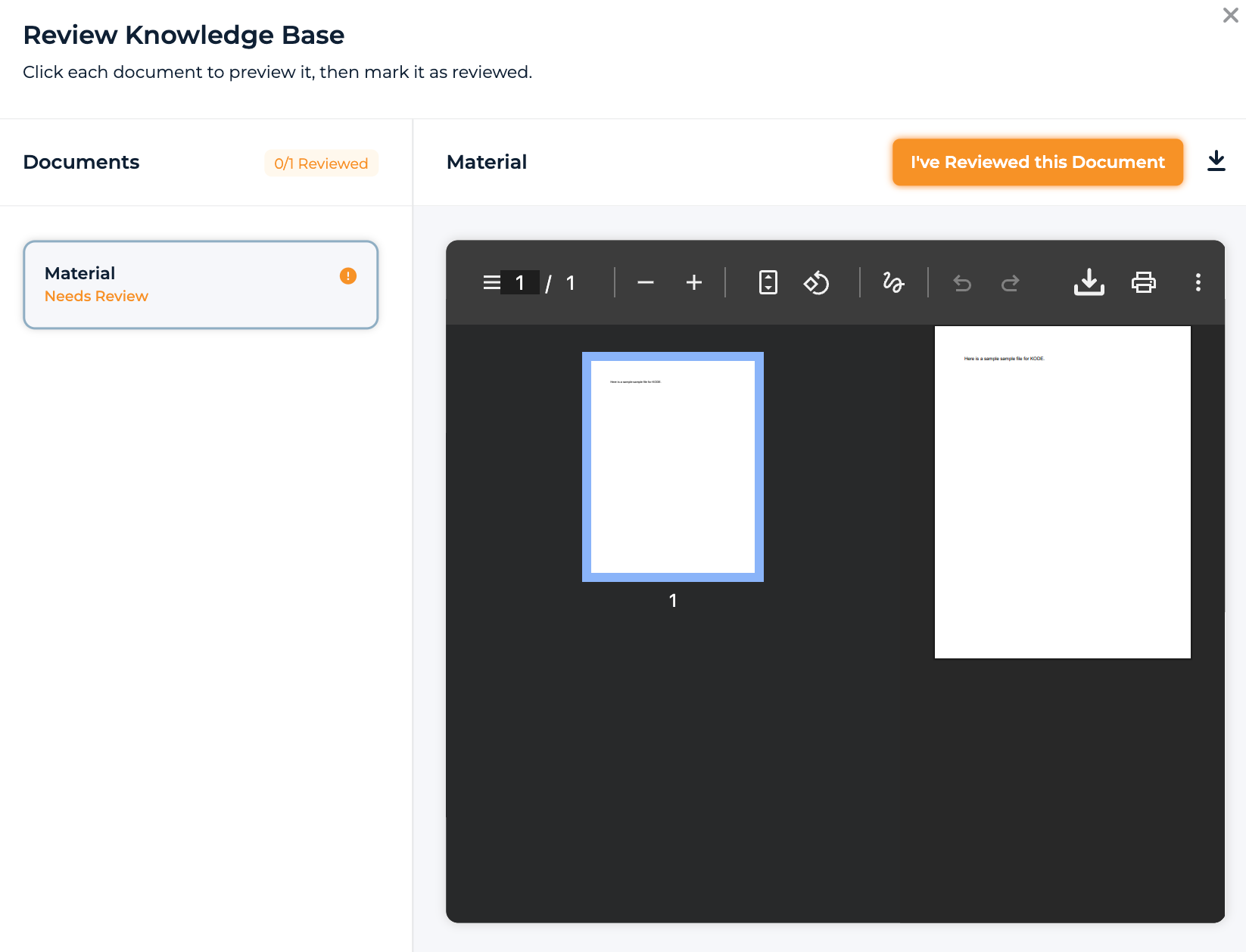
Review Knowledge Base stage with the document list on the left and the preview pane on the right
Read the team's knowledge base materials that the team's trainer has approved.
Layout
A document list alongside an inline preview pane. The header shows a status tag like "2/4 Reviewed" that flips to a "done" state when you finish reviewing everything.
Reviewing a document
- Click a document in the left list to load it into the preview pane
- Read it inline (or click the download icon in the preview header if your browser can't render it — you'll see a "You'll need to download the file to review this document" placeholder)
- Click "I've Reviewed this Document" above the preview
- The button flips to a "Reviewed" badge with a check — click it again to undo if you marked it by mistake
When you've reviewed every document, the wizard's Next button enables and moves you to Training.
Stage 3 lock — gated by Access Review, not by the trainer
Stage 3 stays locked until either your access has been confirmed OR your Access Review meeting is scheduled. (Either one is enough — you don't have to wait for the meeting to actually happen.)
The team's trainer doesn't gate this lock. If the trainer hasn't finished setting up the knowledge base yet, you'll see the stage unlocked but empty, with the message: "The knowledge base for this team is being prepared. Check back soon."
Read-only mode
If you reach Stage 3 because your meeting is scheduled (but not yet confirmed), you can browse documents but the I've Reviewed this Document button is disabled with a tooltip: "Available after your access review is complete."
Other empty states
- No documents on the team: "No knowledge base documents available for this team. Click Next to continue." — Next is enabled in this case so you can move on.
- No document selected: "Select a document to preview" in the preview pane.
Stage 4: Training
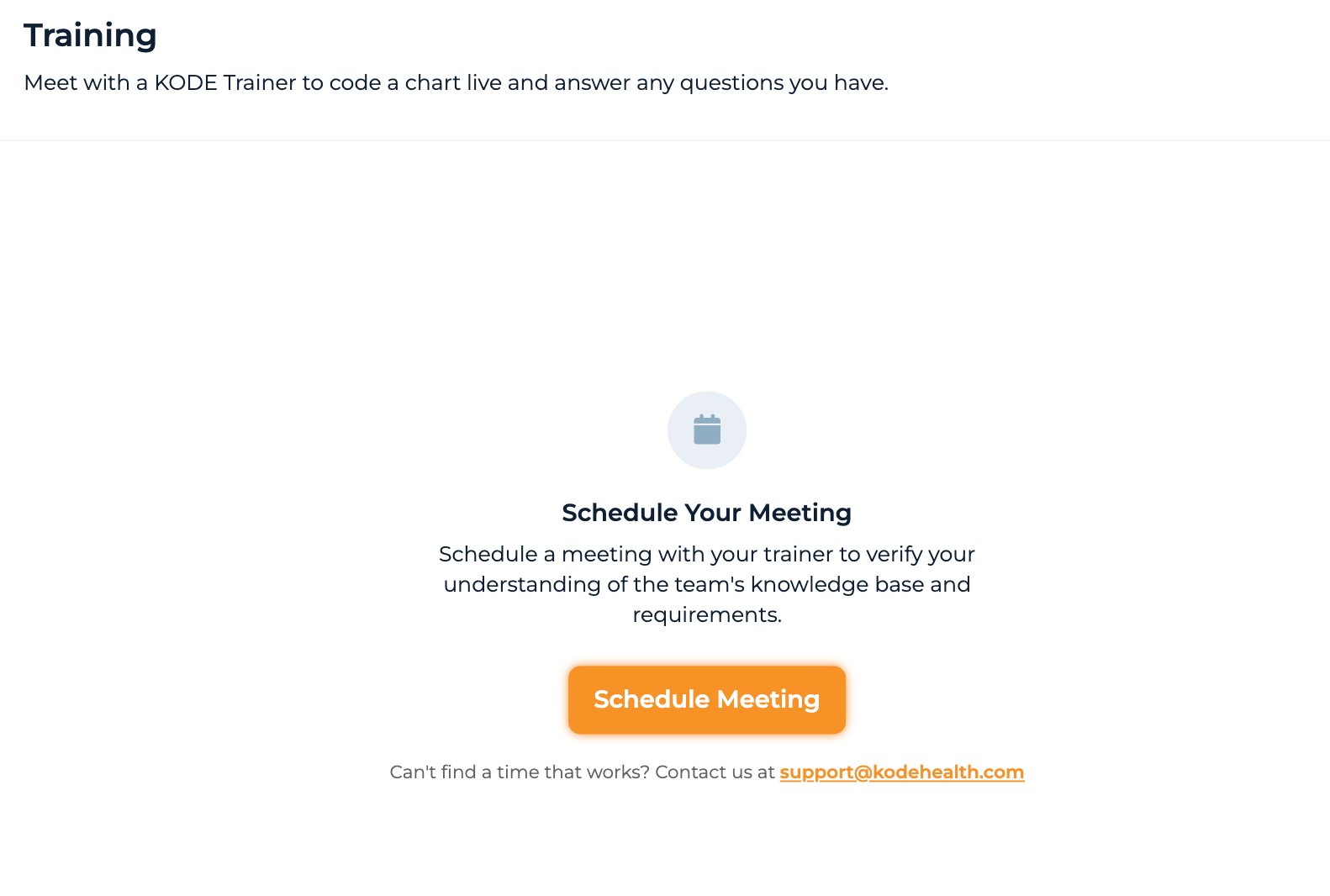
Training stage with the Check for Understanding scheduling flow
The final stage. Schedule a Check for Understanding meeting with the team's Trainer.
Stage 4 lock
Locked until you've completed Stage 3 (every document reviewed, or no documents on the team and you've clicked Next).
The scheduling flow
The flow mirrors Stage 2 but without a Meeting Requirements list:
- Schedule Your Meeting — click to open Calendly. The header text reads: "Schedule a meeting with your trainer to verify your understanding of the team's knowledge base and requirements."
- Meeting Requested — transient state after the Calendly popup closes
- Meeting Scheduled — once the webhook arrives, you'll see the appointment time, the trainer's name (if available), and a Reschedule link
- Thanks for Attending! — after the meeting takes place and the trainer marks the outcome, the stage shows: "Thanks for attending your check for understanding meeting. We'll get back with you soon on next steps."
You won't see an explicit "approved" status here. The trainer recommends approval, and a platform manager moves you from Onboarding Teams to Active Teams on your dashboard. Until that happens, you'll still see the Thanks for Attending! state.
When scheduling is unavailable
Same warning message as Stage 2: "Scheduling is currently unavailable. Please contact support@kodehealth.com for assistance."
Tips
- Wait on the footer signals — the "You're all set for now!" and "waiting on your Onboarding Leader" messages are how you know your work is in someone else's court, not yours
- Get your Access Review scheduled early — once it's on the calendar, Stage 3 unlocks (even in read-only mode), so you can start reading the knowledge base in parallel
- Bring your mobile device to the Access Review — two-factor codes will come up
- Don't mark documents reviewed if you haven't actually read them — the Trainer will quiz you on the content during the Check for Understanding meeting
- Progress saves automatically — close the modal any time and pick back up from the dashboard
Common Questions
Q: Why is Stage 3 (Review Knowledge Base) locked?
Either your Access Review meeting isn't scheduled yet, or your access isn't confirmed. As soon as one of those happens, Stage 3 unlocks — though if your meeting is only scheduled (not confirmed), you'll be in read-only mode until access is confirmed.
Q: I finished my access tasks but Stage 2 (Access Review) is still locked. What gives?
Koder Services has to advance you from Access → Access Review — the wizard's Next button doesn't move you on Stage 1. The footer message "You're all set for now!" tells you you're done with your part. KS will move you (and you'll see Stage 2 unlock) once they've reviewed.
Q: The knowledge base list is empty. Should I worry?
If the message says "The knowledge base for this team is being prepared," the trainer hasn't approved any documents yet — just check back later. If it says "No knowledge base documents available for this team. Click Next to continue," this team genuinely doesn't use the knowledge base and you can move on.
Q: Can I reschedule a meeting after booking it?
Yes — once a meeting is scheduled, you'll see a Reschedule link next to the appointment time. It opens Calendly so you can pick a new slot.
Q: What if I'm onboarding for multiple teams?
Each team has its own independent wizard, opened from its own card on the dashboard. You can work through them in parallel.
Q: How long does onboarding usually take?
Depends on the team. The main pacing constraints are: how long the Onboarding Leader takes to set up your admin access, how soon Koder Services advances you to Access Review, and the availability of meeting slots on the KS and trainer calendars.