Task Escalation
The Task Escalation Dashboard is where you, as a team's trainer, pick up secure tasks that need a hand. A task lands here when it's gone past its due date, when the koder it was assigned to has left the team, or when a koder clicks "I need help." Everything here is encrypted, so you can dig into chart details safely.
This view shows only escalated tasks — normal, on-track tasks stay with the koder and don't clutter your queue. You'll see escalations for every team you train, no matter where you are in your own onboarding.
A single task can also be handed to you by a platform manager, even on a team you don't train. It shows up on this same board, and you work it exactly the way a trainer does. In that case you see only the task you were given — not the rest of that team's escalations. The team's trainer keeps the task too, so you're helping out, not taking over.
Open it from your dashboard's Task Escalation view (/auditors/dashboard?view=task_escalation).
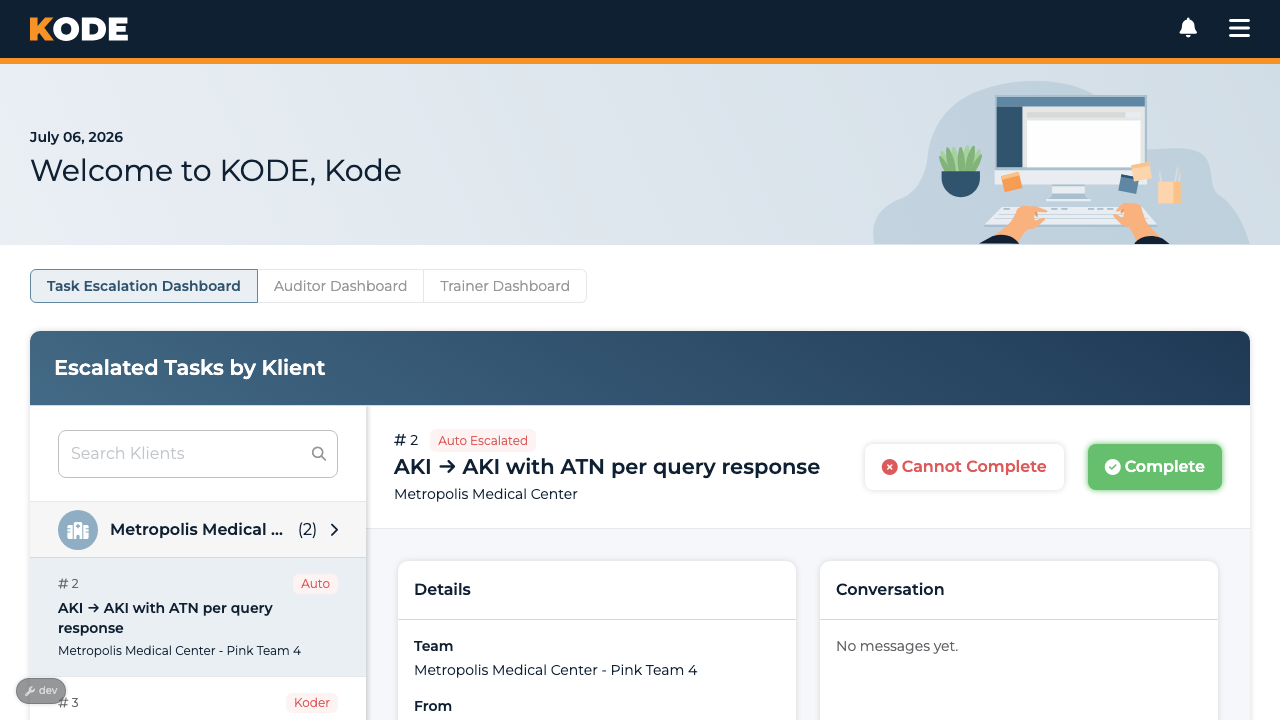
The Task Escalation Dashboard with the by-klient rail on the left and the selected task on the right
Finding a Task
The page is split into two parts:
- Left — Escalated Tasks by Klient. Tasks are grouped into a collapsible list by client, with a count next to each client name. Use the Search Klients box to filter by client or team name. Each task shows its ID, a short Koder or Auto tag for how it escalated, its subject, and the client–team it belongs to.
- Right — the task detail. Click any task in the rail to load it on the right.
If there's nothing to do, you'll see "No Klients with Escalated Tasks" in the rail and a friendly "You're all caught up!" in the detail area.
Why a task escalated
The rail's short tag tells you at a glance how a task reached your queue:
- Koder — the koder asked for help by clicking "I need help"
- Auto — the system escalated it: the task went past its due date, or the assigned koder left the team
Open the task and its status spells out the specific reason:
- Koder Escalated — the koder asked for help
- Auto Escalated — the task is past its due date
- Removed from Team — the koder who had this task is no longer on the team, so it's yours to resolve
Working a Task
The detail pane gives you everything you need:
- Details — the team, who the task is from (the KODE staffer or klient who created it), the recipient, when it was sent, the due date, encounters, and the full description (plus a "Completion Note" or "Cannot Complete Reason" if one's been recorded)
- Conversation — the message thread. You can post a reply only once the koder has asked for help (a Koder Escalated task that's still open, with the koder still on the team); on Auto Escalated or Removed from Team tasks the thread is read-only. When you can post, your reply appears live for everyone on the task
- Attachments — any encrypted files on the task
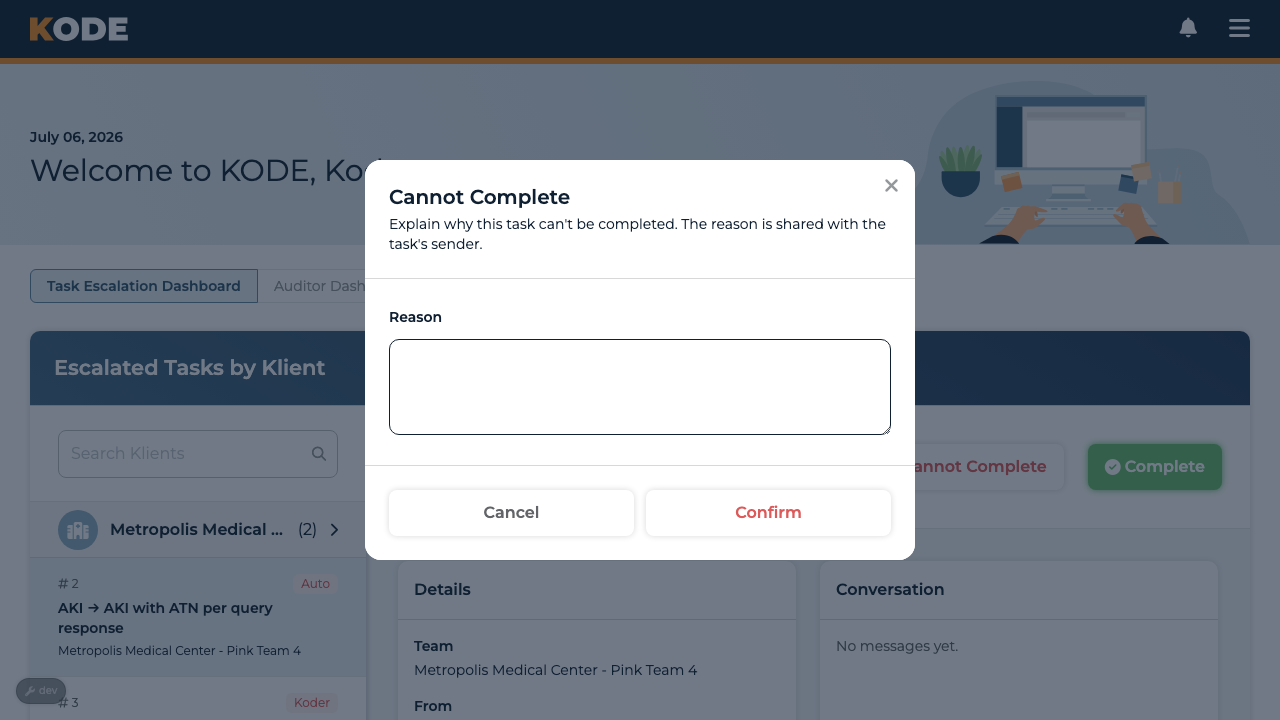
The Cannot Complete window where the trainer enters a reason
Closing it out
When the task is open, two buttons sit at the top of the detail pane:
- Complete — marks the task done. A window opens with the reminder "This closes the task and can't be undone." and an optional note — "Add any helpful info about what you did to complete this task." Write what you did so the koder and the sender can see how it was resolved, or submit it empty. Click Complete Task. This window is the confirmation step, so nothing closes until you submit it.
- Cannot Complete — for a request that genuinely can't be fulfilled. A window asks you to explain why — the reason is required and is shared with whoever sent the task. Click Confirm.
Responding isn't the same as closing. If you answer a koder's question but don't Complete or Cannot-Complete the task, it stays in your queue. Often the right outcome is to reply, then let the koder apply your guidance and mark it complete themselves — that's fine, and it'll drop off your list once they do.
Tips
- Work the rail top to bottom. Tasks are grouped by client so you can clear one klient's escalations in a sweep.
- Lead with the conversation. A quick reply often unblocks the koder without you having to take the task over.
- Use "Cannot Complete" sparingly — and always with a clear reason, since the sender sees it.
FAQ
Will I see every secure task?
No — only escalated ones, and only for teams you train. On-track tasks stay with the koder. The one exception is a task a platform manager hands to you on another team: you see that task and nothing else from that team.
A koder left mid-task. What happens?
The task automatically escalates to you as "Removed from Team" so the request isn't dropped. You can resolve it or close it as Cannot Complete with a reason.
Does my onboarding status hide this view?
No. You'll see escalations for all your teams regardless of where you are in onboarding. Being handed a single task works differently, though — a platform manager can only pick you for that once you've finished onboarding on the team the task belongs to.
A task I don't recognise appeared on my board. Why?
A platform manager handed you that one escalated task. Read it, reply in the conversation, and close it as Complete or Cannot Complete just like any other. You can't pass it on to someone else — only a platform manager can do that.
How long do I keep a task that was handed to me?
For as long as you're an auditor on that task's team. If you leave the team, the task is no longer yours — it's gone the next time your board loads, and the team's trainer carries on with it.