Trainer Dashboard
The Trainer Dashboard is your view when you're working in your Trainer role. It groups everything you do as a trainer in one place: tracking your own trainer onboarding, approving (or rejecting) koders and auditors after their training meetings, keeping an eye on your upcoming meetings, and getting to your active teams for practice.
Switch to it using the Auditor Dashboard / Trainer Dashboard toggle at the top of your dashboard (only shown if you're a trainer on at least one team).
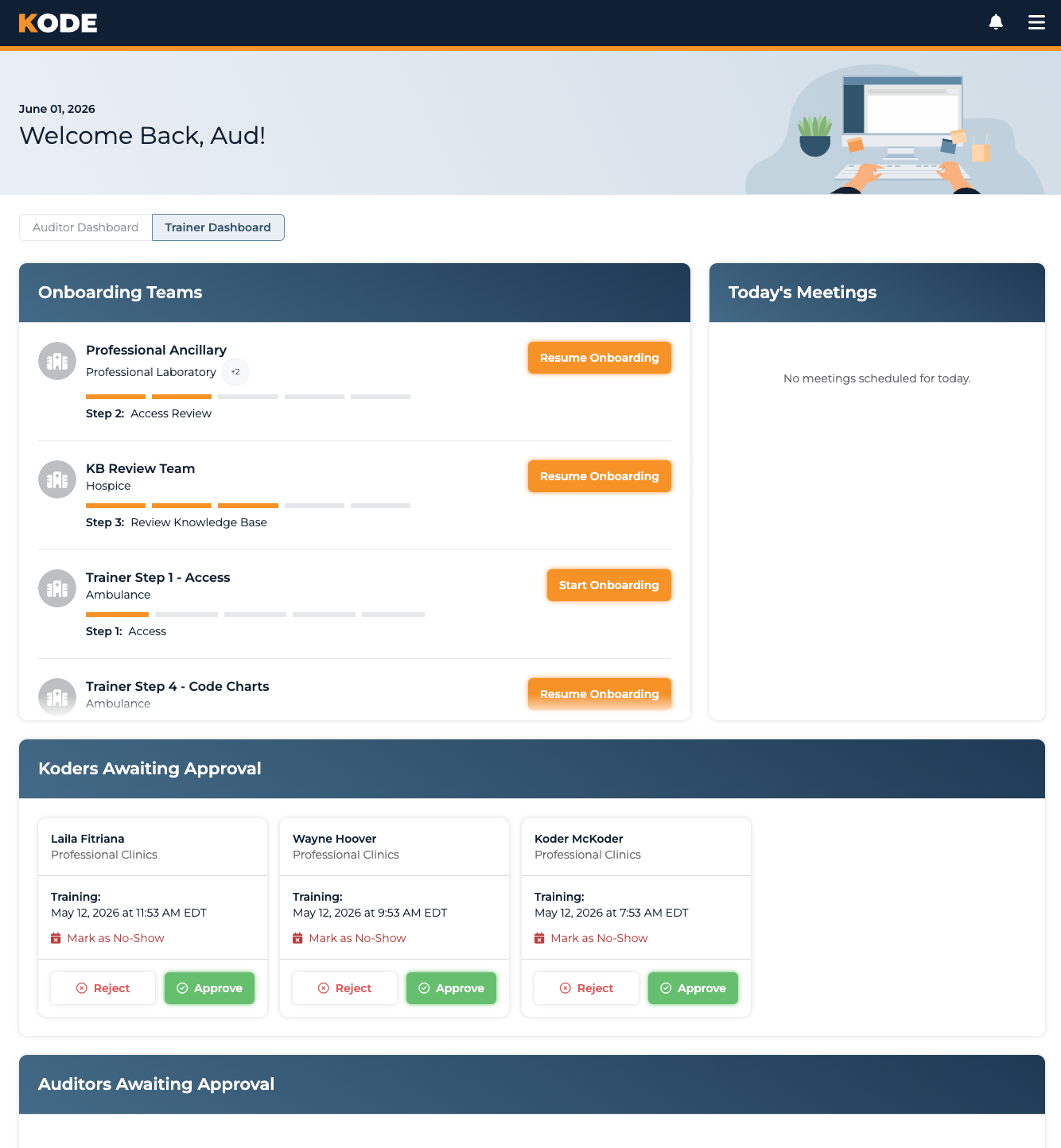
Full trainer dashboard layout
Page Layout
The trainer dashboard is laid out in stacked sections, in this order:
- Onboarding Teams alongside Meetings
- Koders Awaiting Approval
- Auditors Awaiting Approval
- Teams with Onboarding Koders
- Active Teams
If you've just finished your own trainer onboarding, you'll see a confetti burst the first time you land back on this dashboard — that's the platform celebrating the milestone with you.
Onboarding Teams
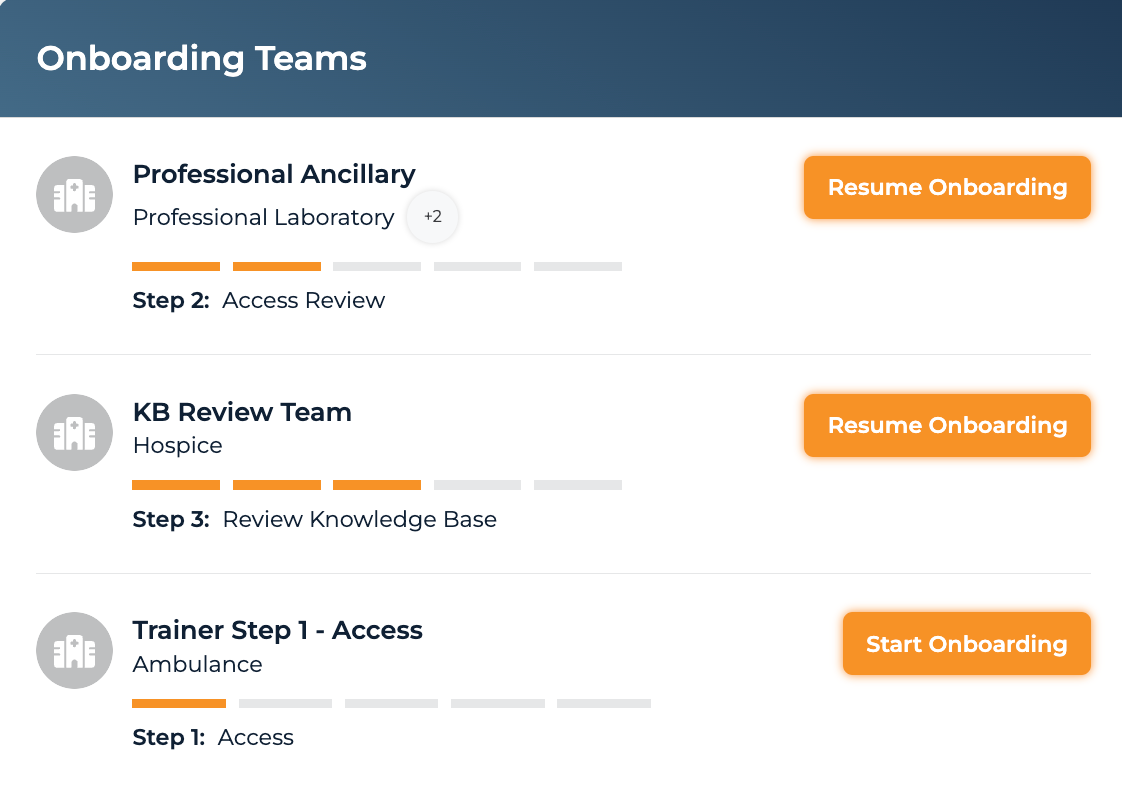
Onboarding Teams section with the trainer's 5-stage progress cards
If you're still onboarding as a trainer for any teams, those teams show up here as progress cards. The trainer onboarding wizard is 5 stages (Access → Access Review → Review Knowledge Base → Code Charts → Verify Knowledge Base). Each card shows progress through that wizard. See Trainer Onboarding for stage-by-stage details.
Each card also has an ellipsis (⋯) menu with View Koders (the team's koder pipeline, read-only) and Knowledge Base (the team's knowledge base, viewable at any onboarding stage).
Empty state: "No onboarding teams assigned yet."
Meetings
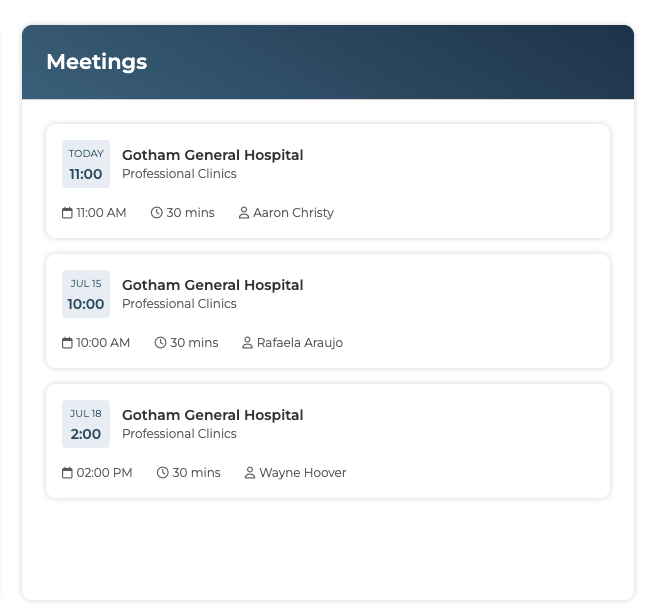
Meetings sidebar
This section lists your upcoming meetings, soonest first. Each meeting card shows:
- A date badge with the hour — "TODAY" for meetings later today, otherwise the date (e.g. "Jul 16")
- Client name and Team name — the card is oriented around which Klient/team the meeting is for
- Calendar icon and the formatted meeting time
- Clock icon and duration (e.g. "30 mins") — when set
- User icon and attendee name (with "+N" if more than one attendee)
A meeting leaves this list the moment it starts — not when it ends — so a meeting you're currently in won't be here. Canceled meetings don't appear at all. Your Calendly account remains the source of truth for your full calendar, including anything that isn't a platform training meeting.
Empty state: "No meetings scheduled."
Koders Awaiting Approval
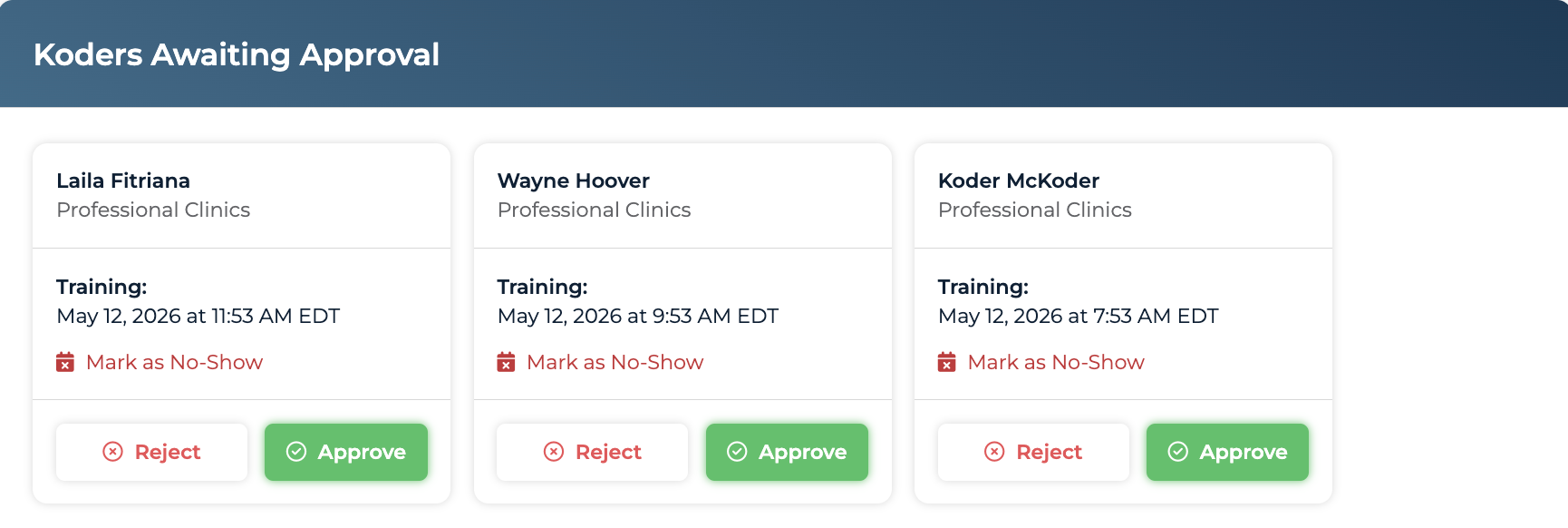
Koders Awaiting Approval section with per-koder cards
A koder shows up here once they've completed their Review Knowledge Base step and their Check for Understanding meeting with you has started. Both are required. They appear as a horizontally-scrolling list of cards. Each card has:
- Koder name
- Team name
- Meeting label — either "Check for Understanding:" (if there's a scheduled or completed meeting) or "Review Knowledge Base Completed:" (no meeting yet) — plus the formatted date/time
- Mark as No-Show action with a calendar-times icon, shown only after the appointment end time has passed
- Two action buttons: Reject and Approve
Approving a koder
Click Approve. A confirmation modal pops up: "Approve {name} for {team}? They will be marked as knowledge base verified." Confirm to mark the koder as knowledge base verified. A Klient Operations manager moves the koder into Active status from there — your approval flips the verification flag, not the final go-live.
The Approve button is disabled with the tooltip "Team must be live before approving koders" whenever the team isn't live yet.
Rejecting a koder
Click Reject to open the rejection recommendation flow in a modal. Use this when the koder genuinely needs more preparation before re-attempting — they'll be sent back to review more materials and can rebook a meeting with you later.
Marking a no-show
When a meeting's end time has passed and the koder didn't attend, the Mark as No-Show action becomes visible. Clicking it opens a confirm modal: "Mark {name} as a no-show for their {meeting_kind} meeting? They will receive an email to reschedule." Confirming triggers the rescheduling email — no platform-manager hand-off needed.
Empty state: "No koders awaiting approval."
Auditors Awaiting Approval
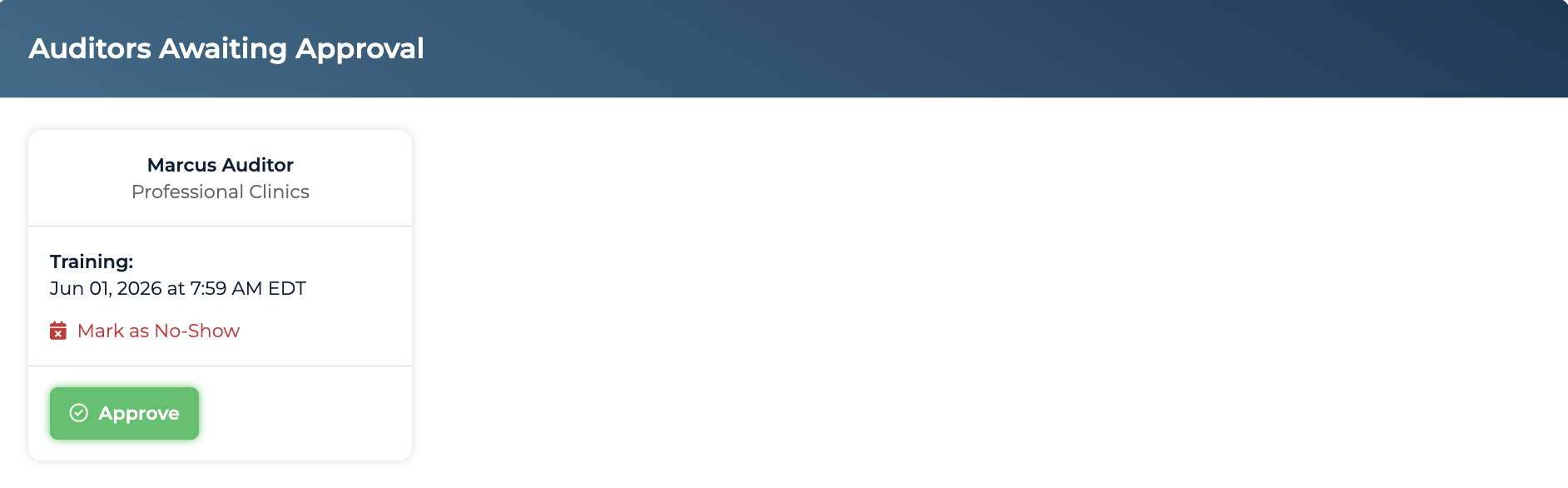
Auditors Awaiting Approval section with per-auditor cards
The auditor counterpart. After an auditor completes their Check for Understanding (Training) meeting with you, they appear here.
The card structure is the same as the koder card with one important difference: there is no Reject button on auditor cards. Auditor cards have only Approve and Mark as No-Show.
- Approve opens the modal: "Approve {name} for {team}? They will be marked as knowledge base verified."
- Same "Team must be live" disabled state and tooltip
- Same Mark as No-Show flow once the meeting end time has passed
If you don't think an auditor is ready, contact your platform manager rather than approving — there's no in-card rejection path for auditors.
Empty state: "No auditors awaiting approval."
Teams with Onboarding Koders
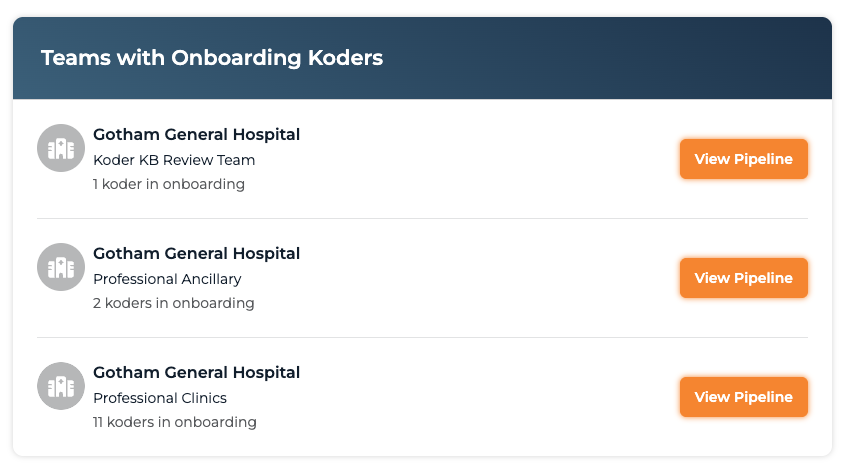
Teams with Onboarding Koders section with View Pipeline links
Any of your teams that currently has koders in onboarding shows up here, so you can see where training work is building up without opening each team. Each row has:
- Client logo
- Client name with Team name below
- A count — e.g. "3 koders in onboarding"
- View Pipeline button — opens that team's koder pipeline directly on the Onboarding tab
This section counts every koder onboarding on the team, not just the ones waiting on you. A koder can be in onboarding here and not yet appear in Koders Awaiting Approval — that section needs both their completed Review Knowledge Base step and a Check for Understanding meeting that has started.
Empty state: "No teams with onboarding koders."
Active Teams

Active Teams section with Practice Logging and team actions
Teams where you're already an active trainer show up here at the bottom of the dashboard. Each row has:
- Client logo
- Client name with Team name below
- Practice Logging button — opens the chart playground for that team in a new tab. Use this to practice coding charts or test new training scenarios without affecting real chart data.
- An ellipsis (⋯) action menu with:
- View Koders — opens the team's koder pipeline
- Knowledge Base — opens the team's knowledge base in a slide-out
Empty state: "No active teams yet."
Tips
- Check daily — koders and auditors may be waiting on your approval to start working
- Approve promptly — every day of delay is a day they can't start coding or auditing
- Use Mark as No-Show when an attendee misses their meeting — the platform handles the reschedule email for you
- Use Practice Logging to keep your own coding sharp and to validate knowledge base updates against the real chart playground
- Use the toggle to flip back to your Auditor Dashboard when you need to do audit work
Common Questions
Q: What's the difference between the Auditor Dashboard and the Trainer Dashboard?
The Auditor Dashboard focuses on your own audit work (onboarding teams, active teams, the chart-in-progress banner, and the link out to the Audit application). The Trainer Dashboard focuses on your trainer responsibilities (approvals, upcoming meetings, your trainer onboarding, and Practice Logging on your active teams).
Q: Which meetings show up in the Meetings section?
Your upcoming, non-canceled platform training meetings, soonest first. A meeting drops off the list once it has started, so this shows what's still ahead of you rather than a record of the day. For your complete calendar, including anything scheduled outside the platform, use your Calendly account.
Q: What happens when I approve a koder or auditor?
Approving marks them as knowledge base verified. A platform manager then handles the final transition to Active on the team. You're confirming readiness; you aren't flipping the live switch yourself.
Q: How do I reject an auditor?
You can't — there's no Reject button on the auditor approval card. If you don't believe an auditor is ready, reach out to your platform manager directly. Koder cards do have a Reject button, which opens the rejection-recommendation flow.
Q: What if a koder or auditor no-shows their meeting?
Once the meeting's end time has passed, a Mark as No-Show action appears on their approval card. Click it to flag the meeting; the trainee gets an email to reschedule.
Q: What does Practice Logging do?
It opens the team's chart playground in a new tab, where you can code sample charts without affecting real production data. Useful for getting hands-on with the team's workflows or validating knowledge base updates against the real coding flow.