Klient Admins
The Klient Admins page is a read-only roster of everyone at your organization who can access the KODE platform on your behalf, plus any pending invitations that haven't been accepted yet.
"Users who can access the KODE platform on behalf of your organization."
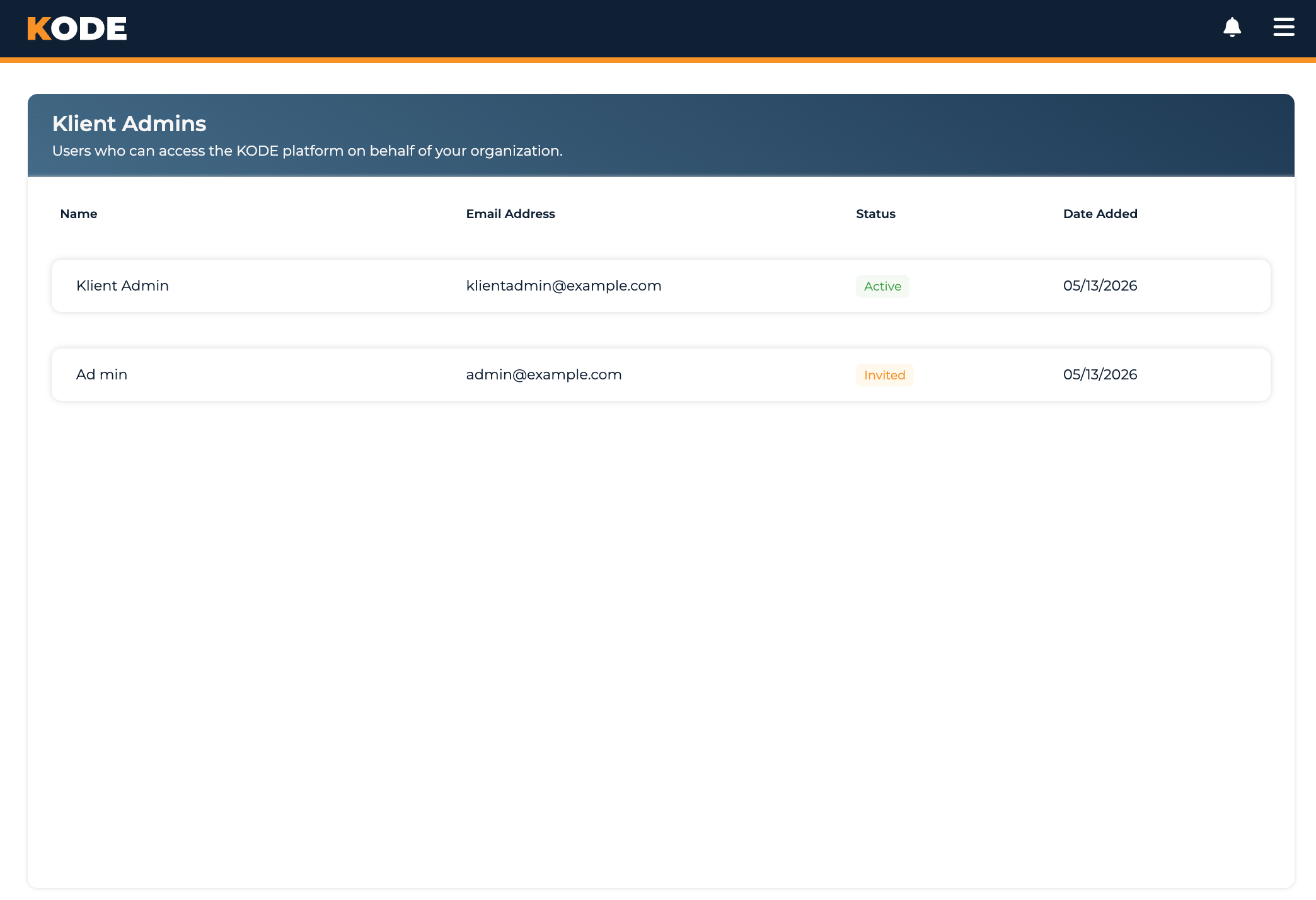
Klient Admins page with the combined roster of active admins and pending invitations
Adding or Removing a Klient Admin
You can't add or remove Klient admins from this page. To onboard a new admin or remove access for someone who's left, contact your Kode account team (your platform manager or platform support). They'll send the invitation or revoke access from the Kode side.
This page exists so you can see who currently has access and confirm pending invitations have been issued.
The Roster
One combined table lists current admins and pending invitations together. Columns:
| Column | What it shows |
|---|---|
| Name | The admin's full name (or invitee's name) |
| Email Address | Their email (login email for admins, target email for invitations) |
| Status | See below |
| Date Added | When the admin was added, or when the invitation was sent |
Status values
| Status | Meaning |
|---|---|
| Active | The person has an accepted membership and can sign in |
| Invited | A pending invitation has been sent but not yet accepted |
| (other state) | If an invitation is in any other state (expired, cancelled, accepted, etc.), the state name is shown as-is |
When someone you've heard was invited finally accepts and sets up their account, their row moves from Invited to Active automatically.
Empty state
When there are no admins or pending invitations: "No client admins or invitations found."
If you expected to see admins here and don't, check with your Kode account team — they may not have been added yet, or their access may have been removed.
Common Questions
Q: How do I add a new Klient Admin?
Contact your Kode account team — they handle invitations on the Kode side. Once they send the invitation, you'll see the person here with an Invited status. After they accept, they'll move to Active.
Q: How do I remove someone who's left the organization?
Contact your Kode account team and ask them to remove the admin. Their row will disappear from this list once they're removed.
Q: How do I know if someone accepted their invitation?
Their row's status changes from Invited to Active. If it's been a while and the status is still Invited, ask the invitee to check their spam folder or contact support to have the invitation re-sent.
Q: Why is there no Invite or Remove button?
By design — Klient admin management goes through the Kode account team so we can keep your audit trail clean and verify each change. Reach out to your platform manager when you need to add or remove admins.
Q: Can the same person be an admin at multiple Klients?
Yes, but they need to be invited separately for each Klient. You'd see them here once they've accepted the invitation for your organization.