Team Connections
The Connections page is your team's koder roster — every koder linked to a team, grouped by where they sit in the workflow. You'll do most of your day-to-day koder management from here: approve presented koders, watch onboarding progress, jump into a koder's detail page, and offboard koders who need to leave the team.
The page title is dynamic — "Connections for <Team Name>" — and the card heading inside reads "Koders".
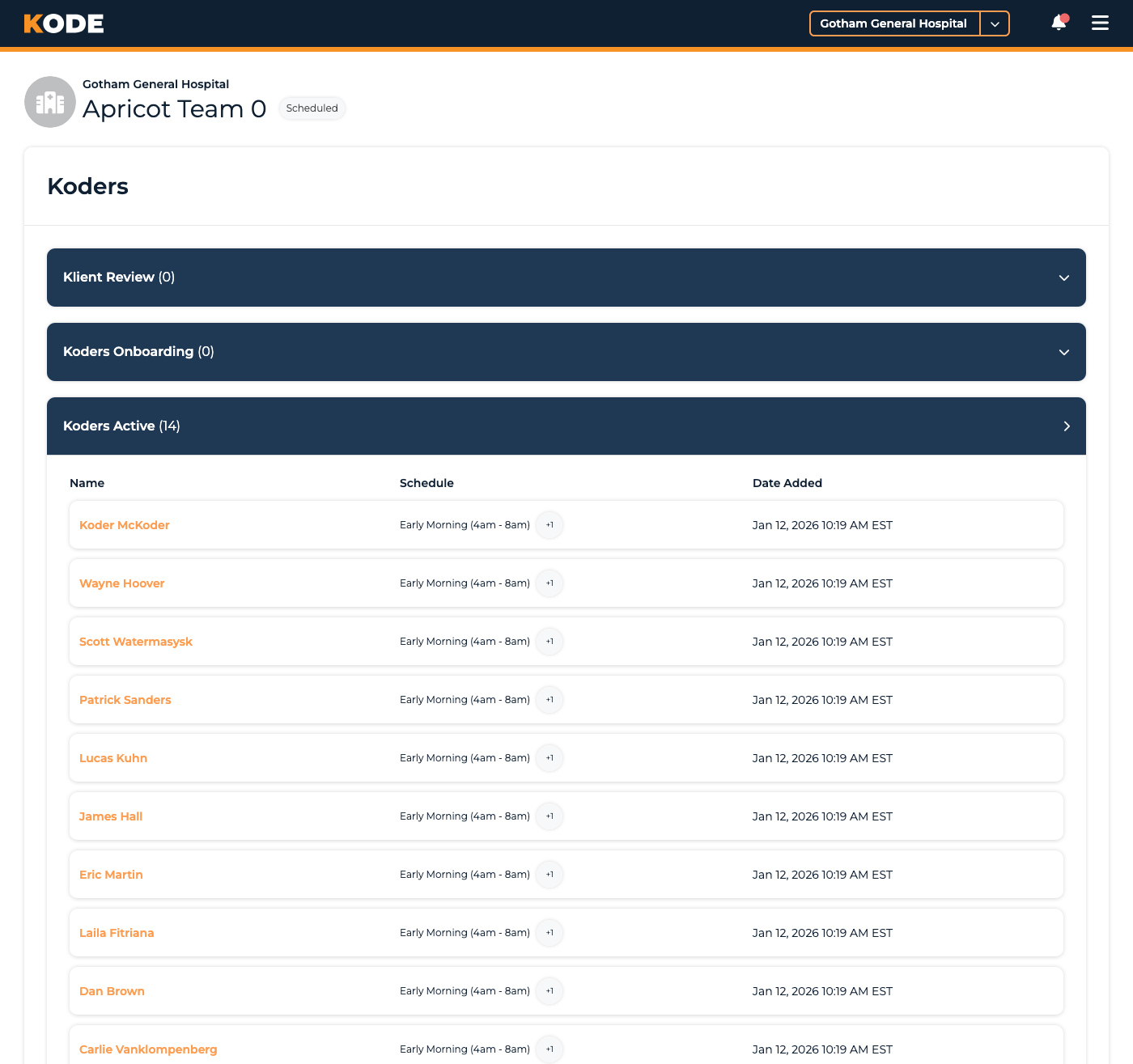
Team Connections page with the Klient Review, Onboarding, and Active accordion sections
Page Layout
The page is split into three accordion sections, stacked top to bottom. Each section loads in its own Turbo Frame and opens automatically if it has any rows:
- Klient Review — koders waiting for your decision (approve or reject)
- Koders Onboarding (or "Koders Awaiting Onboarding" if the team isn't live yet) — koders you've approved who are working through their onboarding
- Koders Active — koders who've finished onboarding and are working on the team
Each section header shows the section name and the count of koders in it. Click anywhere on a section header to collapse or expand it.
Klient Review
Koders the platform has presented to you for review. You decide whether to approve them onto the team or reject them.
Columns
- Name — links to the koder's detail page
- Experience — pill list of past employers from the koder's work history
- Credentials — pill list of credential kinds (CPC, CCS, etc.)
- Schedule — pill list of preferred times of day
Actions
Two buttons on each row:
- Approve — confirms the koder for your team. The koder moves to Koders Onboarding (or directly to Active if the team is set up for that flow).
- Reject — opens a modal that asks you to pick a reason from this list:
- Not enough coding experience
- Not enough experience with needed specialties
- Not available during ideal days of week or times of day
- Already considered (former job candidate or employee)
- Already enough Koders on this Team
The koder is notified after a rejection; they remain available for other teams.
Koders Onboarding
Koders you've approved who are working through their team-specific onboarding (Access, Access Review, Review Knowledge Base, Training).
Live team layout
When the team has gone live, the table shows:
- Name — links to the koder detail page
- Koder Progress — "X of Y Tasks Complete"
- Began Onboarding — the later of the koder's accepted date and the team's go-live date
- View Onboarding button — opens the koder's onboarding-tasks page so you can see which tasks are still outstanding (yours and theirs)
Not-yet-live team layout
When the team hasn't gone live yet, the section is titled "Koders Awaiting Onboarding" and the table swaps to:
- Name
- Schedule — pill list of preferred times of day
- Accepted At — when you approved them
In this state there's no onboarding to track yet — koders begin onboarding once the team goes live.
Koders Active
Koders who've completed onboarding and are working on the team.
Columns
- Name — links to the koder detail page
- Schedule — preferred times of day
- Date Added — when the koder was onboarded onto the team
Per-Koder Detail Page
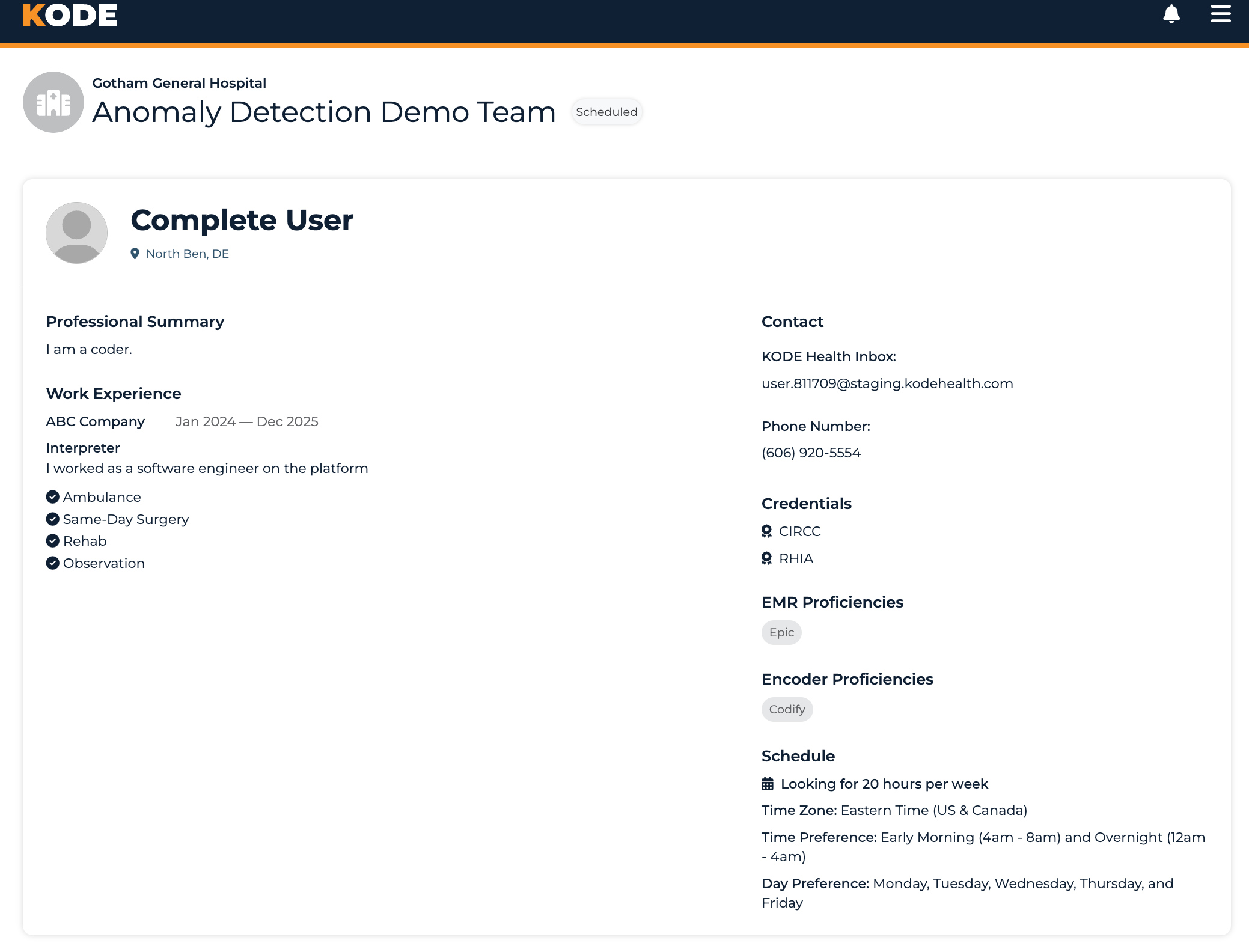
Per-connection detail page with the profile details
Clicking a koder's name on any of the three tables opens that koder's connection detail page. The detail page is organized into tabs:
- Onboarding Tasks — shown only when the koder still has onboarding tasks to track. Lists the tasks (yours and the koder's) with completion state.
- Profile — koder's full profile: bio, work history, credentials, EMR/encoder proficiencies, schedule
- Audit — only shown for Active koders and only while audits are still surfaced in Platform (it's hidden when the audit deprecation flag is on)
The detail page is where you'll find the offboarding action for active or onboarding koders (see below).
Offboarding a Koder
When a koder needs to leave the team, open their detail page and trigger the offboarding action. The offboarding modal asks you to pick a reason from this list:
- Koder's work quality was unacceptable
- Koder's availability was not a fit
- Koder did not respond to communication attempts
- Koder requested to leave the team
- Technical/system issues
- I have too many people on my team
- Other
Two additional reasons can show up but aren't user-selectable (system-applied):
- Team is no longer active and was archived
- User is no longer active and was tombstoned
Once offboarded, the koder leaves the Active roster. Historical records (codes they applied, charts they coded) remain in the platform.
Connection Statuses
Behind the scenes, each koder-team connection moves through a sequence of statuses. You don't manage these directly — they're driven by the koder's onboarding progress — but they're what determines which section a koder shows up in:
| Status | Meaning |
|---|---|
| Profile Review | Platform reviewing the koder's profile before presenting |
| Assessment | Koder taking the coding assessment |
| Awaiting Coder Scheduling | Waiting on the koder to book an interview |
| Meeting Scheduled | Interview booked |
| Ready to Present | Koder cleared for Klient Review |
| Klient Review | Waiting for your approval (appears in Klient Review section) |
| Access Review | Onboarding stage — confirming system access (in Onboarding section) |
| Review Knowledge Base | Onboarding stage — reviewing the team's knowledge base |
| Training | Onboarding stage — Check for Understanding meeting with the trainer |
| Active | Fully onboarded and working (in Active section) |
Plus three terminal/internal states: Rejected, Offboarded, and the composite Onboarding state.
Common Questions
Q: Can a koder be connected to more than one team?
Yes. Each team-koder relationship is a separate connection with its own status and onboarding state.
Q: How do I view a koder's other team connections?
Open the koder's detail page from one team's Connections — the koder's profile shows the broader picture. Their per-team progress is specific to each connection.
Q: I approved a koder but they're not in Active yet. What's next?
After Klient Review approval, the koder moves into Onboarding (or directly to Active if the team is configured that way). Watch the Koders Onboarding section for their progress — they need to finish Access, Access Review, Review Knowledge Base, and Training before they show up in Koders Active.
Q: Why doesn't a koder I rejected disappear immediately?
The rejected koder leaves your Connections immediately. They may still be visible to other teams that are reviewing the same person.
Q: How do I see who's still on a task during onboarding?
Click View Onboarding on the koder's row in the Onboarding section. You'll see each task with its applies-to user (you, your Onboarding Leader, or the koder) and whether it's complete.
Q: Where do I do audit work on a koder?
Audit work has moved to the standalone Audit application. On the koder's detail page, the Audit tab will be hidden when the audit-deprecation flag is on — use the Audit app for that workflow.
Q: A koder is showing under "Awaiting Onboarding" but I expected them to be onboarding now. What gives?
Onboarding can't start until the team has gone live. The "Awaiting" label means the koder is approved but on hold until go-live date. Once the team is live, the section relabels to "Koders Onboarding" and the koder's tasks become trackable.