User Settings
User Settings holds the personal preferences tied to your individual login: your name, phone number, and time zone.
These are personal — they don't affect other Klient admins on your organization.
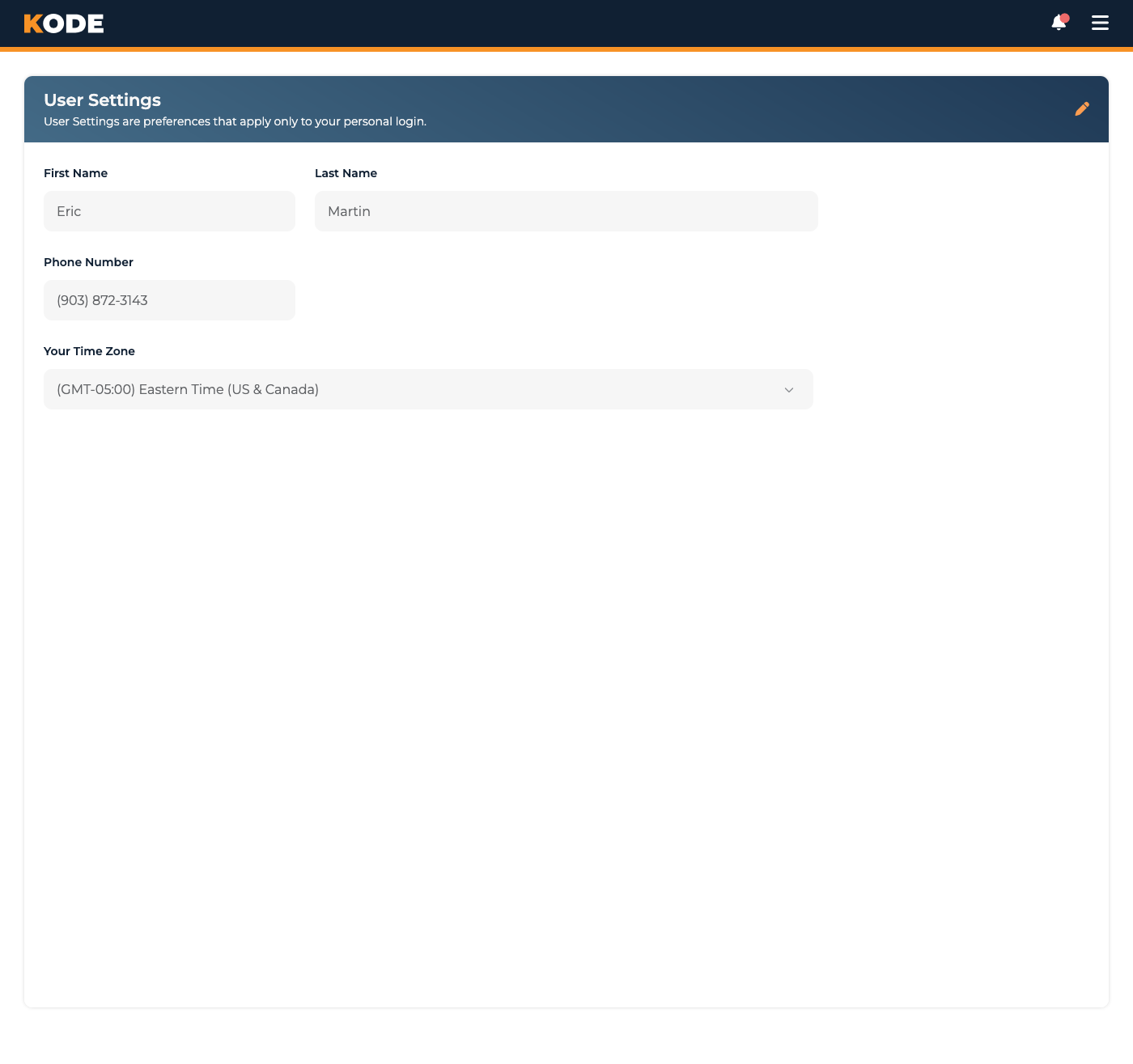
User Settings page showing your name, phone, and time zone
What the Page Shows
The main page is a read-only display of four fields:
- First Name
- Last Name
- Phone Number
- Your Time Zone
To edit any of them, click the pencil icon in the page header — that opens an Edit User Settings modal where you can make changes.
Pending phone verification
If you've changed your phone number but haven't completed SMS verification yet, the Phone Number field shows: "Phone number change pending verification. **Verify now" with a link to the verification page. Click Verify now to finish the SMS code step.
The Edit User Settings Modal
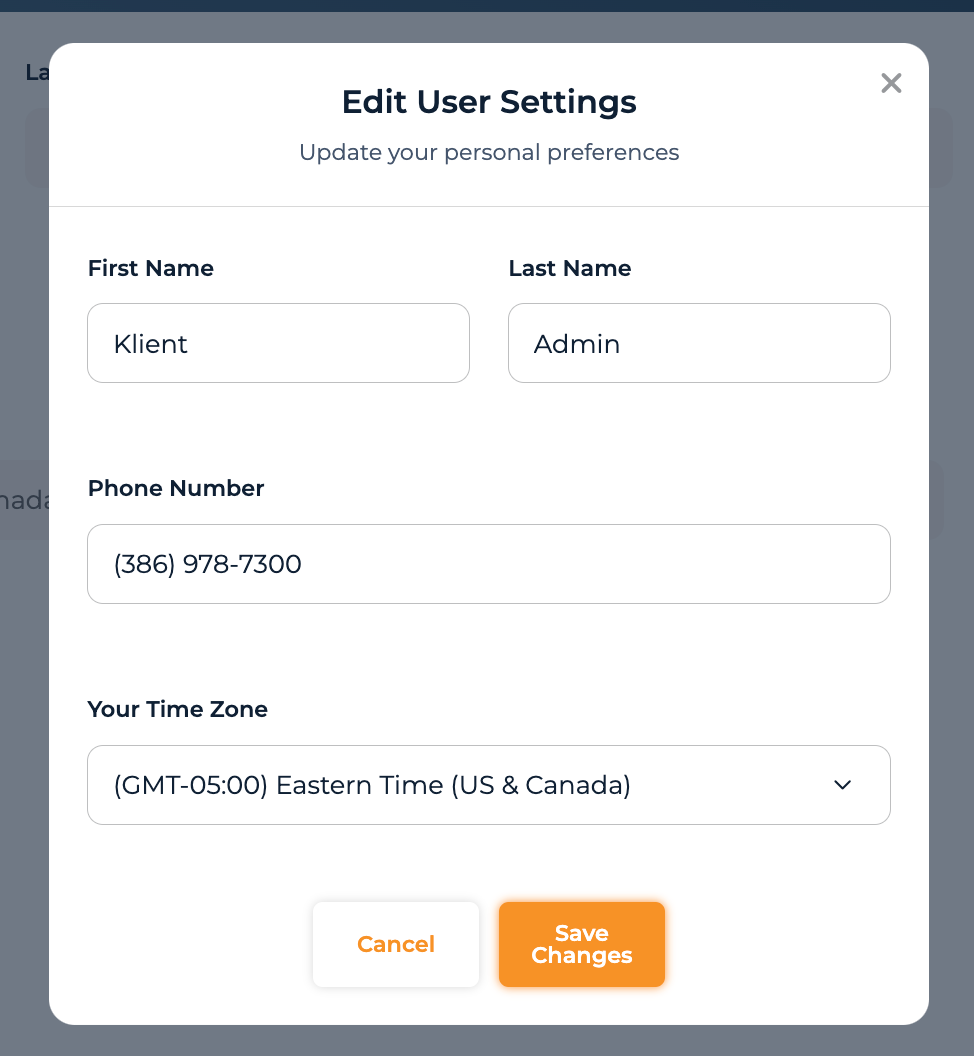
Edit User Settings modal
Clicking the pencil opens a modal titled "Edit User Settings" with the subtitle "Update your personal preferences". All four fields are editable here.
First Name and Last Name
Plain text fields. Update them and save — no extra verification needed.
Phone Number
Editable. Saving a new phone number triggers an SMS verification flow:
- Save the modal
- You're redirected to a verification page
- Enter the SMS code sent to the new number
- Your phone number is updated once the code matches
Until you complete the verification, the old number remains active for 2FA, and the main User Settings page shows the "Phone number change pending verification" notice.
Your Time Zone
Dropdown of the supported US time zones:
- Eastern Time (US & Canada)
- Indiana (East)
- Central Time (US & Canada)
- Mountain Time (US & Canada)
- Arizona
- Pacific Time (US & Canada)
- Alaska
- Hawaii
This controls how times display to you across the app. The actual timestamps in the system don't change — only how they render in your view.
Saving
Click Save Changes at the bottom of the modal (you'll see a "Saving Changes..." loading state). If everything saves, the modal closes and the main page updates. If you change your phone number, you're routed to the SMS verification step before landing back on the page.
Cancel discards any unsaved edits and closes the modal.
Common Questions
Q: Can I change my name from this page?
Yes — First Name and Last Name are editable in the Edit User Settings modal. No support ticket needed for routine name changes.
Q: What if I don't receive the SMS verification code?
- Double-check the number you entered
- Make sure your phone can receive SMS
- Wait a moment and try again from the verification page
- If it keeps failing, contact your Kode account team
Q: Does changing my time zone affect anything besides what I see?
No — the underlying timestamps in the system don't change. Only how they render for you does. Your colleagues in other time zones will see those same times in their time zones.
Q: How does changing my phone affect 2FA?
Until you complete SMS verification on the new number, 2FA continues to use the old number. Once verified, 2FA codes go to the new number.
Q: Why don't I see a password change here?
Password changes happen through the login flow's "Forgot password?" link or via your Kode account team — there's no in-page password change on User Settings.
Tips
- Verify a new phone number immediately — until you do, the old number is still the one receiving 2FA codes
- Set the correct time zone — it's how every date and time in the app gets rendered for you
- Update Name promptly — your name is what coders and your team see across the platform