Onboarding
When you join a new team, you'll go through a 4- or 5-stage onboarding wizard to get set up before you can start coding. The wizard covers access setup, a review meeting, knowledge base materials, and a training session — plus an extra Set Schedule stage at the start if you've committed weekly hours to the team.
How the Wizard Works
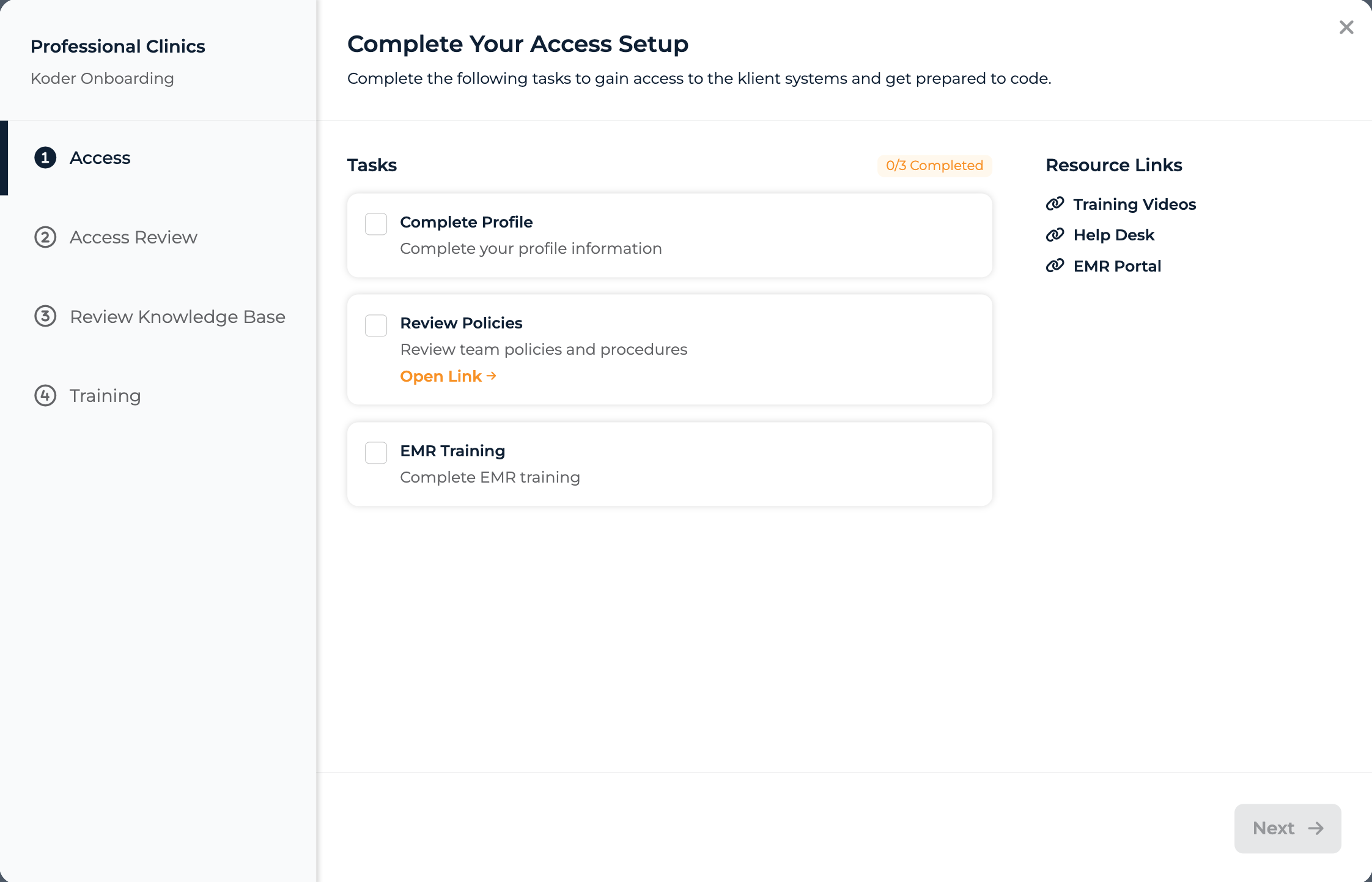
Full koder onboarding wizard with sidebar
The onboarding wizard has a sidebar showing your stages. You work through them in order — each stage unlocks as you finish the previous one. Your progress saves automatically, so you can leave and come back anytime.
Stage 1: Set Schedule
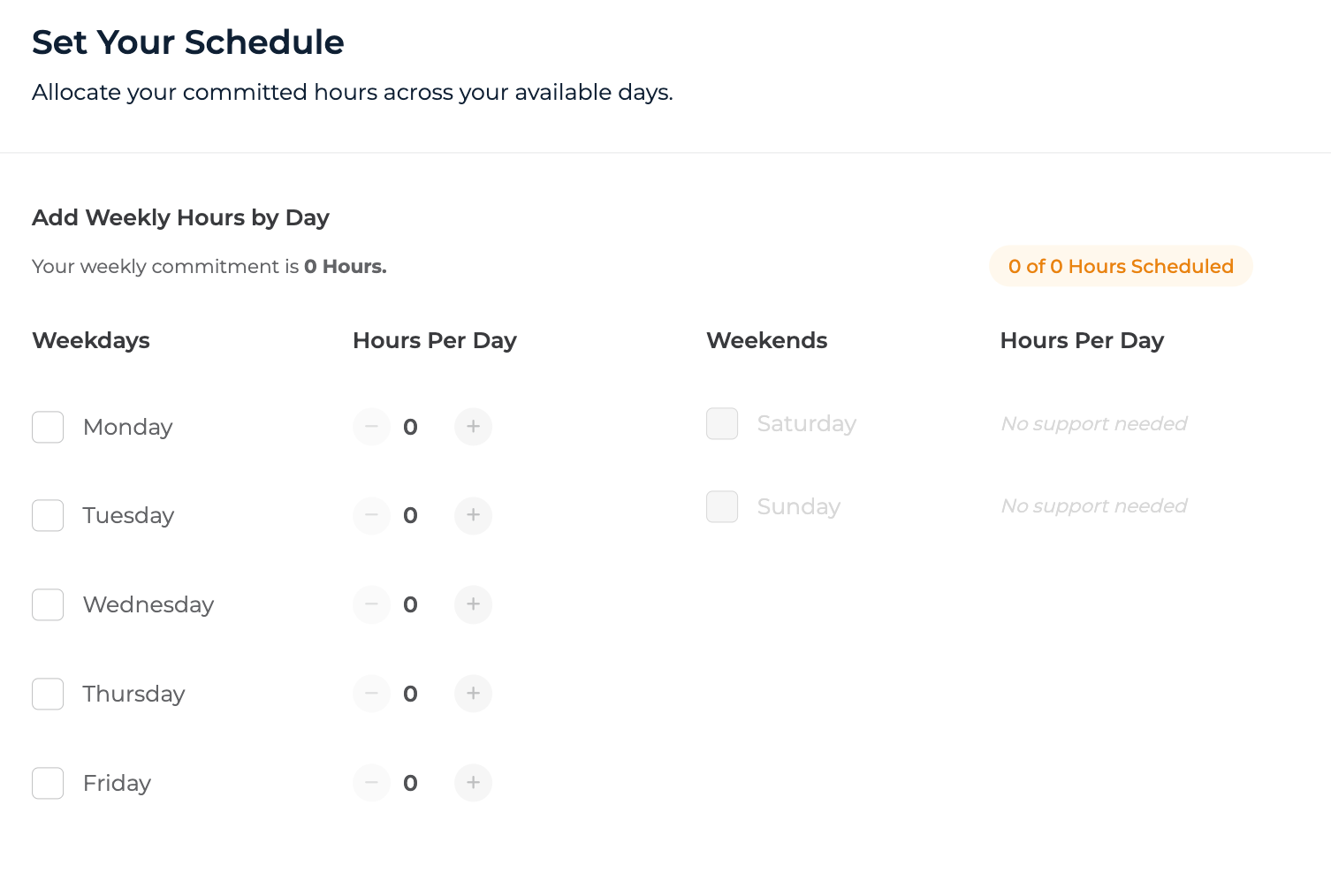
Set Schedule stage with the weekly hours-by-day allocation grid (only shown when you've committed weekly hours)
Only shown if you've committed weekly hours to the team. If your team connection doesn't have a committed hours value, this stage is skipped entirely and the wizard starts at Access.
What you'll do: Allocate your committed hours across the team's workable days.
You'll see a weekly grid split into Weekdays (Mon–Fri) and Weekends (Sat–Sun). For each day the team supports, enter how many hours you'll work. A progress pill at the top shows how many of your committed hours you've allocated so far — for example, "12 of 20 Hours Scheduled".
Days the team doesn't support are shown disabled with a "No support needed" label so it's clear those aren't options.
You can come back to this stage and adjust your allocation any time during onboarding — re-submitting replaces your standing schedule but preserves the original "set" timestamp.
Stage 2: Access
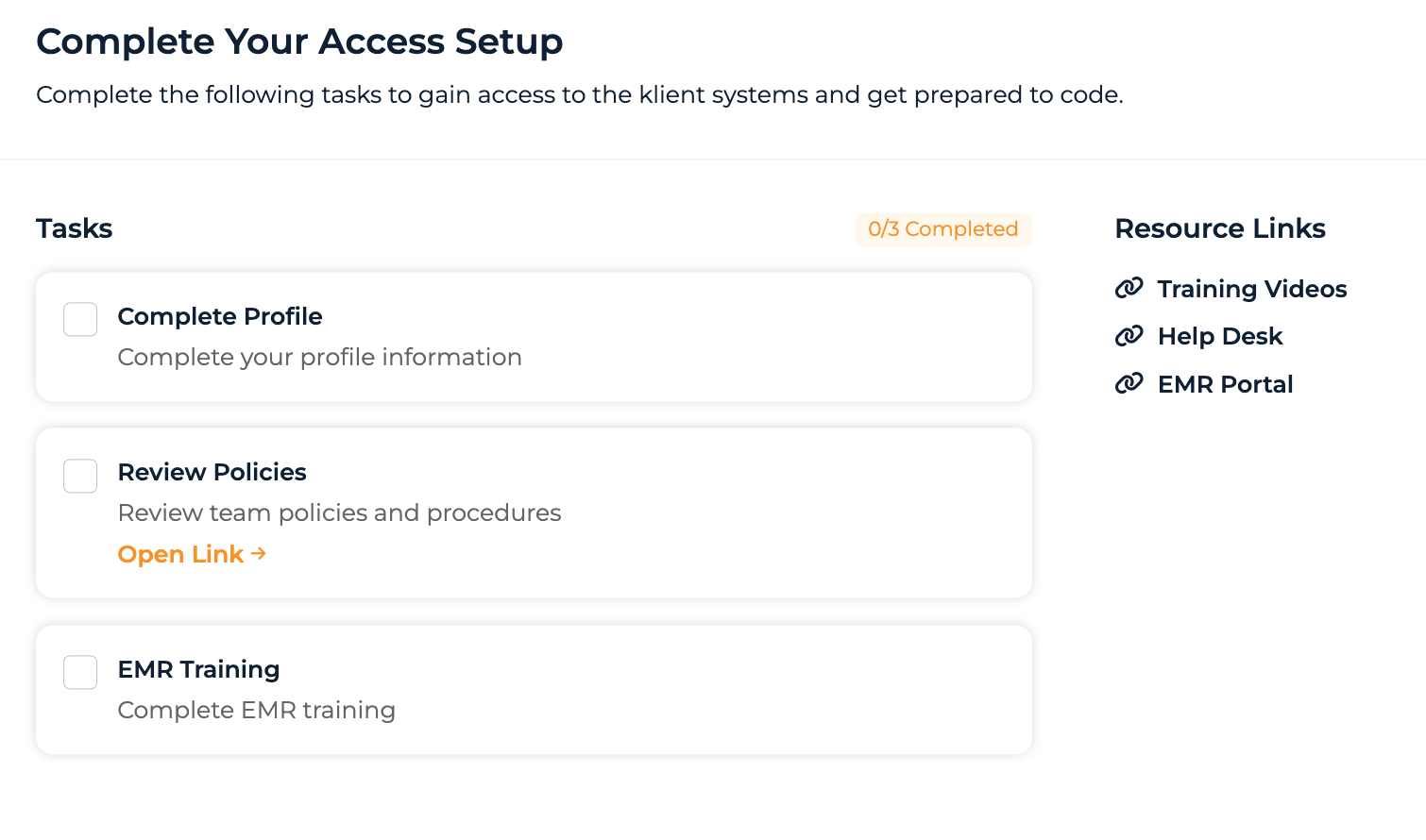
Access stage with tasks and resource links
What you'll do: Complete access tasks and review resource links to get set up in the client's systems.
The stage is split into two parts:
- Access Tasks — A checklist of things to complete. Mark each one as done when you finish it.
- Resource Links — Helpful links for the team, like system URLs, reference materials, or training resources.
Some tasks may be admin tasks that your platform manager handles. If there are pending admin tasks, you'll see a message at the bottom explaining you're waiting on those.
When it's complete: All tasks (including admin tasks) are marked done.
Stage 3: Access Review
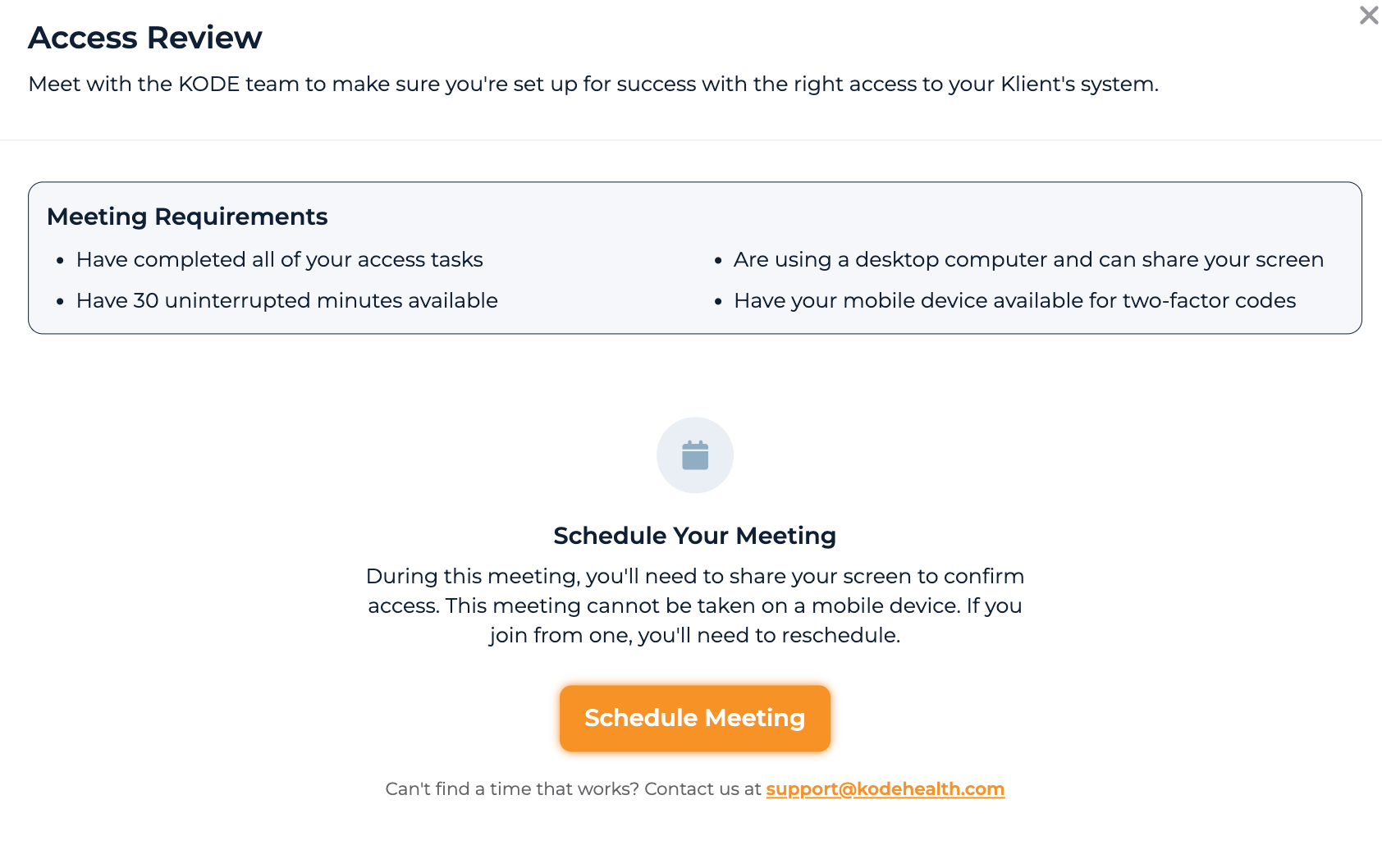
Access Review stage with Calendly scheduling
What you'll do: Schedule and attend a meeting with Koder Services to confirm your access is working.
You'll connect with the KODE team via Calendly to verify your system access. Here's the flow:
- Schedule — Click Schedule Meeting to open Calendly and pick a time.
- Meeting Requested — After selecting a time, the status updates to show your meeting is being confirmed.
- Meeting Scheduled — Once Calendly confirms, you'll see your appointment date/time and a reschedule link.
- Access Confirmed — After the meeting, Koder Services marks your access as confirmed and the stage shows a green "Access Confirmed" state.
Meeting Requirements
Before scheduling, make sure you:
- Have completed all of your access tasks
- Are using a desktop computer and can share your screen (you can't take this meeting on a mobile device — if you join from one, you'll need to reschedule)
- Have 30 uninterrupted minutes available
- Have your mobile device available for two-factor codes
Can't find a time? A note below the Schedule button shows a support@kodehealth.com link you can reach out to for help.
Stage 4: Review Knowledge Base
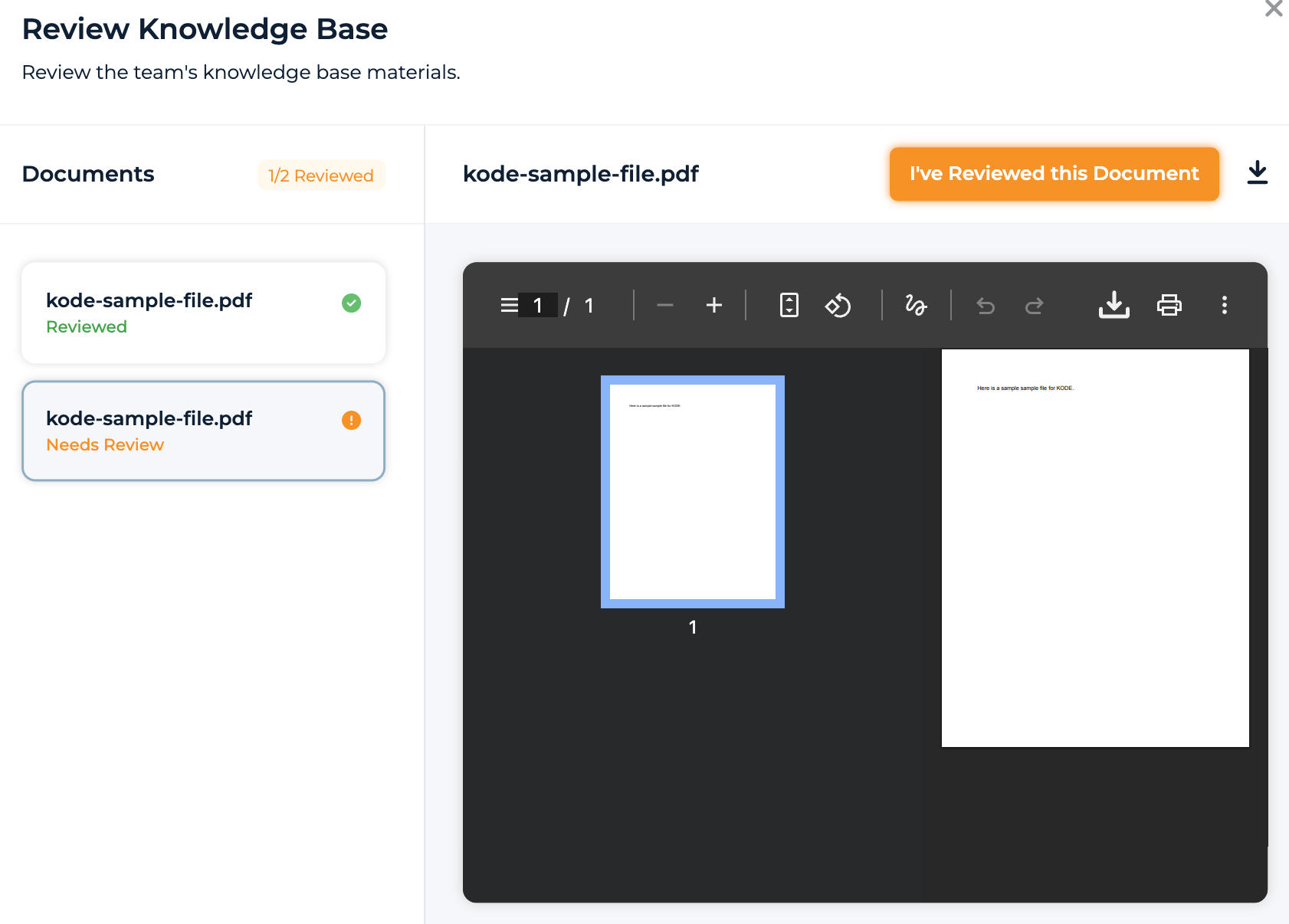
Review Knowledge Base stage with document list and preview
What you'll do: Review the team's knowledge base materials that have been approved by your trainer.
This stage shows documents your team's trainer has verified. The layout is a two-pane view: a document list on the left and a preview pane on the right. For each document:
- Click the document to preview it inline in the right pane
- Click I've Reviewed this Document to mark it as reviewed
- Track progress with the badge in the header (e.g.,
2/4 Reviewed)
When This Stage is Locked
This stage stays locked until:
- Your team's trainer has completed their onboarding (they verify the knowledge base first)
- Your Access Review meeting is at least scheduled (or already confirmed)
If it's locked, you'll see a footer message explaining what's still pending.
Read-only mode: If the stage is unlocked but your access review hasn't been confirmed yet, you can browse documents but the review button is disabled with a tooltip explaining it'll become available after access review is complete.
If your team has no knowledge base documents (or the trainer hasn't finished preparing the KB), you'll see a single-column message instead of the two-pane view — just click Next to continue.
Stage 5: Training
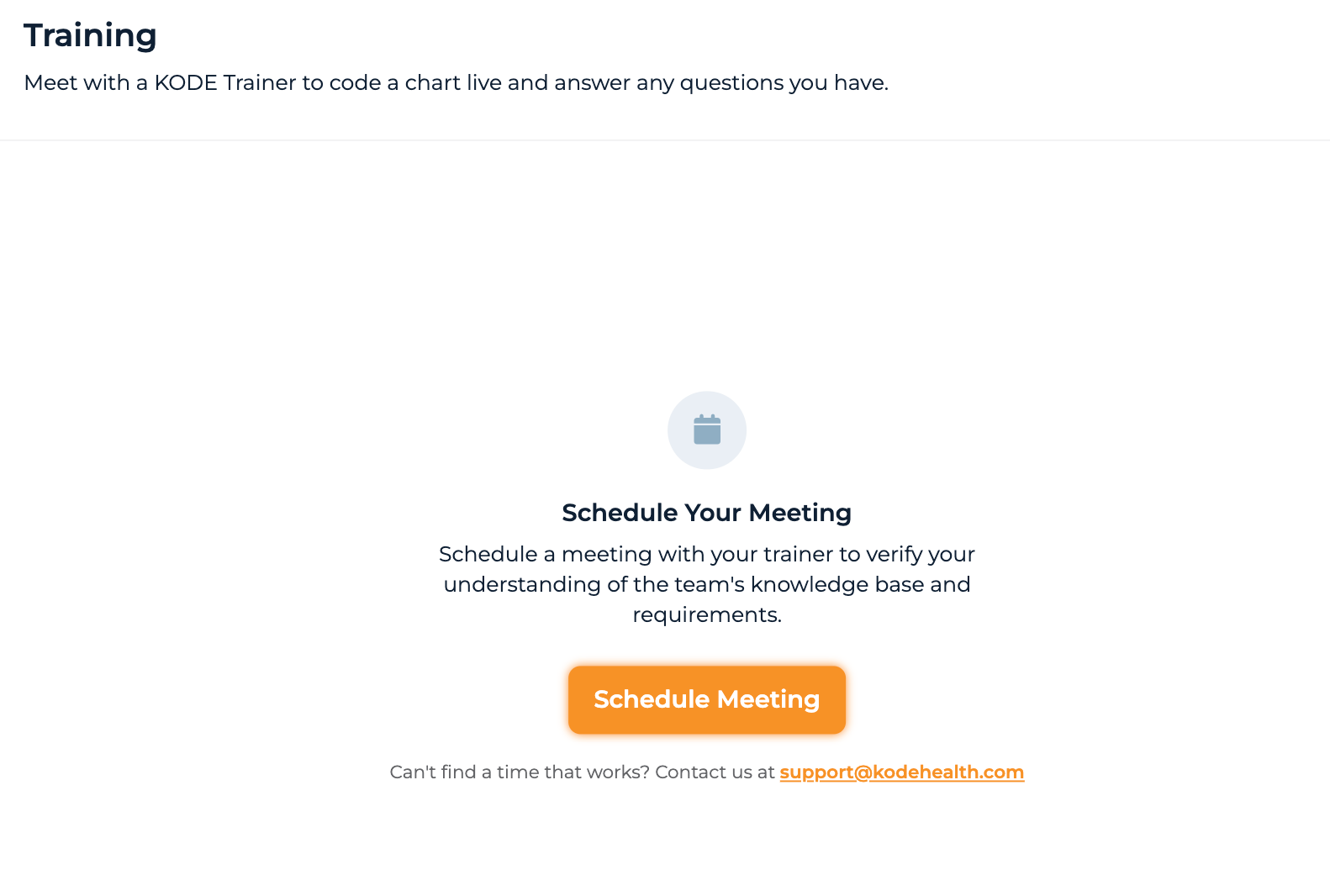
Training stage with trainer meeting scheduling and Playground entry
What you'll do: Schedule and attend a Check for Understanding meeting with your team's trainer.
You'll meet with a KODE Trainer to code a chart live and answer any questions you have about the team's coding requirements. The scheduling flow works the same as the Access Review:
- Schedule — Pick a time via Calendly.
- Meeting Requested → Meeting Scheduled — The system confirms your booking and shows the appointment time plus a reschedule link.
- Thanks for Attending! — After the meeting, the trainer recommends approval and you'll see a confirmation message.
Playground Access
Once your meeting is scheduled (or completed), a Playground entry appears alongside the meeting card. The Playground lets you practice coding in a safe environment before going live on real charts.
When This Stage is Locked
This stage is locked until you've completed the Review Knowledge Base stage (reviewed all approved documents).
What Happens After
After your trainer recommends approval, your platform manager moves you to Active on the team. The team then shows up in Active Teams on your dashboard, and you can start claiming real charts.
Tips
- Work through stages in order — You can't skip ahead. Each stage builds on the previous one.
- Check back if stages are locked — Your trainer or platform manager may need to finish something first.
- Prepare for meetings — Have your computer ready with client system access before meetings.
- Progress saves automatically — No need to finish a stage in one sitting.
- Multiple teams — Each team has its own wizard, so you can onboard for several teams at once.
Common Questions
Q: Why don't I see the Set Schedule stage?
The Set Schedule stage only appears if you've committed weekly hours to the team. If your team connection doesn't have committed hours, the stage is skipped and the wizard starts at Access.
Q: Why is the Review Knowledge Base stage locked?
Two things need to happen: (1) your team's trainer must finish their onboarding and verify the knowledge base, and (2) your Access Review meeting must be at least scheduled. Check the footer message for details.
Q: What's the "Training" meeting about?
You'll meet with your team's trainer to code a chart together and answer any questions you have. It's a collaborative session, not an exam. After it's done, the trainer recommends you for approval and your platform manager activates you on the team.
Q: Can I reschedule meetings?
Yes — once scheduled, you'll see a reschedule link next to your appointment time. Click it to pick a new time through Calendly.
Q: How long does onboarding usually take?
Typically a few days to a week, depending on meeting availability and how quickly your trainer completes their own onboarding.
Q: What if there's no trainer assigned to my team yet?
You can complete the Set Schedule, Access, and Access Review stages. The Review Knowledge Base and Training stages will unlock once a trainer finishes their onboarding for your team.
Q: I finished onboarding but still can't code. What's going on?
After the training meeting, the trainer recommends approval — but it's the platform manager who actually moves you to Active. If you've already attended your training meeting and you're still not active, reach out to your platform manager.