Personal Information
Personal Information is where you manage your profile details — name, email, phone, birth date, mailing address, identity verification, and tax info. Most of this is required to stay eligible to code.
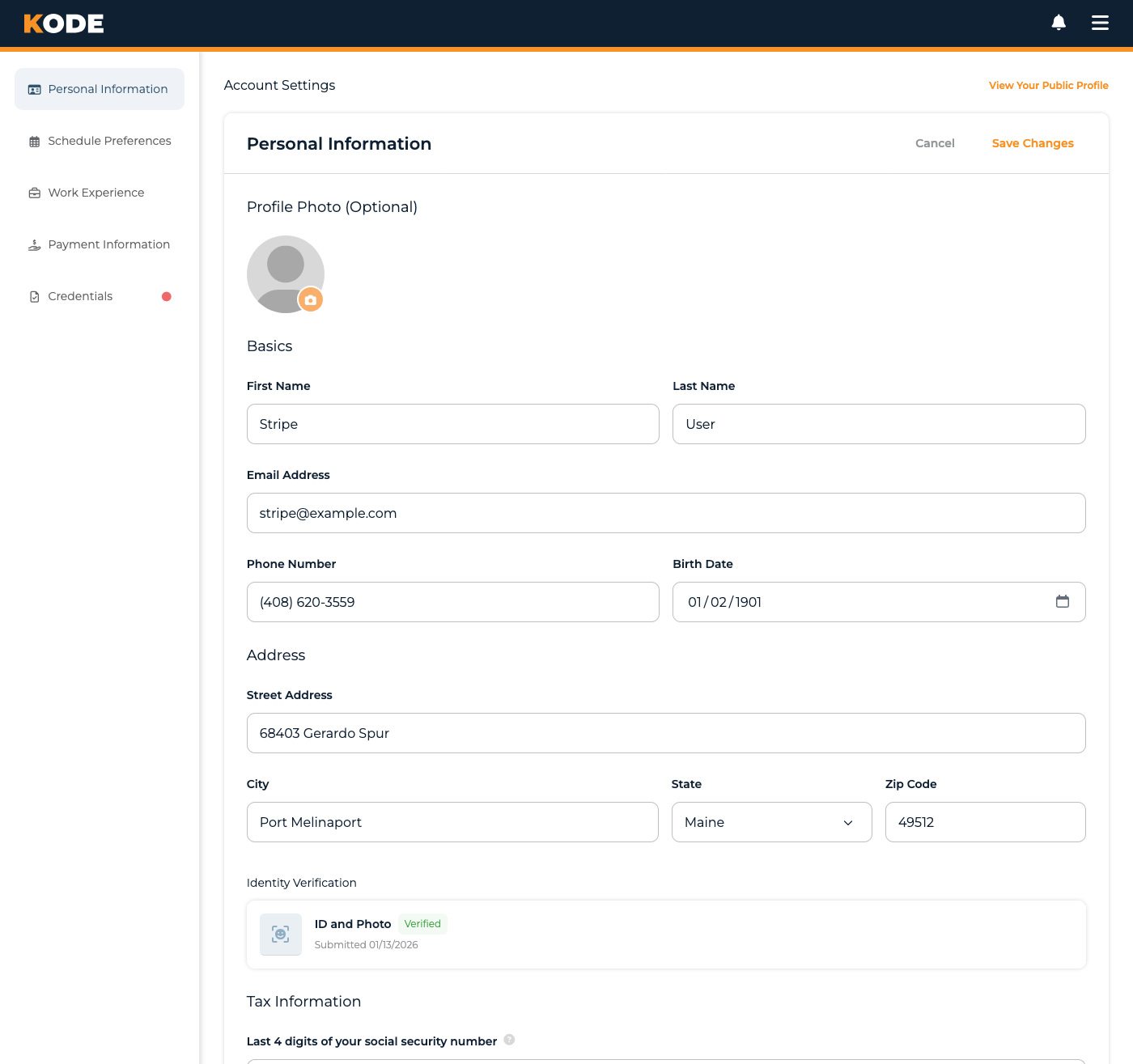
Personal Information page with profile photo, basics, address, identity verification, and tax info sections
Page Layout
The form has five sections, top to bottom, with Cancel and Save Changes buttons in the header that act on the whole page. Save Changes stays grayed out until you change something on the page.
1. Profile Photo (Optional)
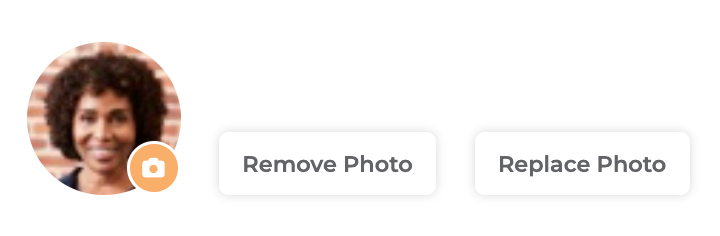
Profile Photo uploader with the avatar preview and remove control
The first section is your avatar. Use the uploader to pick a clear, professional headshot — your photo is what Klients and team members see across the platform. The control has a remove option if you want to clear the current photo.
This is the only optional section on the page.
2. Basics
Identity and contact fields:
- First Name + Last Name — should match your government ID for identity verification
- Email Address — your login and primary contact
- Phone Number — used for two-factor authentication and account recovery
- Birth Date — required (used for identity and background checks)
Email verification messaging
If your account isn't yet confirmed, an inline message appears: "You must verify your email before continuing." alongside a Resend email link to
Phone verification
Changing your phone number on this page doesn't verify it inline. After saving, a hint appears: "Check your phone to confirm your new phone number. **Verify now". The "Verify now" link takes you to a separate page where you'll enter the SMS code to confirm the new number.
3. Address
Used for tax documents (1099s), background check verification, and legal correspondence:
- Street Address
- City
- State (dropdown)
- Zip Code
4. Identity Verification

Identity Verification section with the Stripe Identity card and Start Verification / Retry button
For compliance and payment processing, you verify your identity through Stripe Identity. Click Start Verification (or Retry if a previous attempt failed) and a Stripe modal opens on the page — no redirect. Inside the modal, Stripe walks you through capturing a government-issued ID and a selfie.
The card shows a status pill on the right:
| Pill text | Color | What it means |
|---|---|---|
| Action Required | orange | No session yet, or your session needs you to start (or restart) the Stripe flow. |
| Processing | orange | Stripe is reviewing your submission. Tooltip: "Your identity is being verified. Please check back later." |
| Verified | green | Identity confirmed. The action button disappears. |
| Failed | red | Stripe couldn't verify automatically. The tooltip shows the specific reason. |
| Failed — Under Manual Review | red | Automatic verification failed, but our team is reviewing your documents manually. |
5. Tax Information
A single field: Last 4 digits of your social security number.
- The field is a masked password input — your digits show as dots
- A show/hide eye icon on the right reveals the value when you need to verify what you entered
- The tooltip next to the label reads: "We use this information to conduct a background check and send you year-end tax documents related to your earnings. Not to worry — your data is secure."
Saving
The Save Changes button is in the header (alongside a Cancel button that resets the form to the last saved state). Save is grayed out until you change something — editing a field back to its saved value grays it out again. Save validates the whole page — if any required field is missing or identity verification is incomplete, the form re-renders with errors at the top.
Common Questions
Q: Why is the Save Changes button rejecting me even though I filled everything in?
The form checks identity verification before allowing onboarding to proceed. If you haven't started (or completed) the Stripe Identity flow, you'll see an "Identity verification required" error. Open the Identity Verification section and click Start Verification.
Q: I changed my phone number but it's still showing the old one as verified. What now?
Phone changes don't take effect until you confirm the new number on the separate /mobile_phone_number/edit page. Click the Verify now link in the hint under the Phone Number field, then enter the SMS code there. The new number becomes active once confirmed.
Q: My identity verification keeps failing — what should I do?
Common reasons:
- Blurry or unclear ID photos
- Name on ID doesn't match First/Last Name on this page
- Selfie doesn't match the ID photo
- Expired ID
Click Retry and try again with a clearer image. If automatic verification fails repeatedly, your status flips to Failed — Under Manual Review and our team takes a manual look — no further action needed from you while it's in that state.
Q: Is my SSN safe?
Only the last 4 digits are ever stored, and the field is masked by default with a show/hide toggle. The value is encrypted at rest.
Q: Can I change my email?
Yes — update the field and Save. A verification link is sent to the new address; you need to click it before the new email becomes active. The old address stays live until then.
Q: Do I need to update my address if I move?
Yes, promptly. This is what we use for 1099s, background checks, and any legal correspondence.
Q: Is everything on this page required?
Most of it is. The only optional section is Profile Photo. Birth Date, address fields, and SSN last-4 are all required for the form to save successfully (and identity verification is required for onboarding).
Tips
- Use your legal name — has to match your government ID for Stripe Identity to verify
- Set up identity verification early — don't wait until you're trying to start coding
- Watch the verification status pill — it tells you exactly where you stand without needing to dig
- Use the eye icon on the SSN field to double-check you typed the right digits before saving