Schedule Preferences
Schedule Preferences let you tell KODE and Klients when you generally work and how many hours you want each week. These are preferences, not commitments — you can update them anytime and your actual availability can differ from what you set here.
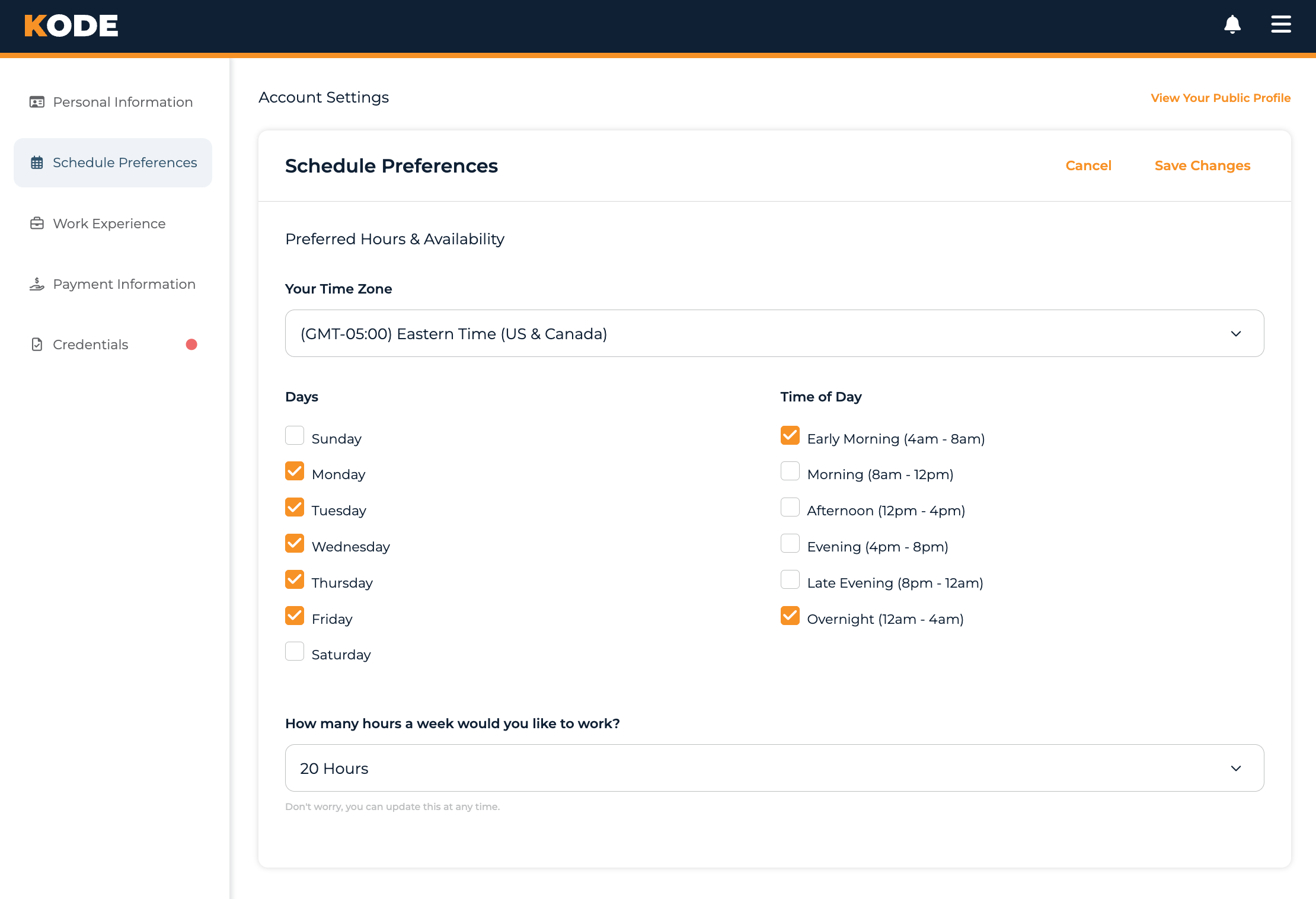
Schedule Preferences form with Time Zone, Days, Time of Day, and Desired Hours fields
The Form
One card, titled Schedule Preferences, with a single section: Preferred Hours & Availability. Save with the Save Changes button in the card header (Cancel button next to it discards unsaved edits). Save Changes stays grayed out until you change something on the form.
The form has four fields. All are required: you can't save without picking a time zone, at least one Day, at least one Time of Day, and a Desired Hours value.
Your Time Zone
Pick your US time zone from a single dropdown. The available options are:
- Eastern Time (US & Canada)
- Indiana (East)
- Central Time (US & Canada)
- Mountain Time (US & Canada)
- Arizona
- Pacific Time (US & Canada)
- Alaska
- Hawaii
This drives how times are displayed to you across the app.
Days
Check the days you're typically available to work. Days are shown in the standard order starting with Sunday:
- Sunday
- Monday
- Tuesday
- Wednesday
- Thursday
- Friday
- Saturday
Pick at least one. Most coders pick several.
Time of Day
Check the time blocks you typically work in. There are six blocks:
| Block | Window |
|---|---|
| Early Morning | 4am – 8am |
| Morning | 8am – 12pm |
| Afternoon | 12pm – 4pm |
| Evening | 4pm – 8pm |
| Late Evening | 8pm – 12am |
| Overnight | 12am – 4am |
Pick at least one.
How many hours a week would you like to work?
A single dropdown of hour values in 5-hour increments, from 5 Hours up to 50 Hours. Pick whichever is closest to your target.
The form text below the dropdown reads: "Don't worry, you can update this at any time."
Saving
Click Save Changes in the card header. If any required field is missing, the form re-renders with errors at the top of the card. On success, you'll see "Your profile has been updated" and land on the next profile section.
You can change preferences any time.
How Preferences Are Used
- Team matching — your day and time-of-day picks help surface opportunities from teams that need coverage in those windows
- Display — your time zone controls how times render for you across the app
- Capacity signal — your Desired Hours give teams and KODE a rough sense of the workload you're looking for
Not a Contract
These are preferences, not requirements:
- You aren't required to work the hours you set
- You can work outside the days or times you picked
- Your actual availability may vary week to week
Think of them as guidelines that help match you to the right teams.
Common Questions
Q: Do I have to work during my selected times?
No, these are preferences, not requirements. You can work whenever you have time and charts are available.
Q: What if my availability changes?
Update your preferences anytime. Changes take effect immediately.
Q: Why does my time zone matter?
So times display correctly for you across the app (your dashboard, work history, notifications, etc.).
Q: What if I want to work more (or fewer) than my Desired Hours?
Go ahead — it's a guideline, not a cap or a minimum. The dropdown caps at 50 hours, so pick the closest value to your target.
Q: Do I have to pick every day and every time block I might work?
Pick the days and time blocks where you regularly or typically work. You don't need to capture every edge case — broader picks just mean more opportunities can surface for you.
Q: My target is 25 hours but only 5-hour increments are offered — what do I pick?
Pick the closest increment (25). The form only accepts multiples of 5.
Tips
- Be realistic — set preferences you can actually maintain most of the time
- Update when things change — if your life situation changes, update your preferences
- Don't over-restrict — broader picks across Days and Time of Day surface more opportunities
- Set your time zone first — it drives how everything else is displayed