Secure Tasks
Secure Tasks is where you'll find follow-up requests sent to you by your klients and KODE leadership — things like "this deferred chart can be worked again" or a coding question about a specific encounter. It replaces the back-and-forth that used to happen over email, and everything in it is encrypted, so it's safe to discuss chart details here.
It's different from your Secure Inbox: the Secure Inbox is a receive-only mailbox for platform notices, while Secure Tasks are things assigned to you to act on and complete.
You'll reach your Secure Tasks from a direct link to the page. Once you're there, the Open tab keeps a running count of everything still waiting on you, so you can see at a glance how much is outstanding.
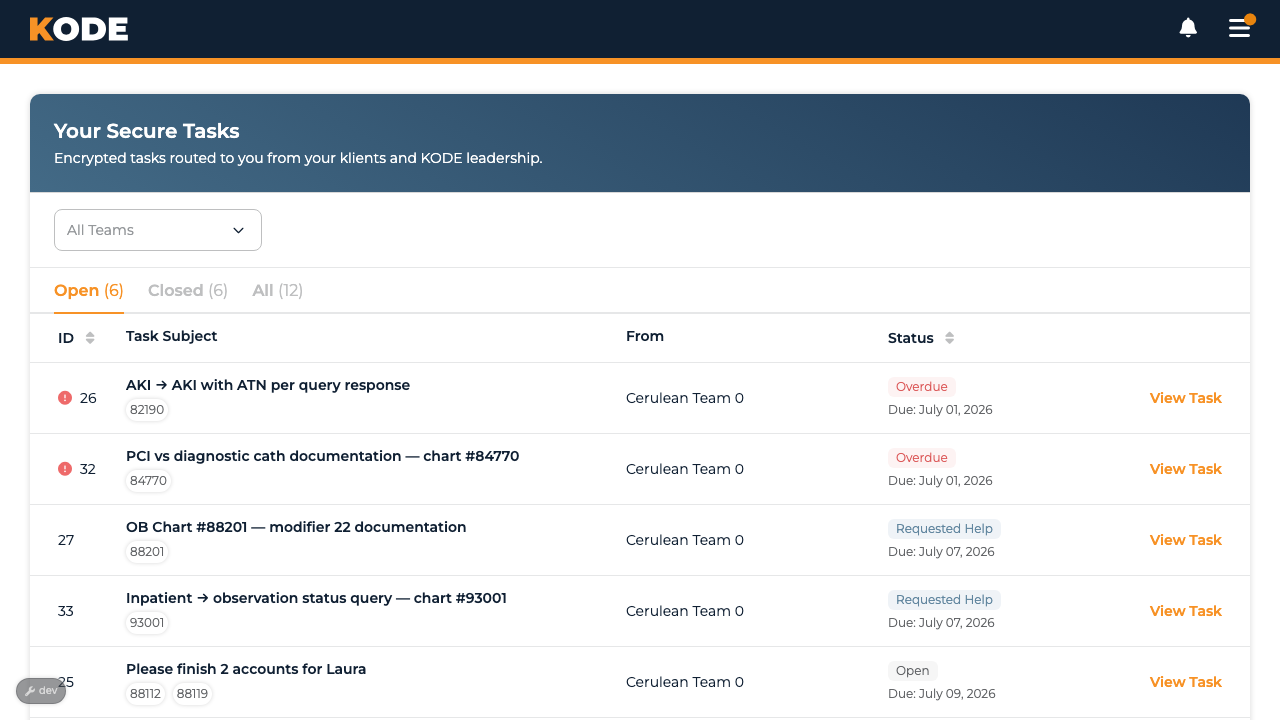
Your Secure Tasks list with the Open / Closed / All tabs and the team filter
Your Task List
The list shows every task assigned to you on the teams you're currently on. (If you leave a team, its tasks move to your KODE trainer and drop off your list.)
Tabs let you switch between:
- Open — tasks still waiting on you
- Closed — tasks that are finished (completed, closed, or canceled)
- All — everything
Use the Team dropdown to narrow the list to a single team. Tasks are sorted by due date, oldest first, so the most urgent work is at the top.
Each row shows:
- ID — the task's number
- Task Subject — the title, plus any encounter IDs and a 📎 count if files are attached
- From — the klient team the request is about
- Status — where the task stands, with its due date underneath
What the statuses mean
- Open — assigned and waiting on you
- Overdue — the due date has passed (shown in red)
- Requested Help — you've asked your KODE lead for help on this one
- Complete — it's been marked done (open it to read the completion note, if one was added)
- Cannot Complete / Canceled — closed by KODE. The status tag is the whole story here; the reason KODE recorded is for the person who sent the task, so it isn't shown to you. Ask on the conversation if you need the detail.
Opening a Task
Click View Task on any row to open it in a slide-out panel without leaving the list. Inside you'll see:
- Conversation — the message thread for this task (more below)
- Secure task details — who it's from, the team, when it was sent, and the due date
- Encounters & description — the encounter IDs and the full request
- Encrypted Attachments — any files attached to the task
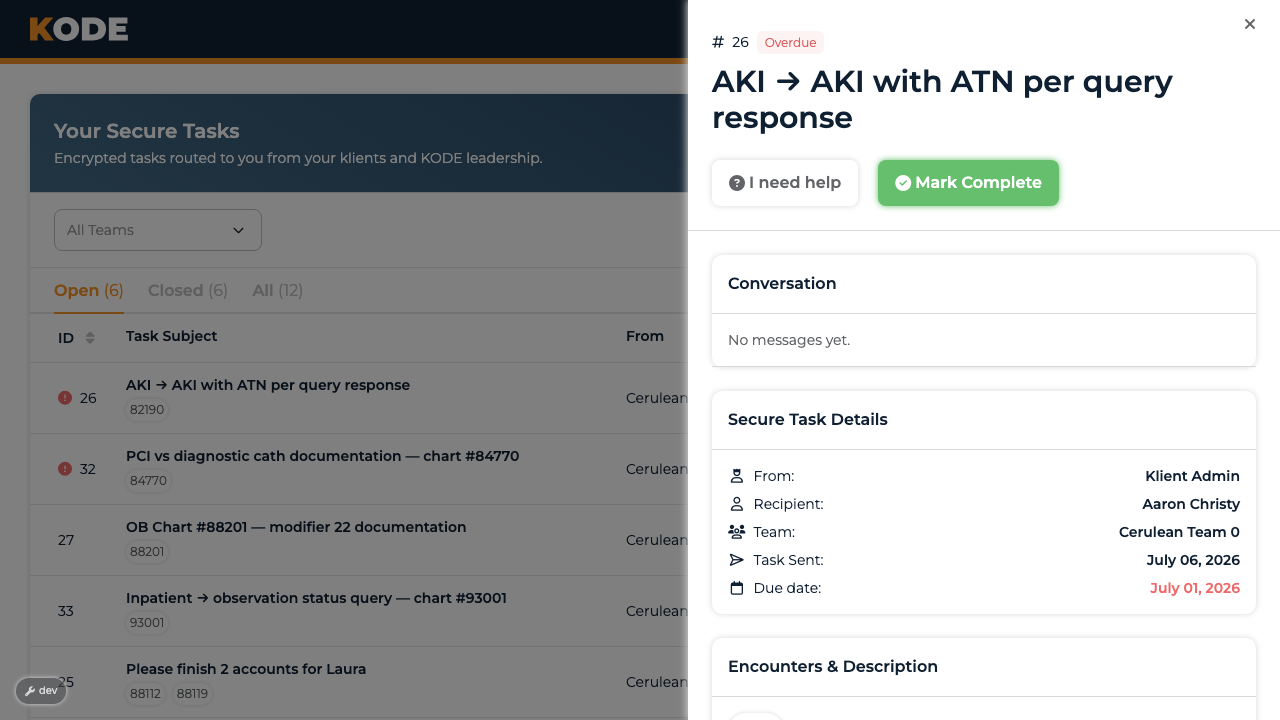
A task opened in the slide-out, showing the conversation, details, encounters, and attachments
Attachments
If a task has files, you can View them in your browser (for file types that display safely) or Download them. Because these may contain protected health information, downloads are delivered through a secure, access-checked link — you can't share a raw file URL.
Asking for Help
Stuck on a task — a sequencing question, a documentation gap, missing chart data? Click I need help.
A short Request Task Help form opens. Describe what you're stuck on and click Send to KODE Team. This goes privately to your KODE lead (your trainer) — the original sender is not added to that thread — and it flags the task so your lead knows to step in.
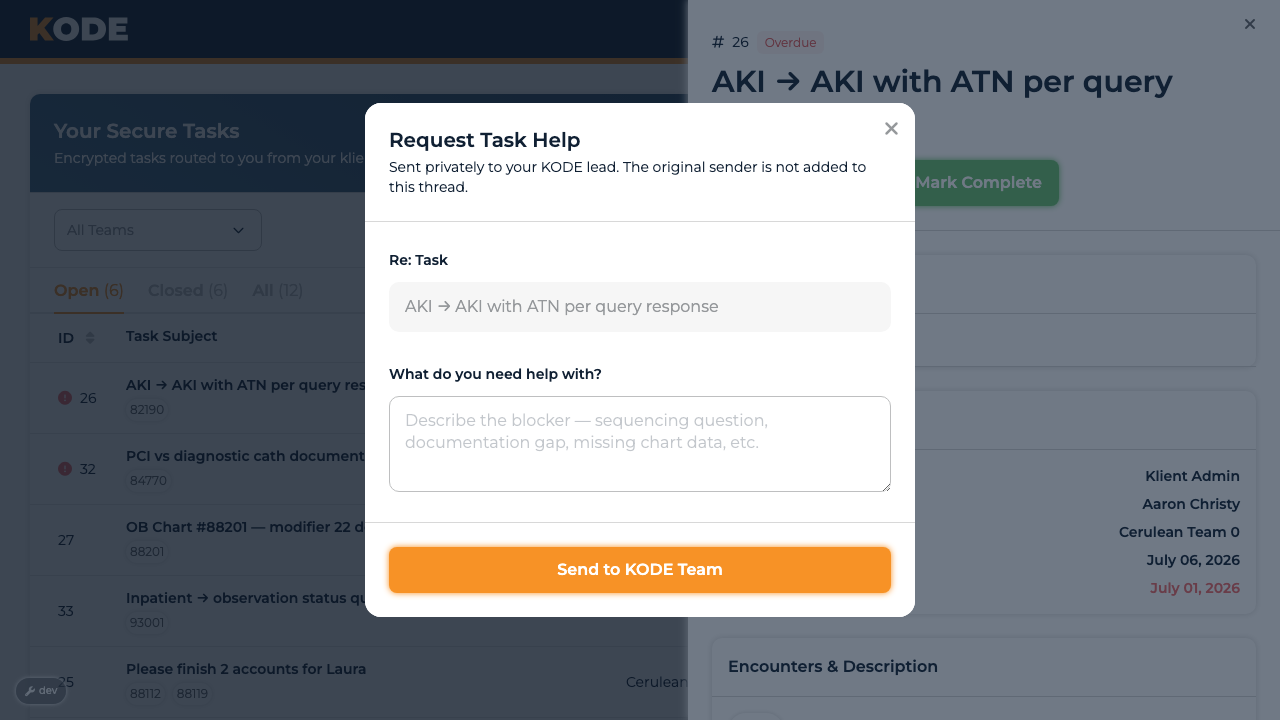
The Request Task Help window
After you've asked, the button changes to Help Requested and the task's conversation opens up so you and your KODE lead can work it out together (more below). Asking for help doesn't take the task away from you — once you're unblocked, you can still finish it yourself.
Messaging on a Task
The conversation is a help thread — it opens once you've clicked I need help. Until then there's nothing to type into: the thread is empty and read-only. After you ask for help, a Send Message box appears at the bottom; type and send, and your message shows up instantly for everyone on the task, with theirs appearing for you in real time.
Made a typo? Open the ⋯ menu on one of your own messages to Edit or Delete it. Deleting is tidy, not secret — others will see that a message was removed, but not what it said. (Once a task is closed, the conversation locks and these options go away.)
Finishing a Task
When the request is handled, click Mark Complete. A window opens asking you to "Add any helpful info about what you did to complete this task." The note is optional, so you can submit it empty and the task still closes. Everyone on the task can read what you write, so it's a good place to record what you did or anything the sender should know.
Click Complete Task to finish. The task moves to your Closed tab and your menu count goes down. Since closing can't be undone, this window doubles as your confirmation step — nothing closes until you submit it.
Reopening a completed task shows a green Completed banner with the note and who finished it. If a KODE lead completed it for you, that reads as "the KODE team."
Note: Only KODE staff can close a task as "Cannot Complete." If a request truly can't be done, ask for help and your KODE lead will sort out how to close it.
Tips
- Check the due date. Tasks are due 2 business days after they're created. Anything past due shows as Overdue in red.
- Keep the conversation on the task, not in email — it stays encrypted and everyone who needs to see it can.
- Don't see a task you expected? If you've moved off that team, it's now with your KODE trainer.
FAQ
Is this the same as my Secure Inbox?
No. Your Secure Inbox is a receive-only mailbox for platform messages. Secure Tasks are work items assigned to you that you act on and complete.
Can I send a task to someone else?
No — tasks are assigned to one koder. If something was sent to you by mistake, ask for help or reply on the conversation so KODE can sort it out.
Are the files and messages secure?
Yes. Task details, messages, and attachments are encrypted, and attachments are only reachable through secure, access-checked links. Closed tasks and their history are kept for a period and then permanently deleted.