Dashboard
Your dashboard is home base — the first thing you see when you log in. It gives you a quick snapshot of which teams you're still onboarding into and which teams you're already active on.
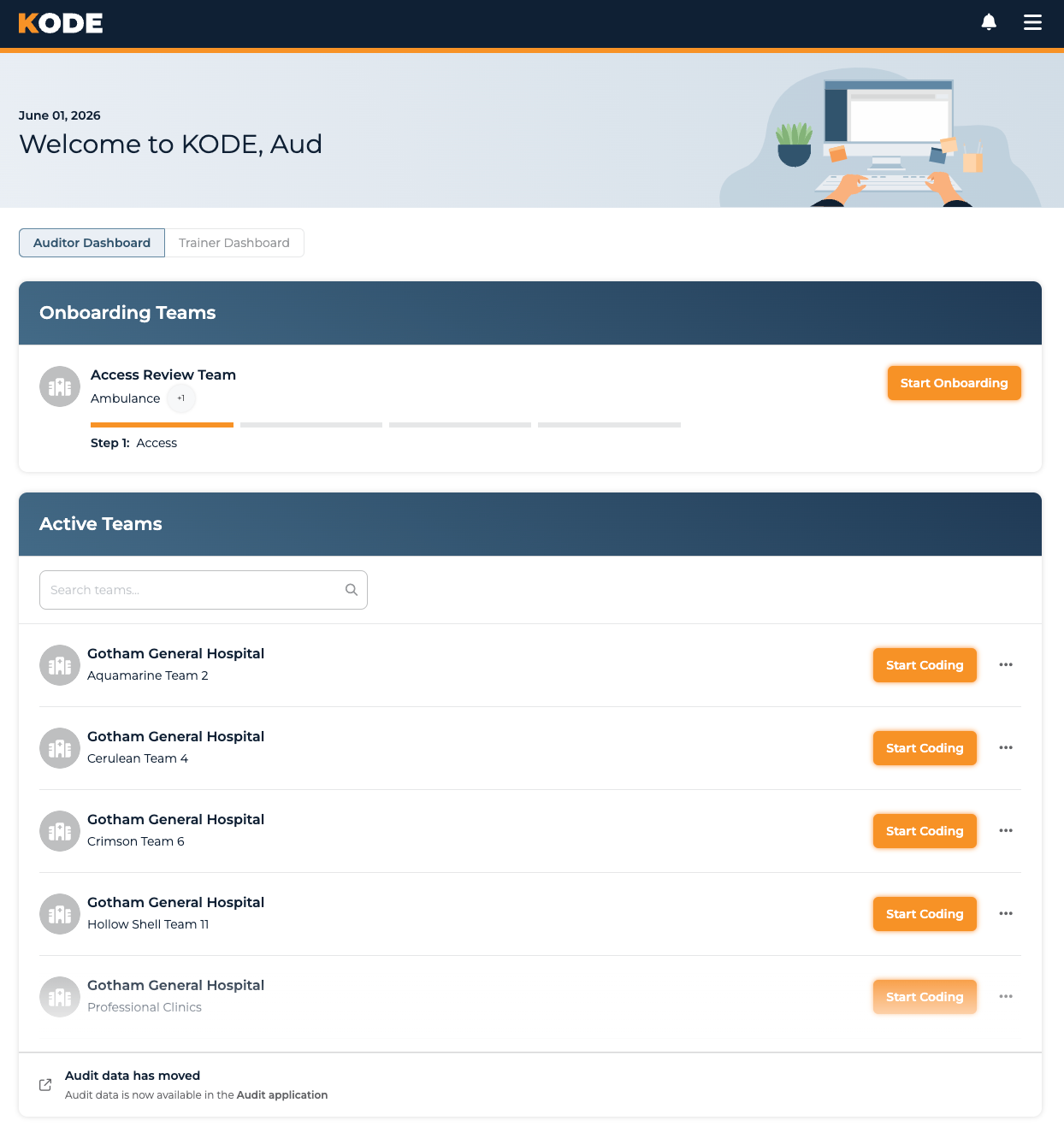
Auditor dashboard with the Onboarding Teams and Active Teams sections
Page Header
A full-bleed header at the top of the page shows today's date and a welcome message ("Good morning, Jane" etc.) alongside an illustration. If you're a Trainer in addition to an Auditor, the Auditor Dashboard / Trainer Dashboard toggle appears below the header — see Auditor/Trainer Toggle.
Chart in Progress Banner

Chart in progress warning banner with Resume Chart and Abandon Chart links
If you start auditing/coding a chart and leave the page without finishing, a warning banner shows at the very top of the dashboard:
- Resume Chart — picks up where you left off
- Abandon Chart — releases the chart so you can pick a different one
You can only have one chart in progress at a time across all your teams; the banner is your shortcut back to it.
Onboarding Teams
When you're getting set up on a new team, that team shows up in the Onboarding Teams section. Each row has:
- Client logo
- Team name with a list of the team's chart-kind specialty pills below
- A 4-segment progress bar — one segment per onboarding stage, filled when reached and empty when not. Hover any segment to see its stage name.
- "Step N:
<current stage name>" text below the bars - A button on the right that says Start Onboarding (first stage) or Resume Onboarding (later stages)
- An ellipsis (⋯) menu with View Koders — opens the team's koder pipeline read-only
Clicking the button opens the onboarding wizard for that team in a modal. Once you finish onboarding for a team, it moves out of this section and into Active Teams.
The four stages
The progress segments map to these stages, in order:
- Access
- Access Confirmation
- Knowledge Review
- Check for Understanding
Active Teams
Teams you've completed onboarding for show up here. Each row has:
- Client logo
- Client name with the Team name below
- A button on the right (see below)
- An ellipsis action menu (see below)
Start Coding button
The right-side button depends on your current chart state:
- No chart in progress anywhere → Start Coding. Clicking it claims a new chart for this team and opens it.
- Chart in progress for this team → Resume Chart + Abandon Chart
- Chart in progress for a different team → Start Coding appears but is disabled. Finish or abandon your existing chart first.
Action menu
The ellipsis (⋯) opens an action menu with:
- View Koders — opens the team's koder pipeline
- Knowledge Base — opens the team's knowledge base in a slide-out
Searching Active Teams
A search bar ("Search teams...") sits at the top of the Active Teams section. The search box is only shown if you have at least one active team.
Empty states
- No active teams yet: "No active teams assigned yet."
- Search returns nothing: "No teams match your search."
"Audit data has moved" footer
Audit work has moved to a standalone Audit application. When that deprecation is active for users who can use the Audit app (auditors, system admins, platform managers), a footer at the bottom of the Active Teams card reads:
Audit data has moved
Audit data is now available in the Audit application.
Use the link to pick up audit queues, counts, and recent activity in the Audit app.
Auditor/Trainer Toggle

Auditor Dashboard / Trainer Dashboard toggle
If you're designated as a Trainer on any team, a toggle appears below the page header with two segments:
- Auditor Dashboard — the default view (everything described above)
- Trainer Dashboard — the trainer tools view
See Trainer Dashboard for the trainer-side sections.
If you don't see the toggle, you aren't currently a Trainer on any team.
Tips
- Resume or abandon a chart-in-progress promptly — until you do, you can't start work on any other team
- Hover the onboarding progress bars — each segment shows its stage name in a tooltip
- Use search in Active Teams once your list grows — it filters live as you type
Common Questions
Q: Why don't I see any teams on my dashboard?
You may not have been assigned to any teams yet. Reach out to your platform manager if you're expecting team assignments.
Q: What do the 4 progress segments on an onboarding card represent?
The four onboarding stages, in order: Access, Access Confirmation, Knowledge Review, Check for Understanding. Each segment fills in when you reach that stage.
Q: I'm a trainer but don't see the toggle. What's wrong?
The toggle only appears if you've been designated as a Trainer for at least one team. If you believe you should be a Trainer, check with your platform manager.
Q: Can I be onboarding for multiple teams at once?
Yes. Each team has its own independent onboarding wizard, so you can work through them in parallel.
Q: Why is the Start Coding button disabled on some teams?
Because you already have a chart in progress on a different team. You can only have one chart open at a time — finish or abandon it (using the banner at the top, or the Abandon Chart button on that team's row) and the disabled buttons re-enable.
Q: Where do I do my actual audit work?
In the standalone Audit application — the link is in the "Audit data has moved" footer at the bottom of Active Teams.