Teams
The Your Teams page lists every team for your Klient — your coding units, each tied to one or more chart kinds. From here you can see at a glance how many koders are at each stage of each team's workflow, jump into a team's roster to take action, request a new team, and open a team's dashboard for deeper performance metrics.
Teams in the list are ordered with most-needs-review first (teams with koders Awaiting Review float to the top), then alphabetical by name.
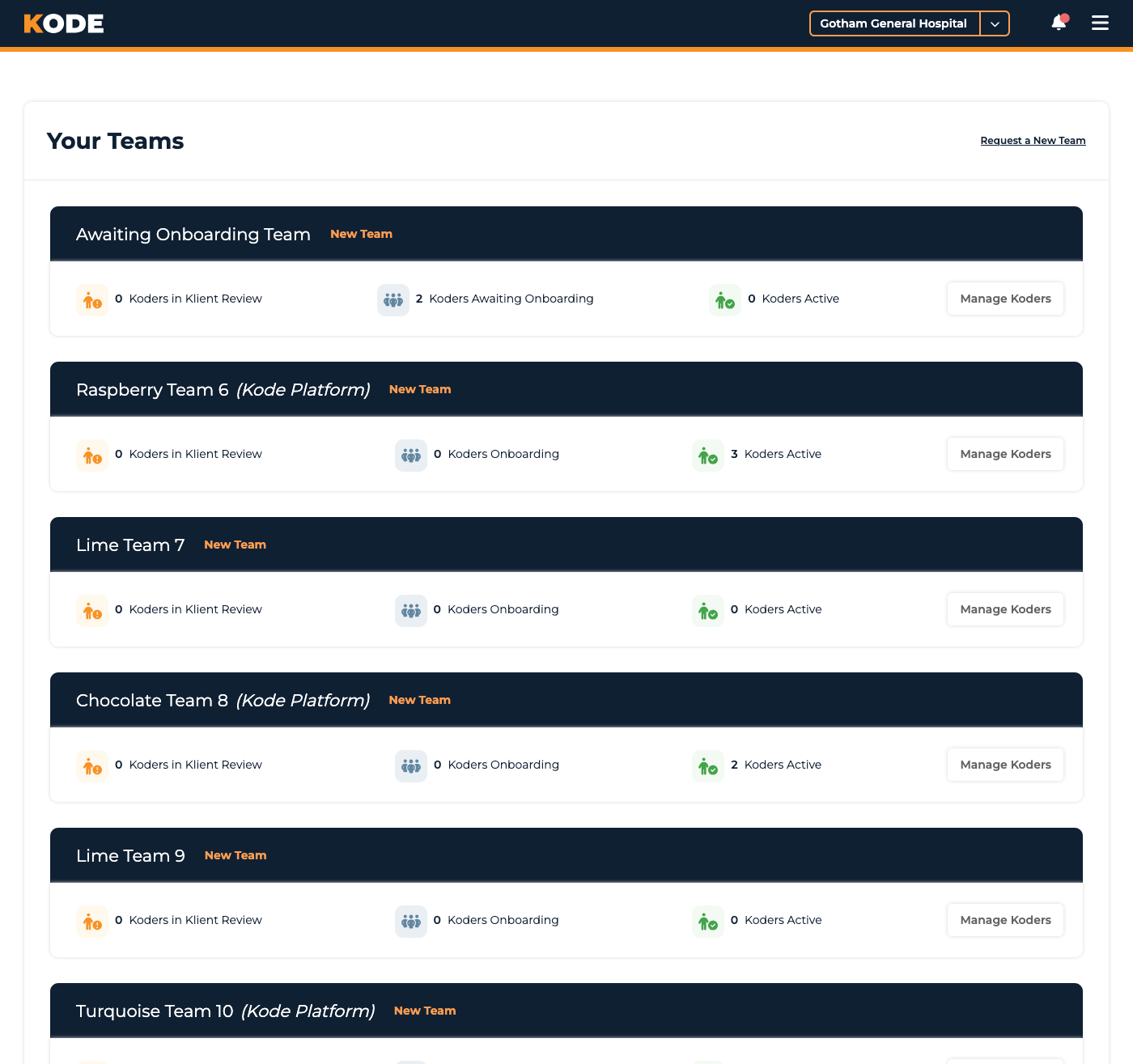
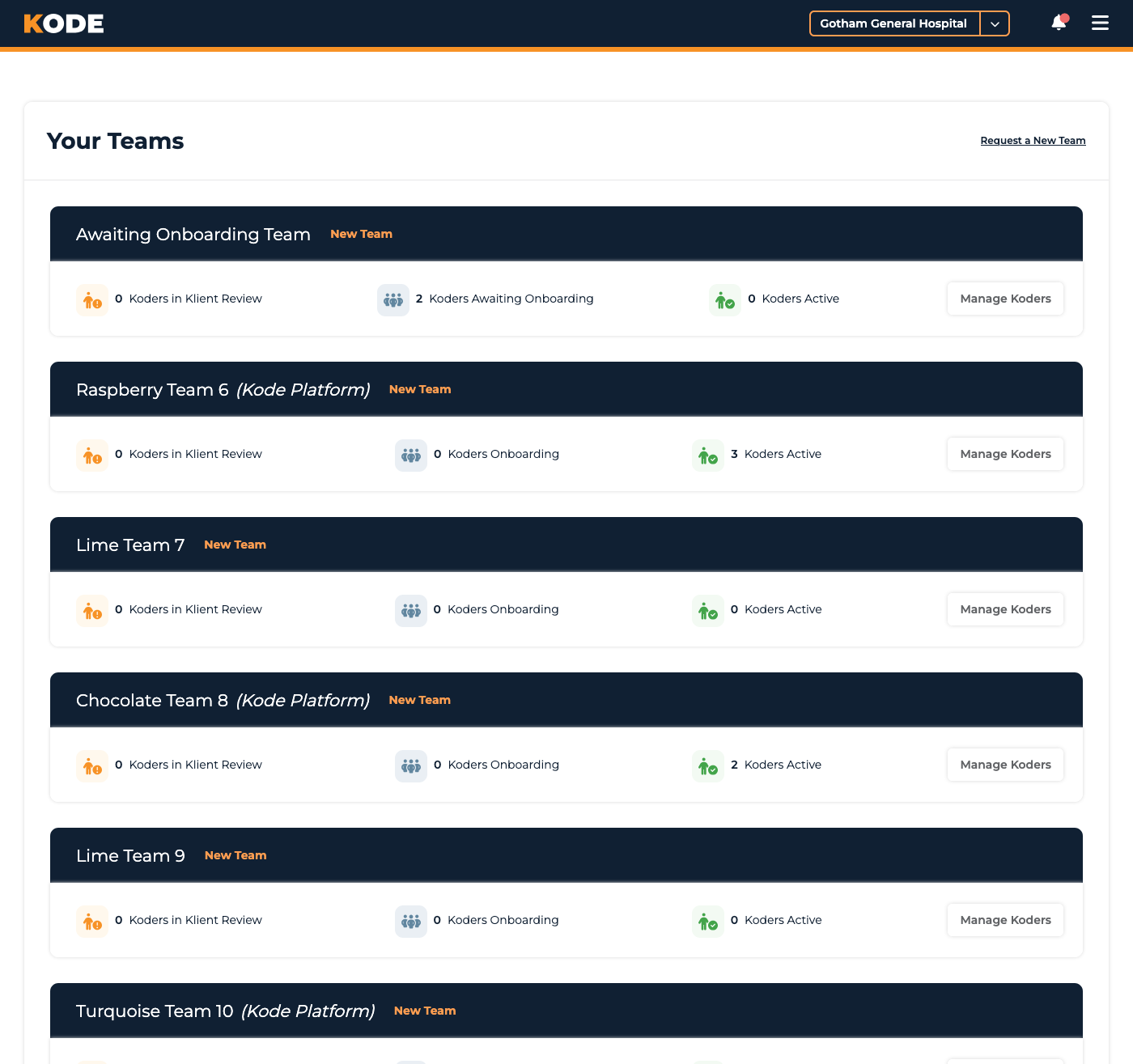
Your Teams list with per-team cards and koder counts
Your Teams (Index)
Each team renders as its own card. The card header shows the team's name, with a "New Team" marker when the team is less than 2 weeks old.
Per-team counts
Each card shows three count clusters:
- Koder(s) in Klient Review — koders waiting for your approval
- Koder(s) Onboarding — koders working through onboarding. When the team isn't live yet, this label changes to "Koder(s) Awaiting Onboarding"
- Koder(s) Active — fully onboarded koders working on the team
The action button
On the right of each card:
- Review Koders appears when there are koders awaiting review (count > 0)
- Manage Koders appears otherwise
Both buttons open the team's Connections page (which is where Klient Review approval, onboarding monitoring, and offboarding actually happen — not a separate "dashboard" page from the card).
Request a New Team
A Request a New Team link in the Your Teams header opens a modal where you submit a request to add a new team. The request is handled on the Kode side — your account team sets up the team configuration before it appears in this list.
Empty state
If no teams exist yet: "You have no active teams" (via the shared empty-state UI).
Team Dashboard (Team Show Page)
Team dashboard with Team Stats, Team Members, and Team Quality Metrics
Each team also has a dedicated dashboard with breadcrumbs (Dashboard → <Team Name>), a team header, and three stacked sections.
Team Stats
Two inner cards:
- Weekly Goal — the team's target number of charts for the current week. Below the number, you'll see the current week's date range (e.g., "Jun 03 – 09"). A Request Goal Change link opens a modal where you can ask your Kode account team to adjust the goal.
- Overall Quality — the team's overall quality percentage for last month, with a "Last Month" label below.
When either value isn't available (e.g., new team with no goal set), an em-dash (—) shows in place of the number.
Team Members
Three status cards side by side:
- Awaiting Review — count and list of koders waiting for your approval
- Onboarding — count and list of koders progressing through onboarding, with task completion tracking shown inline
- Active — count and list of active koders
Each card has its own empty state ("No koders awaiting review", "No koders onboarding", "No active koders").
Task completion details on the Onboarding card come through per-user task presenters — for each onboarding koder you'll see which tasks are theirs and which are yours (and which are still open).
Team Quality Metrics
A separate section with:
- A metrics card showing subcategory scores (diagnosis, procedure, DRG or modifiers, technical) for the team
- A quality trend chart showing the team's quality scores over the last 6 months
This section is hidden when audits have moved to the standalone Audit application (gated by the deprecate_platform_audit_ui flag). Once that flag is on for your Klient, the entire Team Quality Metrics card disappears from the dashboard.
Refreshing
The dashboard and the team list are server-rendered. Reload the page to see updates after new koder activity or status changes — neither view auto-refreshes.
Common Questions
Q: Why are my teams ordered the way they are?
Teams are sorted with most koders Awaiting Review first, then alphabetical by name. So whichever team needs your attention soonest is at the top.
Q: What does the "New Team" marker mean?
The team was created in the last 2 weeks. It's just a freshness indicator — nothing about workflow.
Q: How do I create a new team?
Click Request a New Team in the Your Teams header. The request goes to your Kode account team — they configure the chart kinds, pricing, and other setup before the team appears in your list.
Q: What's the difference between Review Koders and Manage Koders?
Both buttons go to the same place (the team's Connections page). The label changes based on whether the team has koders awaiting your review — Review Koders when there's work for you to do, Manage Koders when there isn't.
Q: Why are there no Quality Metrics on a team dashboard?
Two possibilities:
- Audit work has moved to the standalone Audit application for your Klient. The Team Quality Metrics section is hidden in that case — use the Audit app to see quality data.
- The team has no audit data for last month yet.
Q: My team has no Weekly Goal set. What now?
The Weekly Goal card shows an em-dash (—) when no goal is configured. If your team should have a goal, click Request Goal Change to ask your Kode account team to set one.
Q: Why doesn't a team I expected appear here?
Only non-archived teams for your Klient appear. If a team was archived (no longer active), it's filtered out. If a brand-new team isn't appearing yet, the Kode setup may not be complete — check with your account team.
Q: How do quality metrics get calculated?
Subcategory scores (diagnosis, procedure, DRG/modifiers, technical) and the overall trend come from completed audits against the team's charts last month. Higher audit pass rates roll up to a higher overall quality percentage.
Tips
- Watch the top of the list — teams sorted to the top are signaling that koders need your attention
- Use Request Goal Change when volume changes rather than letting goals go stale
- Reload after taking action — counts and the sort order only update on page refresh
- Open the team dashboard for trends and quality history; use Manage Koders when you need to act on individual people