Payment History
Payment History shows every payout you've received and the work that made each one up. It's the source of truth for your earnings on the platform.
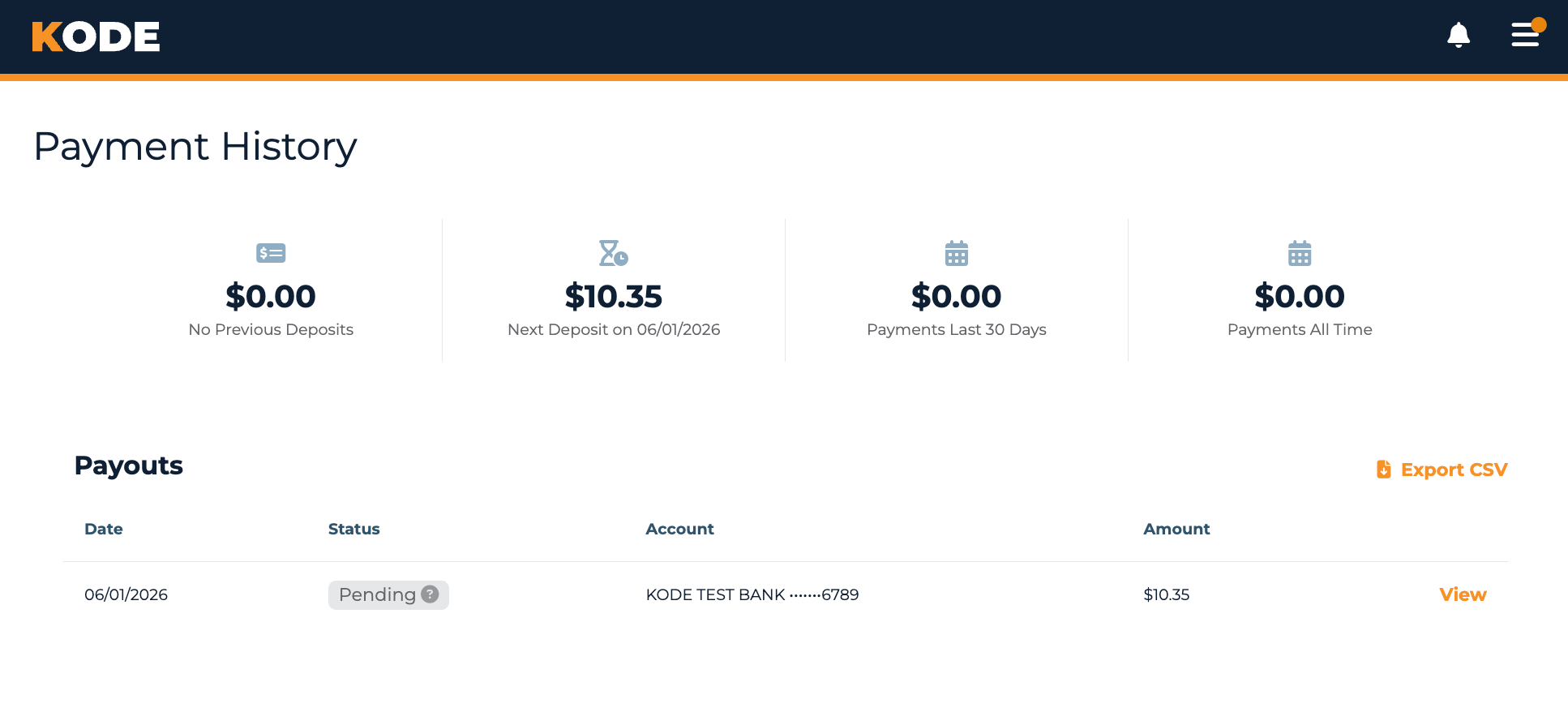
Payment History page with the summary cards and the payouts table
Summary Cards
Four cards across the top of the page summarize your earnings:
| Card | What it shows |
|---|---|
| Last Deposit | The amount and date of your most recent completed payout, or "No Previous Deposits". |
| Next Deposit | Your current pending earnings + the date of your next scheduled payout (or "No Upcoming Deposits"). |
| Last 30 Days | Total payments processed in the past 30 days. |
| All-Time | Lifetime total of every payment processed. |
These cards are not clickable — to see what's queued for the next payout, use the pending row in the payouts table below (see "Pending Earnings" further down).
The Payouts Table
Below the summary cards, the Payouts section lists every payout you've received with these columns:
| Column | What it shows |
|---|---|
| Date | The payout date (or your next scheduled date for the pending row). |
| Status | A pill with the current status — see the table below for what each value means. |
| Account | The destination bank name + last four digits (or "N/A" if no bank is on file). |
| Amount | The payout amount in dollars. |
| (View link) | Drills into the payout's detail view. |
An Export CSV button appears in the header when you have at least one payout.
Status values
The Status pill can be any of:
| Status | Pill color | What it means |
|---|---|---|
| pending | gray | The synthetic row at the top showing what's queued for your next payout. |
| processing | gray | The payout has been issued but Stripe hasn't reported a result yet. |
| paid | green | The payout reached your bank. |
| in_transit | gray | The payout is on its way — typically 1-3 business days to arrive. |
| failed | red | The payout couldn't be sent. Hover the pill for the failure reason. |
Most statuses surface a tooltip next to the pill with timing or remediation info — for example, in_transit says "As of failed either prompts you to update your bank details or tells you a retry is scheduled for the next business day.
Pending Earnings
When you have unpaid earnings, a synthetic pending row appears at the top of page 1 of the payouts table. Clicking View on that row takes you to the pending payouts page, where the detail view's header reads "Pending Payouts" and lists each line item already queued for your next payout.
The amount on this row matches the Next Deposit card.
Payout Detail
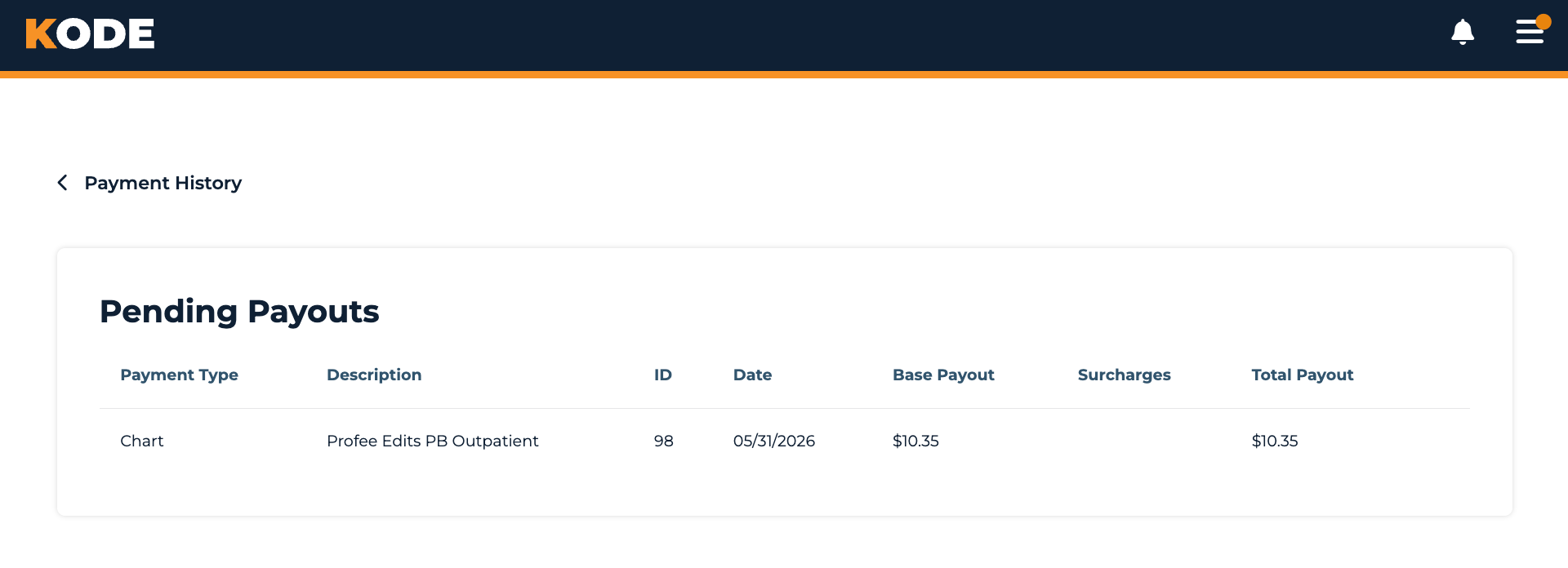
Payout detail view with Payout Information and the Activity Details breakdown
Clicking View on any row opens the detail page.
Payout Information
For a completed payout, the top of the page shows a fact panel with:
- Pay Period — the date range the line items cover
- Payment Status — same value as the table pill, with the same tooltip
- Payout Date — when it was paid (or
N/Afor not-yet-paid) - Amount — the total amount
This panel is hidden when you're looking at the pending payout — instead, the page header just says "Pending Payouts".
Activity Details
Below the payout info, the Activity Details table (or Pending Payouts table for the pending view) lists every line item:
| Column | What it shows |
|---|---|
| Payment Type | The source of the line item (e.g. chart assignment, work log, manual adjustment). |
| Description | For chart assignments: the chart kind name + pricing scheme. For work logs: "Work Log". For everything else: the source title + (optionally) the team and a memo tooltip. |
| ID | The line item ID. |
| Date | When the line item was created. |
| Payout | The amount (split into Base Payout / Surcharges / Total Payout when chart-kind components are enabled). |
| (action) | A View Work Log button on work-log rows. |
There are no subtotals or grand totals on this view — the per-payout total lives in the Payout Information panel above.
Exporting Payment Data
Click Export CSV above the Payouts table to download your payout history. The CSV has four columns: ID, Payment Status, Payout Date, Amount. It does not include the per-line-item breakdown — for that, open the detail view of a specific payout.
Common Questions
Q: When do I get paid?
Your next payout date shows in the Next Deposit card on the summary row. Cadence varies — there's no single fixed schedule for all coders.
Q: Why is my payout showing as "failed"?
The pill's tooltip explains why. Most failures come from bank-account issues (closed account, rejected transfer). Update your Payment Information and the system will retry on the next business day — or, if your bank account is missing/invalid, you'll need to fix it before the retry will work.
Q: What's the difference between "processing" and "in_transit"?
processing means the payout has been issued but Stripe hasn't confirmed delivery yet. in_transit means Stripe has acknowledged the transfer and is sending it to your bank — typically 1-3 business days to arrive.
Q: How is my pay calculated for each chart?
Each team has a pricing scheme that sets the per-chart rate. The detail view shows the chart kind + pricing scheme for each chart assignment, and (when chart-kind components are enabled) splits the amount into a Base Payout and any Surcharges that applied. Contact your team or platform manager if a specific line item looks off.
Q: Why don't I see a Payment History link?
Staff coders are paid through their employer's payroll, not via this platform, so the dashboard hides the link to Payment History for staff accounts.
Q: Are taxes withheld from my payments?
No. As an independent contractor, taxes aren't withheld from your payouts — you're responsible for tracking your earnings and paying applicable taxes. Export the CSV regularly for your records.
Tips
- Add your bank info first — see Payment Information. Without a bank account on file, payouts can't be sent.
- Hover the Status pill to see the most current timing/failure info.
- Open the pending row to confirm exactly which line items are queued for your next payout.
- Export the CSV at year-end for your tax records.