Payment Information
Payment Information is where you link the bank account that receives your payouts. Without a linked account, your earnings stay queued and won't be paid out.
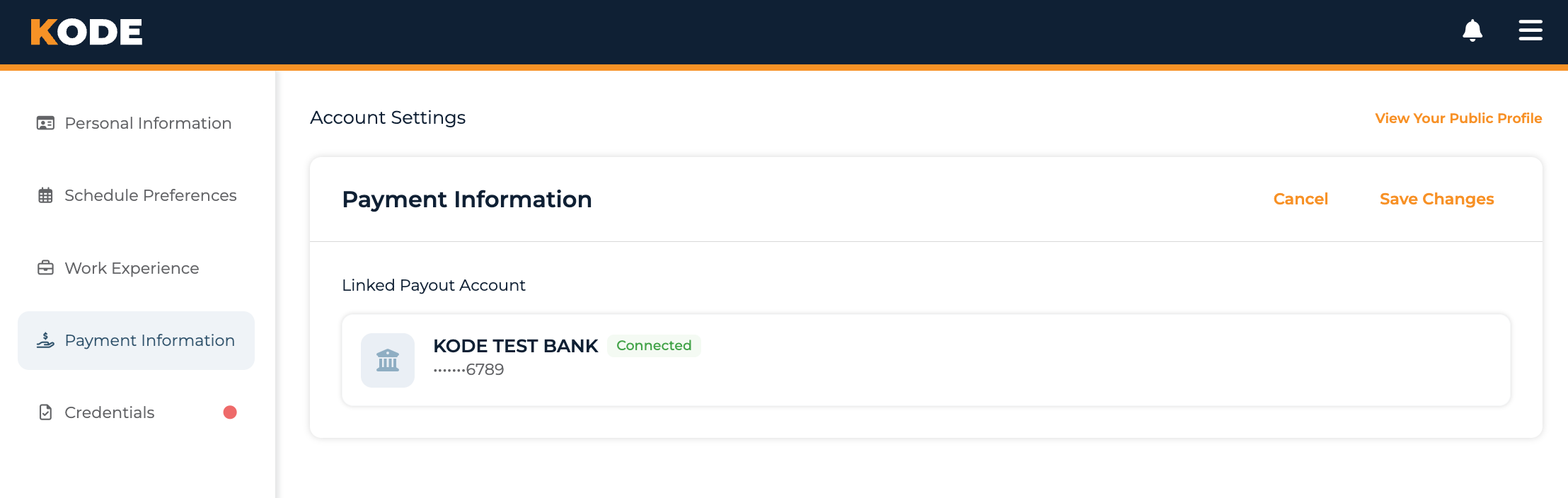
Payment Information page with the linked payout account or the Add Bank Account button
Linking a Bank Account
Before You Can Add One
The Add Bank Account button starts disabled with a tooltip that says "Complete the remainder of your profile before adding your bank account." That's because we need a Stripe Connect account set up for you first, which happens automatically once you finish the rest of your profile (identity verification, work experience, schedule preferences, etc. — anything still pending in Your Tasks on the dashboard).
Once your profile is complete and your Stripe account is provisioned, the button becomes active.
Adding Your Account
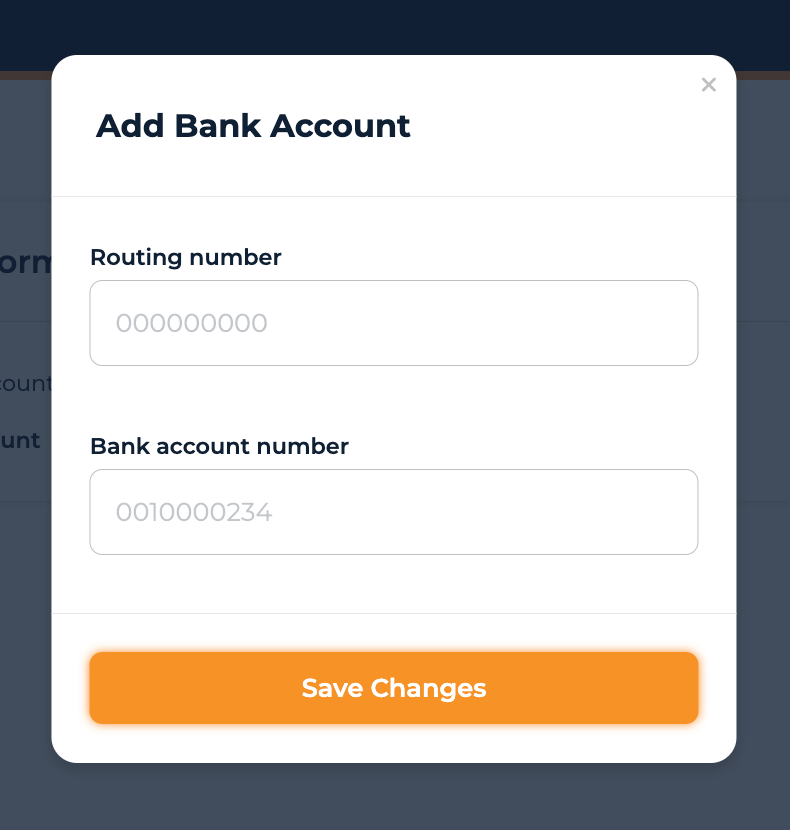
Add Bank Account modal with the Routing Number and Bank Account Number fields
Click Add Bank Account to open the modal. You only need two pieces of information:
| Field | What it expects |
|---|---|
| Routing Number | Your bank's 9-digit routing number. Numbers only. |
| Bank Account Number | Your account number. 5-17 digits, numbers only. |
You can find both on a paper check (routing number bottom-left, account number to its right), in your bank's online portal, or by calling your bank.
Click Save Changes to submit. Your details are tokenized by Stripe in the browser — we never see your full account number, only a token that lets payouts deposit to it.
There are no separate fields for account holder name, account type (checking vs savings), or "confirm account number" — the form only collects what Stripe requires.
Your Linked Payout Account

Linked Payout Account card showing the bank name, status tag, and last four digits
Once linked, the page shows a card under Linked Payout Account with:
- Bank Name — detected from your routing number
- Status tag — Connected (green) when payouts are working, or Error (red) when something is wrong
- Last 4 digits of the account number
If the status is Error, hover the help icon next to the tag for the specific cause. Common messages:
- "One or more payouts have failed. Please check your bank account details. Payouts will retry automatically on the next business day once the issue is resolved." — usually means the account is closed, blocked, or rejected the transfer
- "Your bank account details could not be verified. Please check your bank account details..." — Stripe couldn't confirm the routing/account number combination
- "Your failed payouts will be retried automatically on the next business day." — shown when you have failed payouts but the account itself isn't flagged
Updating Your Bank Account
To change to a different bank account:
- Click the bank account card under Linked Payout Account — it opens an Update Bank Account modal
- Enter the new Routing Number and Bank Account Number
- Click Save Changes
The new account replaces the old one. Any pending payouts queued at that point will go to the new account on the next scheduled payout.
Removing Your Bank Account
- Click the bank account card to open the Update Bank Account modal
- In the modal header, click the red Delete Account button
- Confirm the prompt ("Are you sure you want to delete your payout account?")
Heads up: without a linked account, payouts can't be sent. Your earnings accumulate as pending until you add a new one.
Security
- Tokenization — your full account number never reaches our servers. Stripe tokenizes it in your browser; we only store the token (and the masked last 4 digits).
- PCI compliance — handled end-to-end by Stripe.
Common Questions
Q: Why is the Add Bank Account button disabled?
You haven't finished setting up the rest of your profile yet. Stripe needs a complete profile to provision your payout account. Check Your Tasks on the dashboard for outstanding items (identity verification, work experience, etc.) — once they're all done, the button becomes active.
Q: Why is my account showing "Error"?
Hover the help icon next to the Error tag for the specific reason. The most common causes are bank-account issues (closed account, wrong routing/account number) or Stripe failing to verify the account. Fix the underlying issue (often by re-entering the right routing/account number via the Update flow), and failed payouts retry automatically on the next business day.
Q: Can I use any bank account?
Any US checking or savings account that accepts ACH deposits should work. Major banks, credit unions, and online banks are all supported by Stripe.
Q: Can I have multiple bank accounts?
No — one bank account per coder. To switch, use the Update flow above.
Q: What happens to my pending payouts if I change banks?
Pending payouts go to whichever account is linked when the next payout processes. Update before your next payout date if you want a particular payout to land in a new account.
Q: Why can't I see my full account number?
Only the last 4 digits are ever displayed — your full number was tokenized by Stripe and not stored on our servers, so we don't have it to show.
Q: I'm a staff coder — do I need this?
No. Staff coders are paid through their employer's payroll, not via this platform, so Payment Information doesn't apply to your account.
Tips
- Finish your profile first — until everything else is done, the Add Bank Account button stays disabled
- Double-check your numbers — typos in routing/account numbers cause payouts to fail and delay your money by at least a business day
- Watch for the Error tag — when something goes wrong, the status pill is the first place you'll see it
- Update before traveling or switching banks — pending payouts go wherever the account is linked at payout time