Dashboard
Your dashboard is home base — the first thing you'll see when you log in. It gives you a quick overview of the tasks that need your attention, your teams and applications, available opportunities, and payment activity.
The left sidebar stays with you throughout the Koder experience, so you can move from the dashboard to your work, messages, quality results, opportunities, and profile without opening a separate menu.
What You'll See
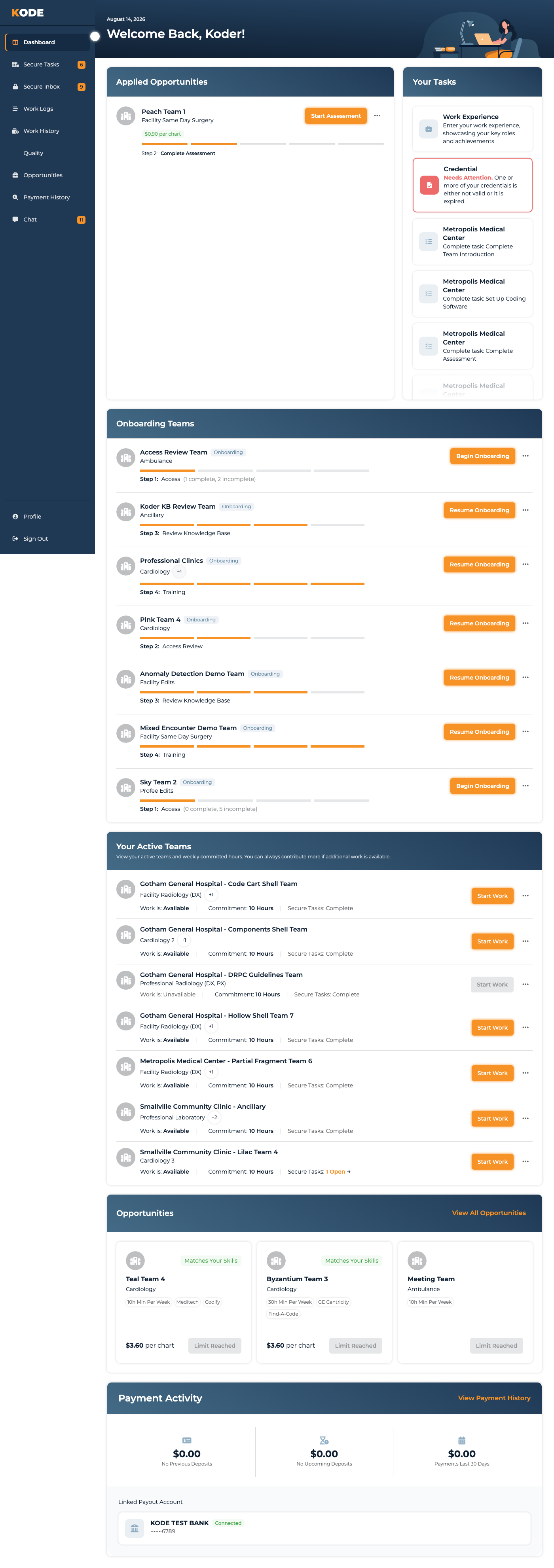
Koder Dashboard with the left navigation sidebar and personalized work sections
Your dashboard is organized into several key sections that help you stay on top of your work.
Navigation Sidebar
The left sidebar is your main navigation. Dashboard returns you to this page, and the highlighted item shows where you are. Depending on your account and access, the sidebar can also include:
- Secure Tasks — review tasks assigned to you. The badge shows how many open tasks you have.
- Secure Inbox — read secure messages. The badge shows how many messages are unread.
- Work Logs and Work History — record work and review what you've completed.
- Quality — review released audit results and leave notes for the KODE team. A badge means you have results you haven't opened yet.
- Opportunities — browse teams looking for koders with your experience.
- Payment History — review past payouts. Staff koders don't see this link because they're paid differently.
- Chat — open KODE Chat in a new browser tab, when chat is available for your account.
Profile and Sign Out are at the bottom of the sidebar.
On a larger screen, use the arrow on the sidebar's right edge to collapse it to icons or expand it again. The dashboard remembers your choice. On a phone, select the menu button in the top-left corner to open the navigation drawer, then select a link or the X to close it.
Welcome Header

Welcome header with today's date and a personalized greeting
The top of your dashboard greets you with today's date and a personalized welcome message. It's a quick way to confirm you're in the right place and get oriented for the day.
Chart in Progress Banner

Warning banner shown at the top of the dashboard when you have a chart in progress
If you started a chart and haven't finished it, a yellow warning banner appears at the very top of the dashboard with two actions:
- Resume Chart — pick up where you left off in the coding interface
- Abandon Chart — release the chart back to the queue for someone else
The platform only lets you have one chart in progress at a time, so you can't claim a new chart from any team until this is resolved.
Your Profile (For New Coders)
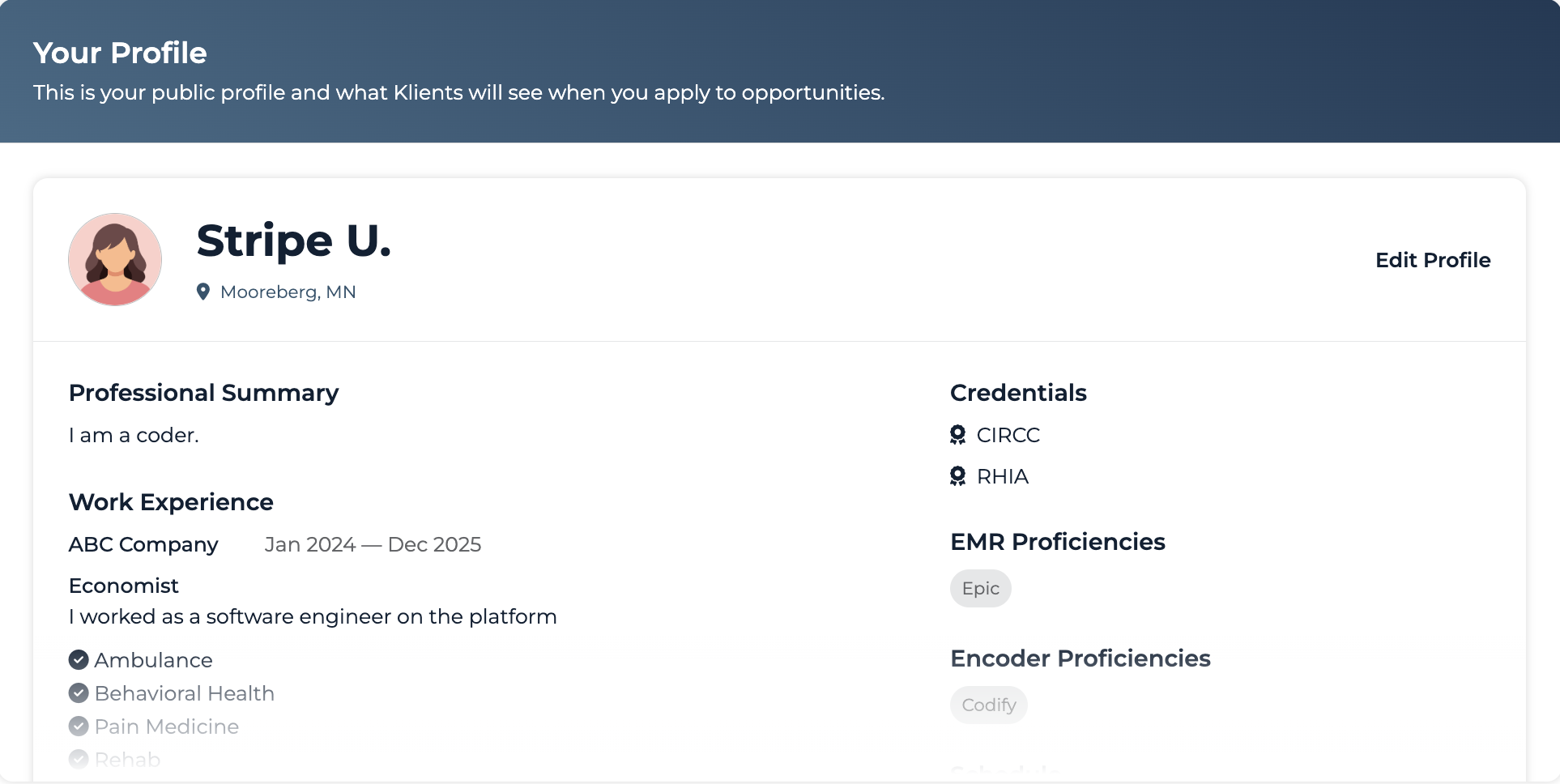
Your Profile card showing the public coder profile Klients see when you apply to opportunities
If you haven't joined any teams yet, you'll see a preview of the public profile Klients review when you apply to opportunities. Use Edit Profile in the preview to update it. Any profile information you still need to complete appears separately under Your Tasks.
Once you join teams, this section disappears and is replaced by your team information.
Your Tasks
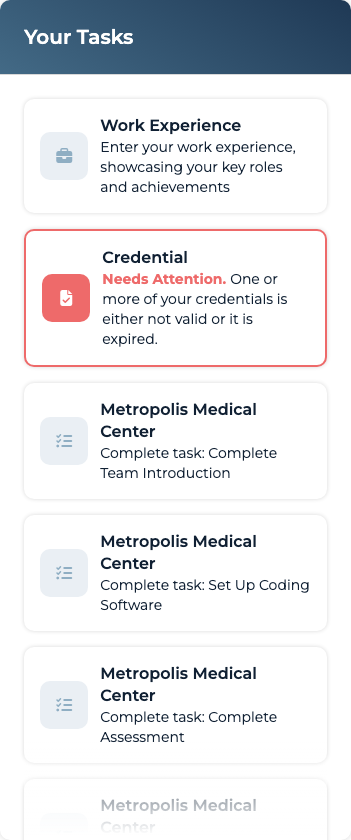
Your Tasks card listing pending action items (profile completion, credentials, banking, team invitations, and tasks)
A checklist of action items you need to complete. The card surfaces anything blocking you from being eligible to code — or anything still pending after you've joined a team.
When you're caught up, the card stays on your dashboard and shows No Open Tasks — Way to go!
Onboarding Teams
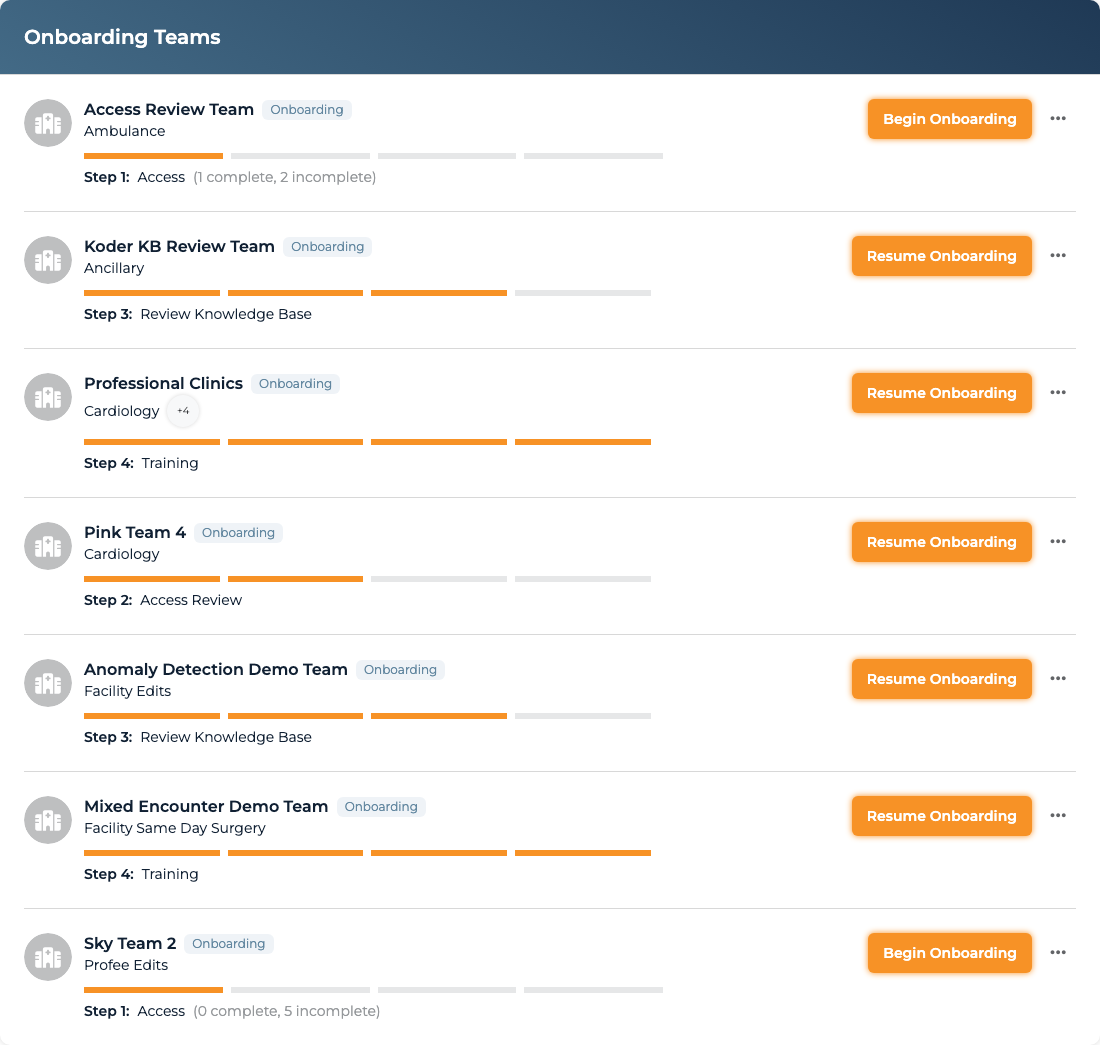
Onboarding Teams section with progress cards for each team you've been approved to join, showing your current stage and a link to continue
If you've been approved to join teams and are working through their onboarding process, you'll see onboarding cards here. Each card shows:
- Team name and client facility
- Progress bar tracking your onboarding stages
- Stage status — which stage you're on (Access, Access Review, Review Knowledge Base, Training)
- A link to continue onboarding and pick up where you left off
The onboarding wizard walks you through four stages: setting up access, meeting with Koder Services, reviewing the knowledge base, and a training meeting with your team's trainer. For a full walkthrough, see Onboarding.
Each onboarding card also has a Leave team option in its ⋯ menu. If you decide onboarding with a team isn't for you, leaving removes you through the standard offboarding process — you're free to apply to that team again later.
Once you complete onboarding for a team, it moves from here into Your Active Teams.
Applied Opportunities
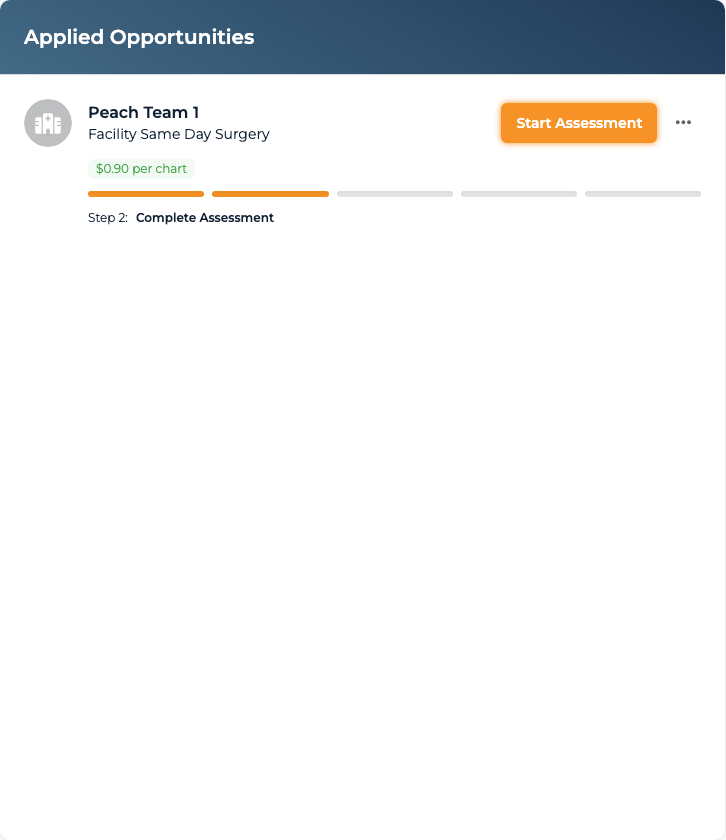
Applied Opportunities section listing teams reviewing your application and any pending assessments
Teams you've applied to that are still under review show up here. Each card surfaces what's blocking you from going active:
- Teams reviewing your application
- Assessments you still need to complete
- Current status of your application
When a team's card includes an assessment, a line on the card shows your deadline — "This assessment opportunity will expire at the end of [date]". The date is the day your window closes; you have about 5 days from when the assessment becomes available to finish and submit it. If you miss the date, you'll be removed from the team and won't be able to re-apply for 6 months, so complete it while the spot is open.
Each card has a ⋯ menu with an option to step away if you've changed your mind:
- Leave — shown while your application is still under review. Withdraws you from the team; you can apply again anytime.
- Leave assessment — shown once a team has started you on an assessment. This cancels the in-progress assessment and blocks you from re-applying to that team for 6 months, so only use it if you're sure.
You'll confirm before either one takes effect, both apply immediately.
Your Active Teams
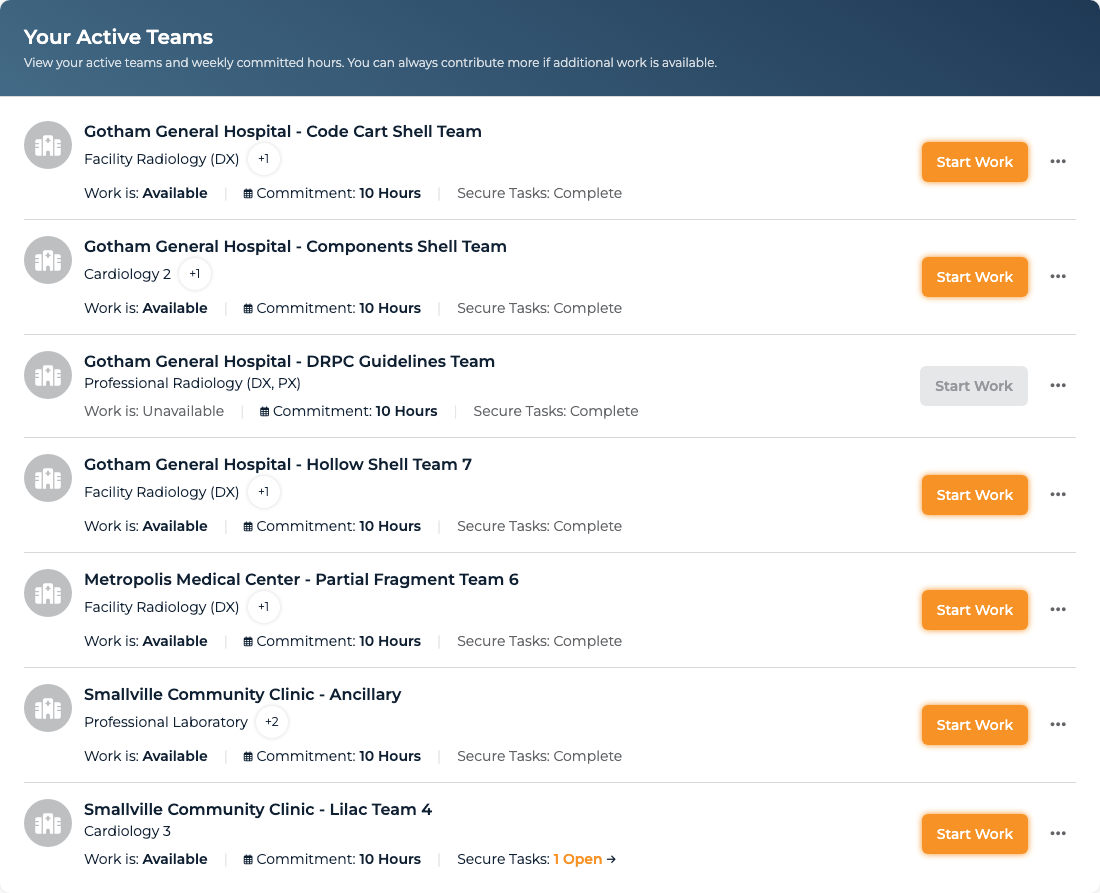
Active Teams section listing the teams you're currently coding for
Once you're an active member of teams, they appear in this section. Each card shows the team's client and specialty, whether work is currently Available or Unavailable, and your committed hours (if you set any). The actions on each card depend on the team's state and yours:
- Start Work — claim the next chart from this team. Disabled when no charts are available, or when you have a chart in progress on a different team.
- Resume Chart / Abandon Chart — appear on the card for the team your in-progress chart belongs to.
- View Team — see team details and other resources, from the ⋯ menu.
- Log Hours / Request Commitment Change — available from the ⋯ menu when applicable.
- Leave Team — from the ⋯ menu. Removes you from the team so you stop receiving its work. See "Leaving a team" below.
This section only shows live teams with charts flowing, so you won't see inactive or onboarding teams cluttering your view.
Leaving a Team
Choose Leave Team from the ⋯ menu on an active team's card when you no longer want to code for it. A confirmation asks you to be sure — "Leave [team]? You'll be removed from this team and will stop receiving work from them. This can't be undone." Once you confirm:
- You're removed from the team right away and won't be offered its charts
- The account's operations contacts are notified so they can adjust coverage
- You won't receive a separate confirmation email
If you want back on later, you're free to apply to that team again from Opportunities.
Opportunities
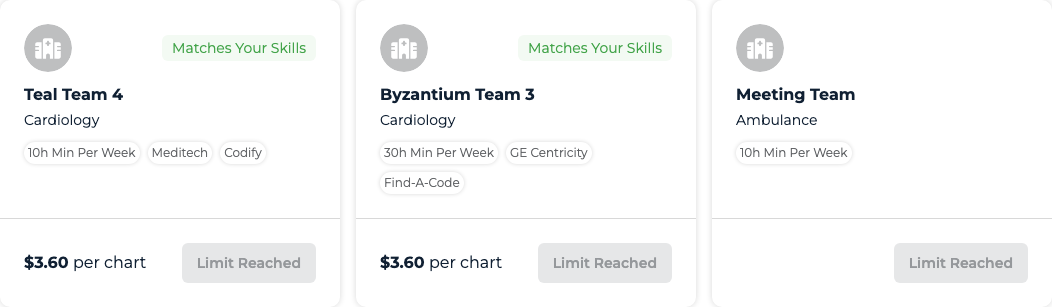
Matched and invited team opportunities surfaced based on your specialties and credentials
Below your main dashboard sections, you'll see up to 3 team opportunities that might interest you. These are teams looking for coders with your skills and credentials.
Opportunities are organized by how well they match you:
- Invited teams - Teams that specifically want you to join
- Matched teams - Teams that align with your specialties and credentials
- Other opportunities - Additional teams you might consider
Each opportunity card shows:
- Facility name and team specialty
- A status tag — Invited to Apply or Matches Your Skills
- The team's hours commitment and EMR/encoder systems
- Compensation and an action button — Apply, or Accept Invite for an invited team
Invited cards also carry a Decline button, and any team you've already applied to shows a Leave button beside Already Requested. These are the same step-away controls covered on the Opportunities page: declining or leaving during review keeps re-applying open, and neither sends you a confirmation email.
If you're already engaged with 5 teams, the apply buttons here pause and show Limit Reached. That's the 5-team limit explained on the Opportunities page — leave a team to free up a slot before you can apply to a new one.
Payment Activity
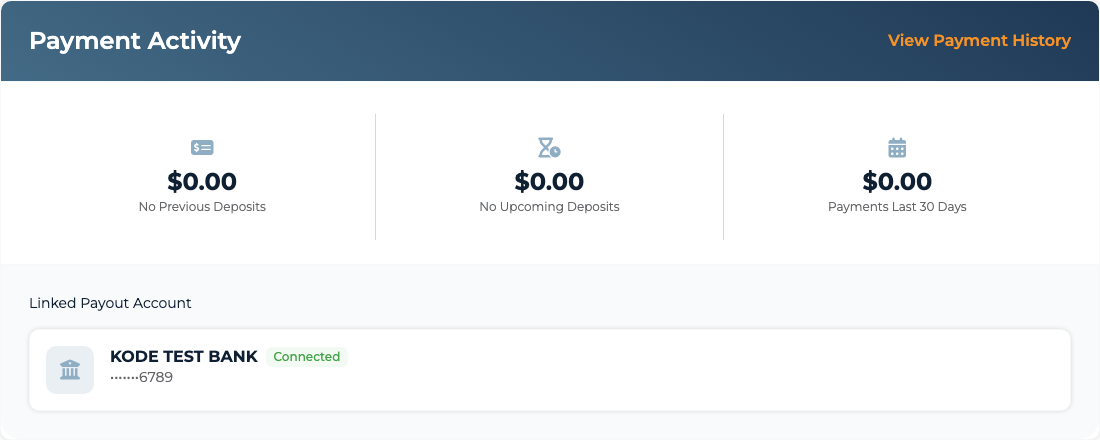
Payment Activity panel with your last payout, unpaid earnings, and next scheduled payout
At the bottom of your dashboard, you'll find your payment summary. This section shows:
- Your most recent payout amount and date
- Current unpaid earnings
- When your next payout is scheduled
- A link to view your full payment history
- Status of your bank account on file
If you haven't added banking information yet, you'll see a prompt to add it so you can get paid.
Note: If you're a staff coder, you won't see this section since staff are compensated differently.
How to Use Your Dashboard
Starting Work
When you're ready to code:
- Scroll to Your Active Teams and find a team showing Work is: Available
- Make sure you don't have a chart in progress — if you do, the warning banner at the top of the dashboard will say so
- Click "Start Work" on that team's card to claim your next chart
- You'll be taken directly to the chart coding interface
If Start Work is disabled on every team, it usually means one of:
- You already have a chart in progress (resume or abandon it from the banner at the top)
- No charts are currently available in your teams
- You haven't joined any active teams yet
Exploring Team Opportunities
To find and join new teams:
- Scroll to the Opportunities section
- Review the cards for teams that interest you — each shows the team's specialties, hours/EMR/encoder, and compensation
- Click Apply (or Accept Invite on an invited card) and confirm in the modal that opens
- Changed your mind? Use Decline on an invited card, or Leave once you've applied
- Complete any required assessments that appear in your dashboard
- Track your application status in the "Applied Opportunities" section
For the full walkthrough — every tile section, button state, and what happens after you apply — see the Opportunities page.
Invited teams (where they've specifically asked you to join) typically get approved faster, so prioritize those if you see any.
Completing Your Profile
If you're new and still have profile tasks to complete:
- Open an item under Your Tasks to jump to that part of your profile, or select Edit Profile in the Your Profile preview
- Fill in the required information (credentials, work experience, etc.)
- Save your changes
- Return to the dashboard to see updated team matches
The more complete your profile, the more matched opportunities you'll see.
Checking Payment Status
To review your earnings:
- Scroll to the Payment Activity section
- Review your unpaid earnings - this is money you've earned but hasn't been paid out yet
- Check your next scheduled payout date - payments typically process on a regular schedule
- Click "Payment History" to see detailed records of all your payouts
Make sure you have banking information on file, or your payouts will be delayed.
Tips for Using Your Dashboard
- Check it daily - Your dashboard keeps your current tasks, teams, opportunities, and payment activity together.
- First-time celebration - When you first become work eligible, you might see a special congratulation message. That means you're ready to start coding!
- One chart at a time - The system prevents you from claiming multiple charts. Always finish your current chart before starting a new one.
- Team matching - The more complete your profile (especially credentials and work experience), the better your team matches will be.
- Respond to invitations - If you see invited teams, respond promptly. They've specifically chosen you!
- Payments take time - There's usually a delay between finishing work and getting paid. Check your payout schedule to know when to expect payment.
Common Questions
Q: Why don't I see a "Start Work" button?
If the button doesn't appear, check for these common reasons:
- You have a chart in progress (look for the warning banner at the top)
- No charts are currently available in your teams
- You haven't joined any active teams yet
- Your profile isn't complete (some teams require certain credentials)
Q: What's the difference between matched and invited opportunities?
Matched teams are ones the system recommends based on your skills, credentials, and experience. The matching algorithm thinks you'd be a good fit.
Invited teams have specifically reached out to you - usually because an administrator reviewed your profile and wants you on their team. These often get approved faster.
Q: Why don't I see the Payments section?
If you're a staff coder (not a contractor), you won't see payment information on your dashboard since you're compensated through a different system.
Q: What does "Applied Opportunities" mean?
These are teams you've requested to join, and your application is being reviewed. You'll see:
- Teams reviewing your profile
- Teams where you need to complete assessments
Once approved, teams move to "Onboarding Teams" while you work through the onboarding wizard, and then to "Your Active Teams" once you're fully set up.
Q: How do I leave a team, and can I come back?
Where you leave from depends on where the team is in your pipeline:
- Still under review (Applied Opportunities): open the card's ⋯ menu and choose Leave. You can re-apply anytime.
- In an assessment (Applied Opportunities): open the card's ⋯ menu and choose Leave assessment. This cancels the assessment and blocks re-applying to that team for 6 months.
- Onboarding (Onboarding Teams): open the card's ⋯ menu and choose Leave team.
- Active (Active Teams): open the card's ⋯ menu and choose Leave Team.
Every path asks you to confirm first and takes effect immediately — you won't get a confirmation email. For active teams, the account's operations contacts are notified. Aside from an abandoned assessment's 6-month block, you can apply to the team again later from Opportunities.
Q: Can I hide sections I don't need?
The dashboard automatically adjusts based on your situation. If you don't have team applications in progress, you won't see that section. If you're not eligible for opportunities, that section won't appear. The dashboard is personalized to show only what's relevant to you.