Quality
Quality is where you review audit results for work you've submitted. It brings your released audits together so you can see your scores, open the details behind them, and leave a note for the KODE team when you have a question or context to share.
Open Quality from the left sidebar. If the menu item has a badge, you have released results you haven't opened yet.
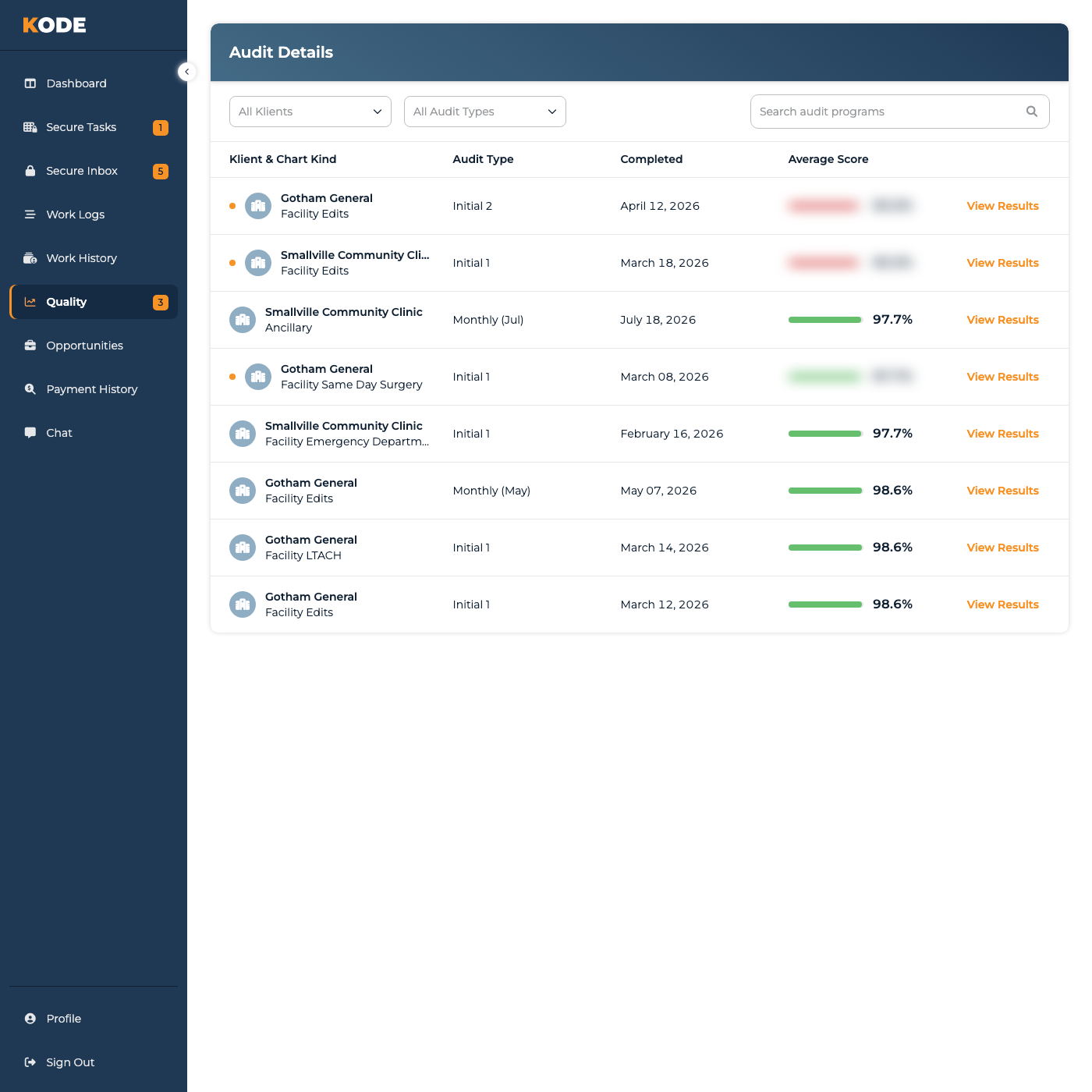
Quality page showing released audit results, filters, and scores
Your Audit Results
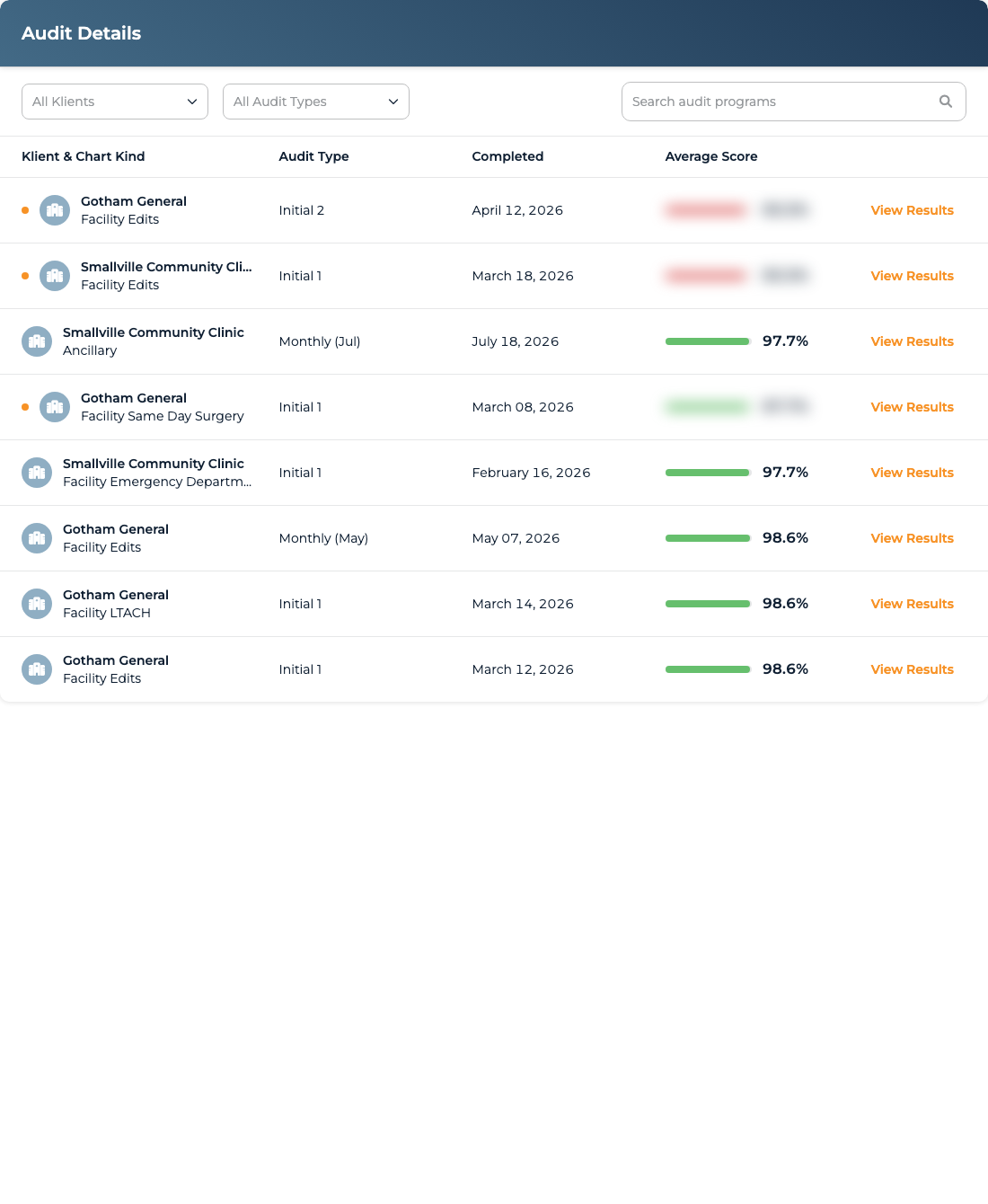
The Audit Details table lists each released audit cycle available to you. Each row shows:
Audit Details table with Klient and audit type filters, search, and released results
| Column | What it shows |
|---|---|
| Klient & Chart Kind | The Klient and type of chart included in the audit. |
| Audit Type | The kind of audit that was completed. |
| Completed | When the audit cycle was completed. |
| Average Score | Your overall score across the charts in that audit cycle. |
| View Results | Opens the full result in a slide-out panel. |
A new result has an orange dot and a blurred score. Select View Results to review it. Once the result finishes loading, the score is revealed and the result no longer counts toward the Quality badge.
Finding a Result
Use the controls above the table to narrow the list:
- All Klients — show results for one Klient.
- All Audit Types — show one type of audit.
- Search audit programs — search by Klient, chart kind, or audit type.
You can combine the filters and search. If there are multiple pages of results, use the controls below the table to move between them.
Reviewing Audit Details
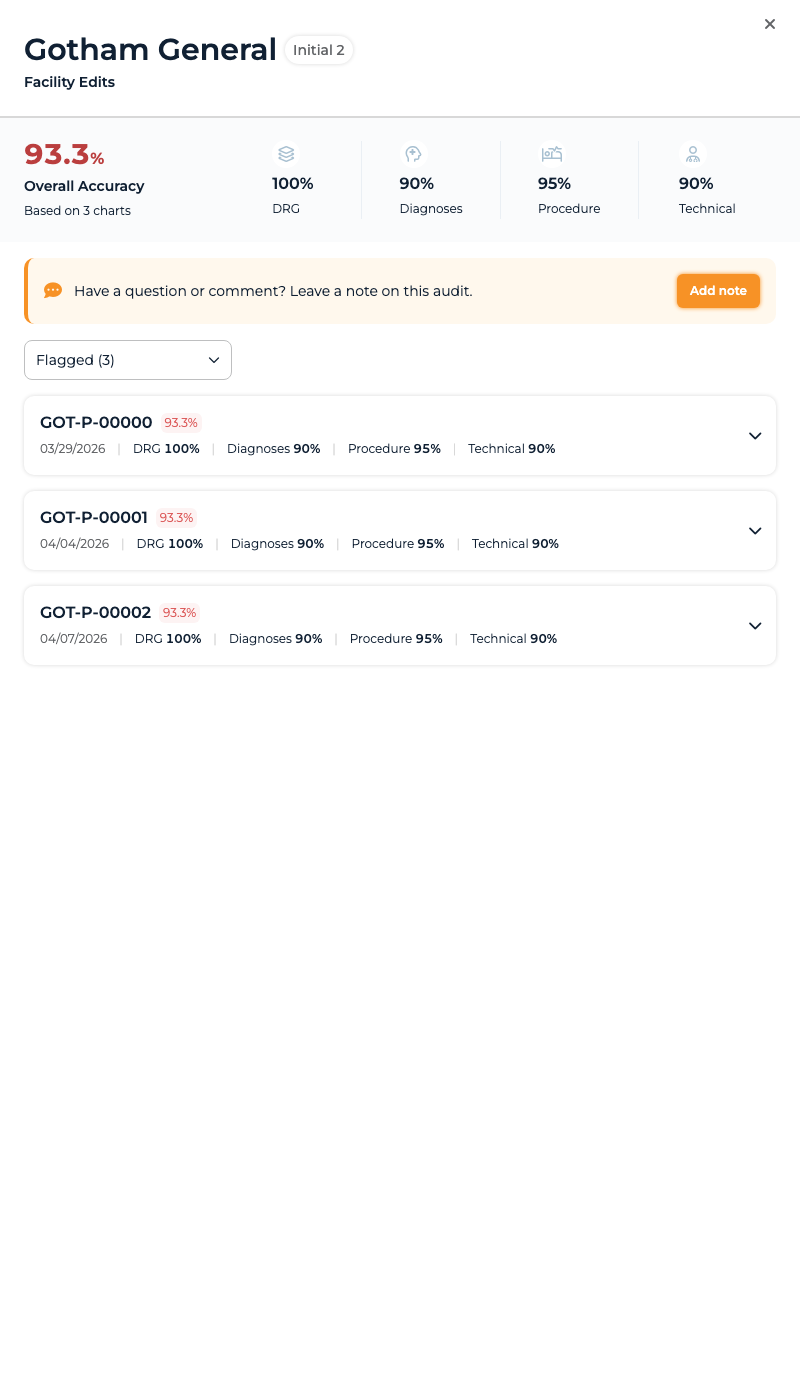
Select View Results to open a slide-out panel without leaving the Quality page. At the top, you'll see the Klient, chart kind, audit type, overall accuracy, and the number of charts used to calculate it. Depending on the chart kind, you may also see scores for individual coding categories.
Below the summary, each audited encounter has its own expandable row. The row shows its overall score, date of service, and available category scores. Expand an encounter to compare your submitted coding with the auditor's findings.
Use the audit filter to switch between:
- Flagged — encounters with results that need your attention.
- Passed — encounters that passed the audit.
- All — every encounter in the audit cycle.
Close the slide-out with the X when you're done. Your place in the results list stays available behind it.
Audit result slide-out with the overall score, note prompt, and encounter details
Leaving a Note
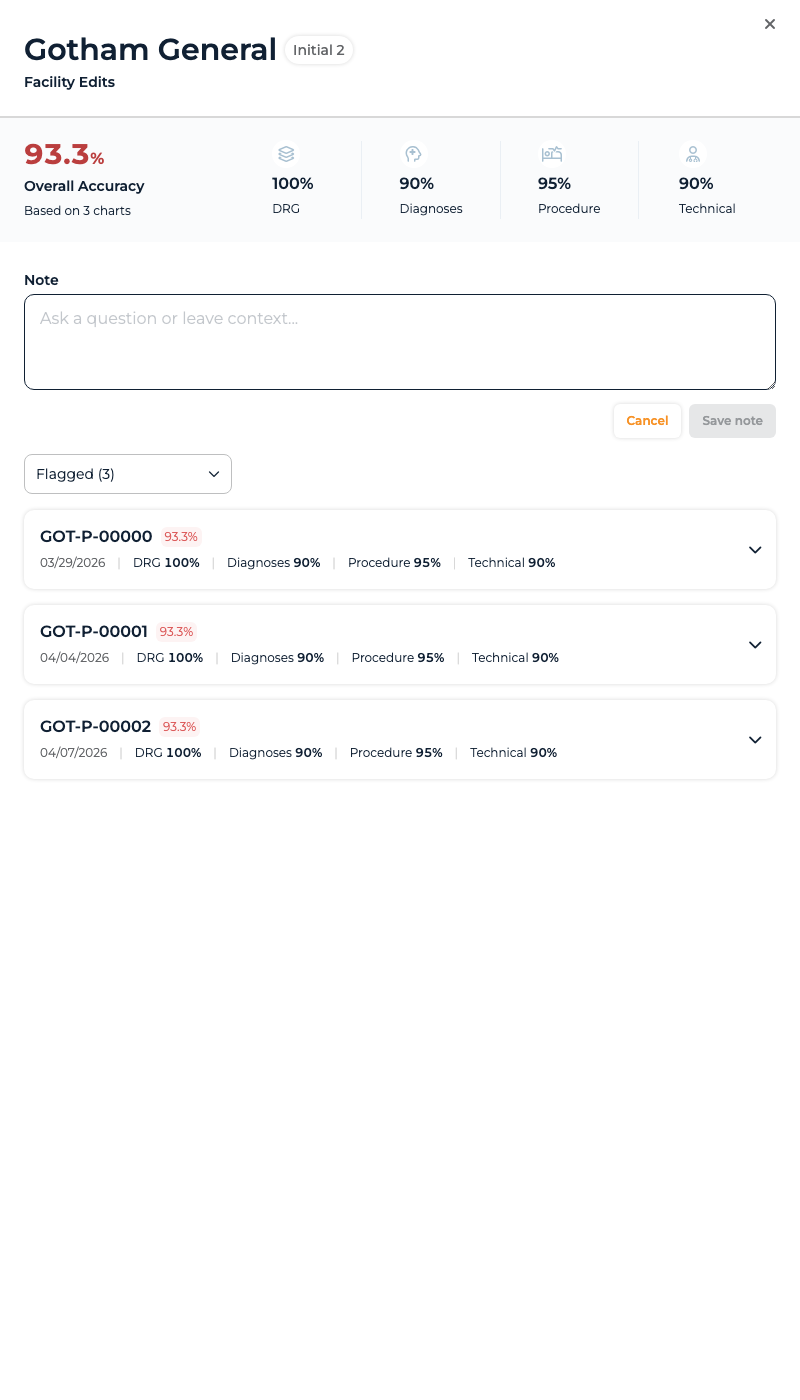
If you have a question or want to share context about an audit, select Add note in the result panel.
- Enter your question or context in the Note field.
- Select Save note.
- Look for Note sent to the KODE team to confirm it was saved.
Use the pencil icon beside a saved note to edit it. Use the trash icon to remove it; you'll be asked to confirm before the note is removed. Notes are attached to that audit cycle and are visible to the KODE team.
Audit result slide-out with the form for leaving a note for the KODE team
Empty and Unavailable States
- No audits yet — your team's audits are connected, but no results have been released to you yet.
- Audits Are Not Set Up — audit results aren't connected for any of your teams yet.
- Audit results are unavailable — the results couldn't load. Refresh the page or try again in a few minutes.
Common Questions
Why is my score blurred?
The result is new and hasn't been opened yet. Select View Results and let the detail panel load to reveal the score.
Why did the number beside Quality change?
The badge counts released results you haven't opened. It goes down after a new result and its details finish loading.
Why don't I see a result for work I recently submitted?
Only completed audit cycles that have been released to you appear here. Submitted work may not be selected for an audit, and an audit in progress won't appear until it is released.
Can I change an audit result?
No. Quality is for reviewing released results. If you have a question or relevant context, leave a note in the result panel for the KODE team.
Where can I find the chart I originally submitted?
Use Work History to find submitted work by date. Quality shows the audit result and comparison, while Work History remains the record of your submissions.