Work History
Work History is the record of every chart you've submitted. The page groups your submissions by day so you can drill in to a specific date and see the encounters you handled.
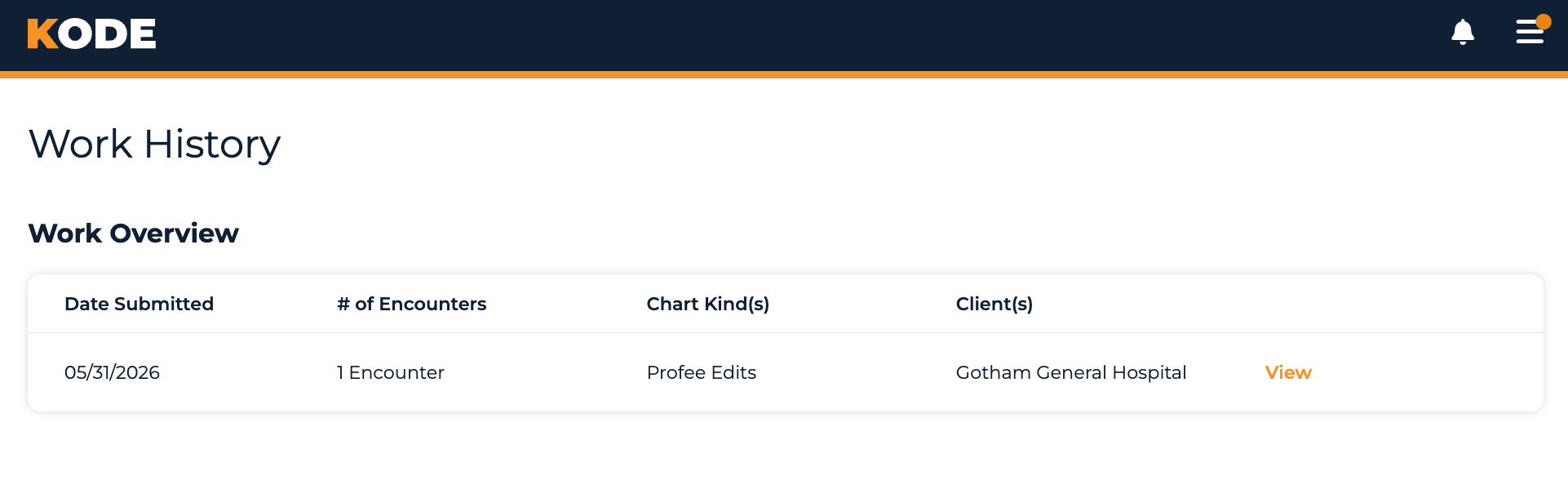
Work Overview page listing your submitted work grouped by day
What You'll See
The page has two views: a day-by-day Work Overview and a per-day Work Details drill-in.
Work Overview (index)
Each row represents one day on which you submitted work — not one chart. The table has these columns:
| Column | What it shows |
|---|---|
| Date Submitted | The submission date. |
| # of Encounters | How many charts you submitted on that day, e.g. 3 Encounters. |
| Chart Kind(s) | Pills summarizing the chart kinds you coded that day. |
| Client(s) | Pills summarizing the clients those charts belonged to. |
| (View link) | Drills into the Work Details view for that date. |
The list is paginated (20 rows per page). There are no filters or search controls — use the pagination to navigate to older dates.
Work Details (drill-in)
Clicking View on any row takes you to the Work Details view for that date. The header reads "Submitted MM/DD/YYYY" and the table lists each chart assignment from that day:
| Column | What it shows |
|---|---|
| Encounter | The encounter ID (or N/A for charts without an encounter inquiry). |
| Chart Kind | The chart kind name (e.g. "Emergency Medicine", "Hospitalist"). |
| Client | The client/facility the chart belonged to. |
| Status | The status from your submission — see Chart Assignments for the full list. |
| Submitted At | The time you submitted, in your time zone. A small info icon appears if you re-edited the log. |
| (pencil icon) | Edits the assignment log via a modal — only shown when editing is still allowed. |
A back link at the top returns you to Work Overview.
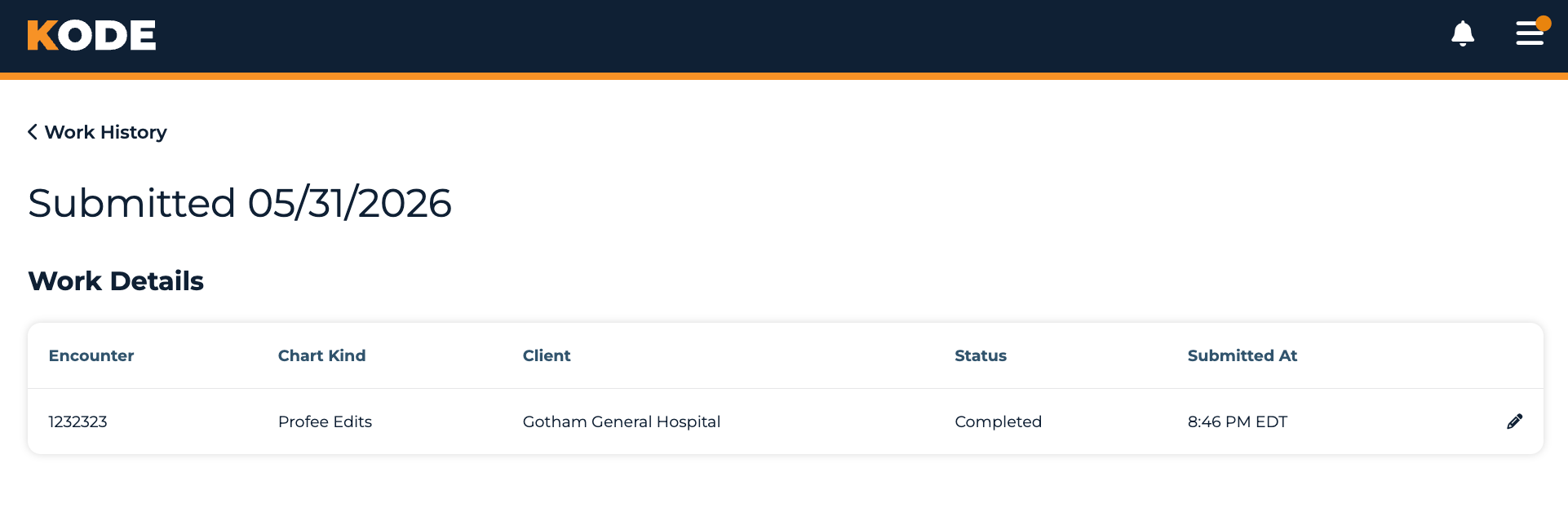
Work Details for a single submission day, listing each encounter you submitted
Empty State
If you haven't submitted any work yet, you'll see a "No Work History Found" message instead of the table. The CTA below depends on your situation:
- If you're on a team — a Visit Dashboard button to get you started on your first chart
- If you're not on any team — a View Opportunities button to browse teams to apply to
How to Use Work History
Finding a Past Submission
Work History doesn't have filters or search, so finding a specific chart is a two-step navigation:
- Find the date in the Work Overview — use pagination to scroll back if needed
- Click View on that day's row to open Work Details
- Scan the encounter list for the chart you're looking for
Editing an Assignment Log
If you spot an issue with how you submitted a chart, you may be able to re-edit the assignment log:
- Open the Work Details for the day you submitted it
- Click the pencil icon on the right side of the row (this only appears when editing is still permitted by policy)
- The assignment log opens in a modal for you to adjust Status, Notes, etc.
- Submit your changes — the "Submitted At" column will then show an info-icon tooltip indicating the log was edited and re-submitted
If the pencil icon isn't there, editing is no longer allowed — reach out to your team or platform manager if you need a correction.
Common Questions
Q: How far back does my work history go?
Your complete history is preserved. Pagination lets you walk back through every day you've submitted work.
Q: Where do I see what I earned for these charts?
Payment info isn't shown on Work History — it lives on the Payment History page.
Q: Can I edit a chart I've already submitted?
You can edit the assignment log (Status, Notes, etc.) via the pencil icon in Work Details — but only when the policy still allows it. You can't edit the codes you submitted or the chart content itself; if there's a real error there, contact your team or platform manager.
Q: Where does audit feedback show up?
Audit results aren't surfaced inside Work History. The Status column reflects what you submitted, not what an auditor concluded. Open Quality to review released audit results and their details.
Q: Why can't I find a chart I just completed?
A few possibilities:
- You abandoned it instead of submitting — abandoned charts don't appear here
- The submission was on a different day than you remember — try the previous/next page
- You're looking at the wrong account (e.g., staff vs. coder side)
Q: What does the info icon next to Submitted At mean?
It's a tooltip indicating the assignment log was edited and re-submitted after the original submission. Hover to see "This encounter was edited & re-submitted".
Tips
- Drill in by date — there's no search; the fastest path to a chart is by submission date
- Edit while you can — if you notice a mis-submission, fix it via the pencil icon as soon as possible. Edit eligibility narrows over time
- Cross-reference Payment History — for "what did I earn for this work", switch to Payment History