Opportunities
Opportunities is your marketplace for finding new teams to code for. The page surfaces healthcare-facility teams looking for coders, grouped by how well you match.
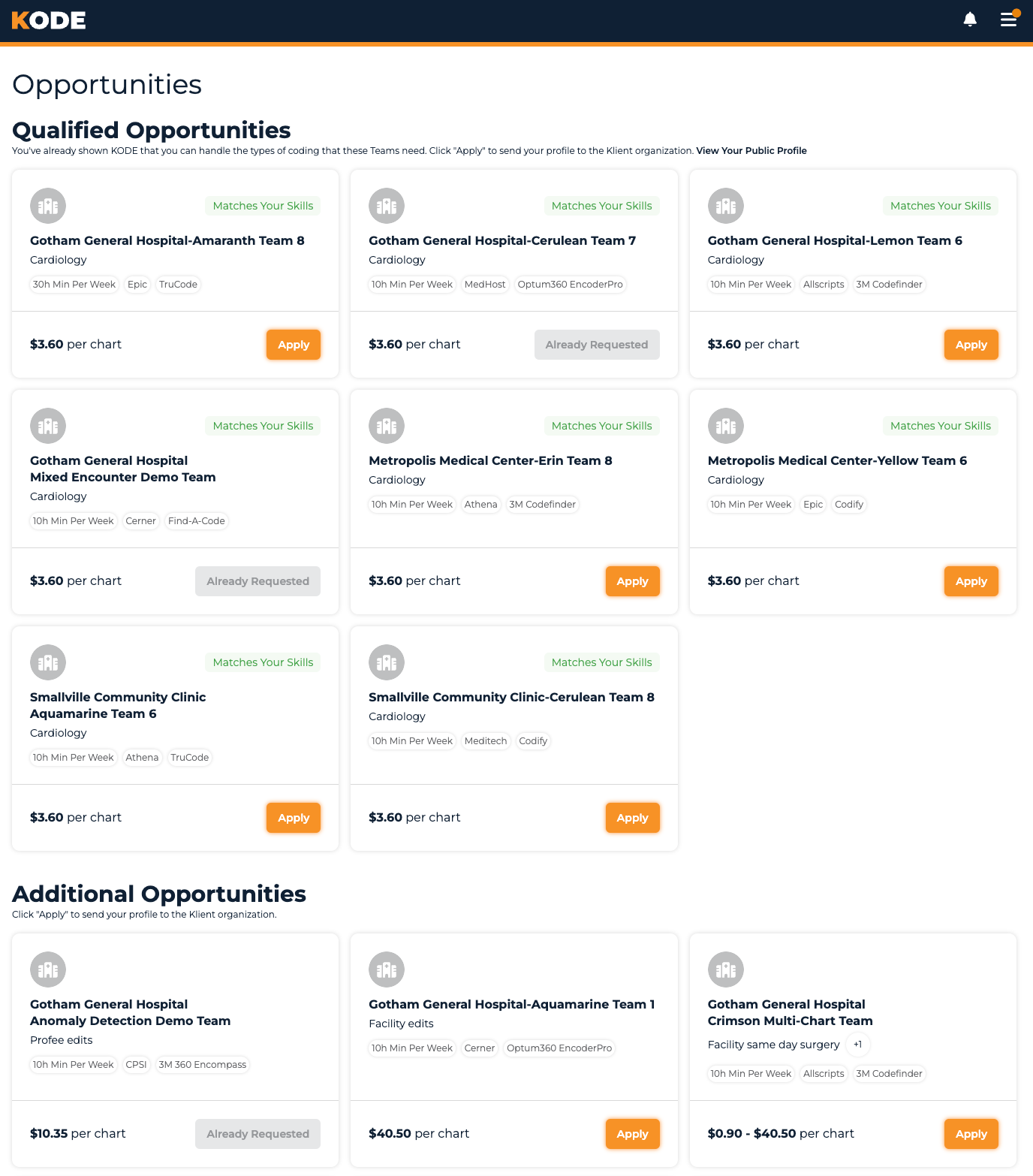
Team Opportunities page with the Invited, Qualified, and Additional sections
The Three Sections
The page splits opportunities into up to three sections, in this order:
Invited Opportunities
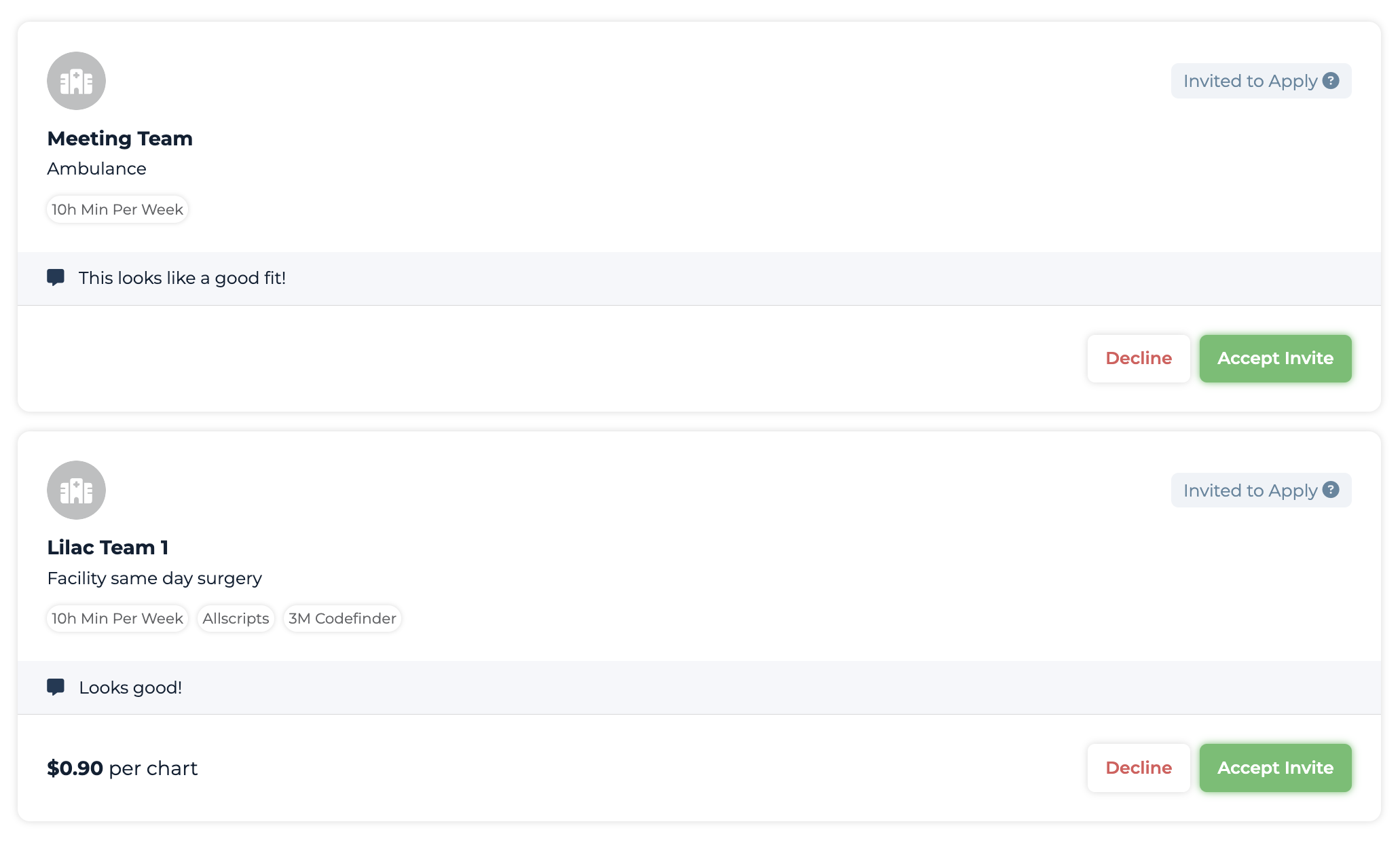
Invited Opportunities section with Accept Invite tiles
Teams a KODE team lead specifically invited you to apply to. The section copy reads: "The KODE team thinks you'll be a great fit! Click 'Accept Invite' to send your profile to the Klient organization."
Invited tiles show an Invited to Apply status tag (with a tooltip explaining the invite came from a team lead), and may include a blue panel with a personalized invitation message from that team lead.
Qualified Opportunities
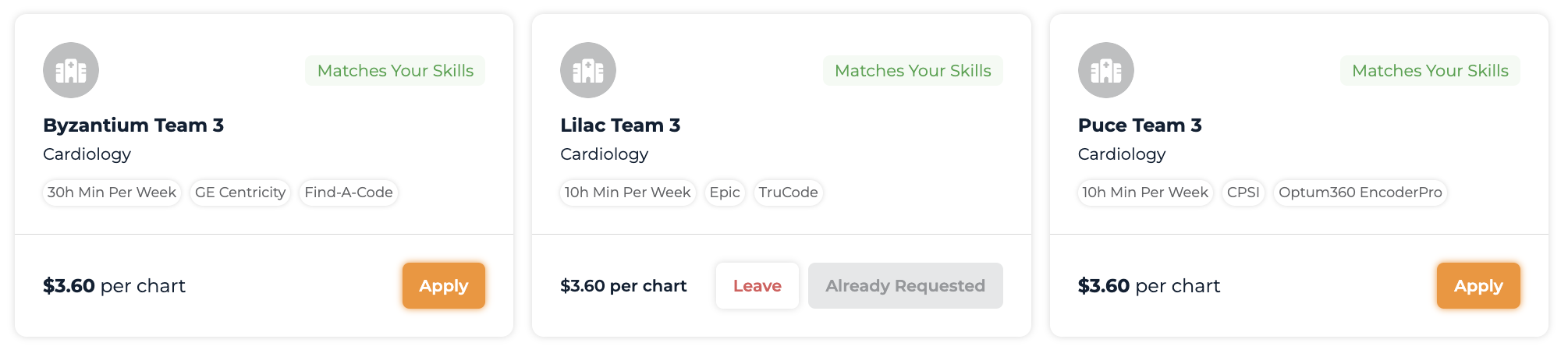
Qualified Opportunities section with teams whose specialties match your credentials
Teams whose required specialties match your credentials and experience — i.e., you've already shown KODE you can handle their work.
Qualified tiles show a green Matches Your Skills status tag. The section also includes a View Your Public Profile link in the header so you can see what Klients see when reviewing your application.
Additional Opportunities (or "All Opportunities")
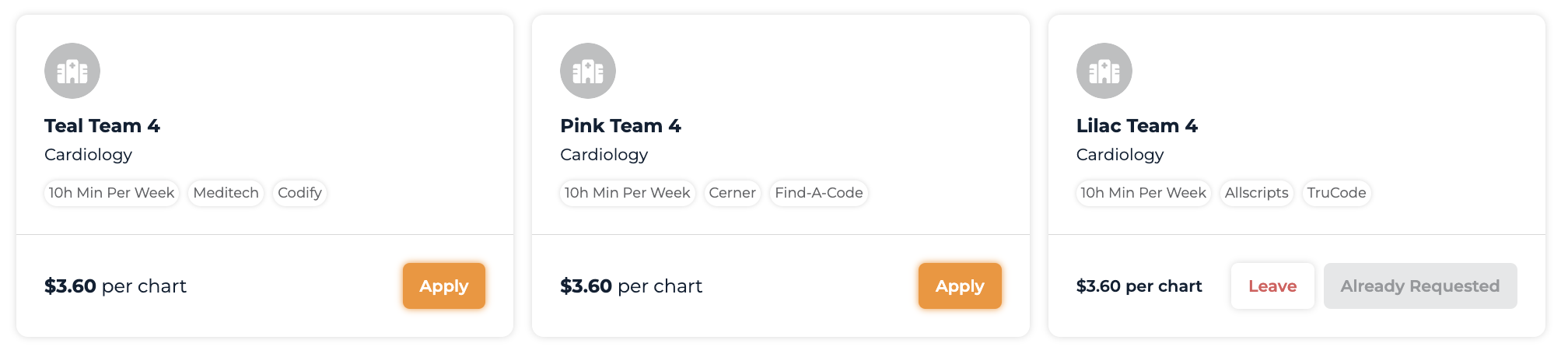
Additional Opportunities section with teams outside your current specialty matches
Teams that don't currently match your specialties — useful for browsing what's out there even if you don't yet qualify. When there's nothing in Invited or Qualified, this section is just titled All Opportunities instead.
If your profile isn't fully complete, the section header says "Complete your tasks to unlock these opportunities" and every tile's button is disabled (see "When tiles are disabled" below).
Reading an Opportunity Tile
Each tile shows:
- Client logo and the team name (combined Klient + team display name)
- A status tag —
Invited to Apply(info, with tooltip) orMatches Your Skills(green) — nothing on Additional/unmatched tiles - Chart kind pills summarizing the team's specialties (Emergency Medicine, Hospitalist, etc.). When chart-kind components are enabled, the component breakdown shows underneath
- A pills row with the team's logistics:
- Minimum hours commitment (if set)
- EMR system the team uses
- Encoder system the team uses
- Invitation message (Invited tiles only) — a blue panel with the message from the KODE team lead who invited you
- Compensation at the bottom — one or more entries shaped like "$X.XX per chart" (or per hour, etc., depending on the team's pricing scheme)
- An action button — see the next section
Action button states
The button at the bottom-right of each tile varies based on your state and the team's state:
| Label | When you see it |
|---|---|
| Apply | You're eligible and can request to join this team. |
| Accept Invite | The team has invited you — the variant is the same flow as Apply. |
| View Opportunity | Disabled. Shown on every tile when you're not yet eligible. |
| Already Accepted | Disabled. You're already a member of this team. |
| Already Requested | Disabled. You've already submitted an application for this team. |
| Limit Reached | Disabled. You're already in 5 teams — leave one to free up a slot. |
There's no "Request to Join", "View Details", or "View Team" button — those concepts in older docs don't apply here.
Two tiles also carry a small companion button for stepping away: an invited tile shows a Decline button next to Accept Invite, and a tile you've already applied to shows a Leave button next to Already Requested. See "Backing Out: Decline or Leave" below.
When tiles are disabled
If you're not eligible (profile incomplete — tasks still pending in Your Tasks on the dashboard), every tile across all three sections gets the disabled View Opportunity button. Eligibility, not match status, is what governs whether you can apply.
Once your profile is complete, the disabled buttons turn into Apply / Accept Invite as appropriate.
The 5-Team Limit
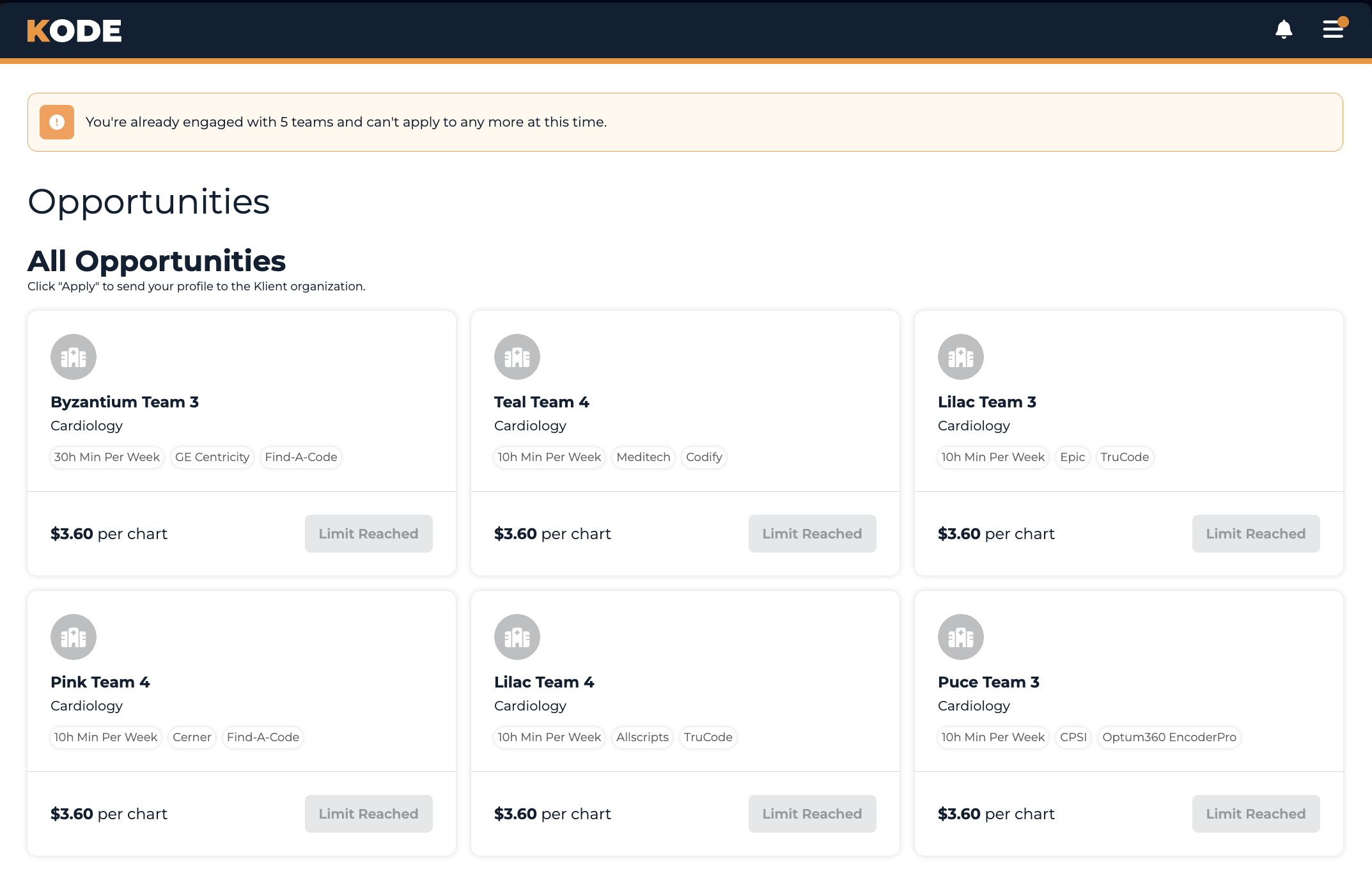
Opportunities page when you're already engaged with 5 teams — the warning banner sits above the sections and eligible tiles show Limit Reached
You can be engaged with up to 5 teams at a time. Every pipeline you're currently in counts toward that limit — invitations you haven't answered yet, applications under review, assessments, onboarding, and teams you actively code for. Only teams you've fully left (declined, withdrawn from, or been removed from) stop counting.
A banner at the top of the page always tells you where you stand:
- Under the limit — it shows how many slots you have left, for example "You can apply to up to 3 more teams."
- At the limit — "You're already engaged with 5 teams and can't apply to any more at this time."
When you're at the limit, tiles you could otherwise apply to show a disabled Limit Reached button instead of Apply. Hover it for a reminder: "You’ve reached the 5-team limit. Leave a team before applying to a new one."
To apply to a new team, free up a slot first — decline an invitation, leave a team you've applied to, or leave one you're onboarding with or coding for. See "Backing Out: Decline or Leave" below and your Dashboard. As soon as you drop below 5, the Apply buttons come back.
Invitations are the one exception. If a team has already invited you, you can still Accept Invite even at the limit — that invitation is already one of your 5, so accepting it doesn't add another. New invitations won't reach you while you're at the limit, though.
Submitting Your Application
- Click Apply (or Accept Invite for an invited team) on the tile
- A confirmation modal opens showing what you're about to submit
- Confirm in the modal — your profile is sent to the team
- The team shows up under Applied Opportunities on your Dashboard while it's being reviewed
You can apply to multiple teams in parallel; each application is handled independently.
What Happens Next
- Team Review — administrators (or the Klient team) review your profile
- Assessment (if required) — some teams require you to complete an assessment before they'll accept; if so, it'll show up in your dashboard and Applied Opportunities
- Decision — the team accepts or declines
- Onboarding — if accepted, you'll move into team onboarding (see Onboarding)
Backing Out: Decline or Leave
You're never locked in. From this page you can step away at two points, each with a quick confirmation and a different outcome.
Declining an invitation
On an invited tile, click Decline (next to Accept Invite). You'll confirm first — "Decline this invitation? You can still apply to [team] later if you change your mind." Declining:
- Removes the invitation from your Opportunities
- Doesn't affect any other application you have open
- Places no block — you can apply to that team, or be invited again, whenever you like
Leaving while your application is under review
Once you've applied, the tile shows Already Requested with a Leave button beside it. Use it if you'd rather not be considered anymore. You'll confirm first — "Leave [team]? You'll be removed from this team's pipeline, but you can apply again later." Leaving here:
- Withdraws you from that team's review
- Keeps re-applying open — you can apply again to that team at any time
Either way, you won't get a confirmation email — the change is immediate, and the tile updates to reflect it.
Assessments work differently. If a team has moved you into an in-progress assessment, stepping away counts as abandoning the assessment and blocks you from re-applying to that team for 6 months. You do that from your dashboard, not here — see Dashboard.
Common Questions
Q: Why is the Apply button disabled on every tile?
You're not eligible yet — your profile has outstanding tasks. Open the dashboard and finish anything still listed in Your Tasks (identity verification, work experience, schedule preferences, credentials, etc.). Once you're eligible, the buttons unlock.
Q: Why don't I see many opportunities?
A few factors:
- Your credentials/specialties may not match many teams' requirements right now
- Some clients/teams aren't actively recruiting at the moment
- New opportunities appear regularly — checking back is the simplest fix
Adding more credentials or work experience widens what counts as a Qualified opportunity for you.
Q: How long until I hear back after applying?
Response times vary by team — anywhere from a few days to a few weeks. Track each application's status under Applied Opportunities on your dashboard.
Q: Can I apply to multiple teams at once?
Yes. Each application is reviewed independently. There's no penalty for applying broadly.
Q: What if I'm declined by a team?
It doesn't affect any other applications. If your credentials or experience change later, you may be eligible to reapply.
Q: Why does a tile say "Limit Reached," or why can't I apply?
You can be in at most 5 teams at once — counting invitations, applications, assessments, onboarding, and active teams. Once you hit 5, applying is paused and the banner at the top of the page says so. Free up a slot by leaving a team (see "Backing Out: Decline or Leave" and your Dashboard), and the Apply buttons return. You can still accept an invitation you already have.
Q: I stopped getting invitations from teams. Why?
Team leads can't send you a new invitation while you're already engaged with 5 teams. Leave a team to open a slot, and invitations can reach you again.
Q: If I decline or leave, can I come back?
Declining an invitation and leaving while under review both keep the door open — you can apply to that team again whenever you like. The one exception is abandoning an in-progress assessment, which blocks re-applying to that team for 6 months.
Q: Do I have to Accept an invite?
No. An invite is just an opportunity — you can ignore it, accept it, or Decline it. There's no obligation until you click Accept Invite and confirm. Declining is optional too; it simply clears the invite and never blocks you from that team later.
Q: How is pricing determined?
The compensation amounts shown on a tile come from the team's pricing scheme. Pricing is per-chart (or per-hour, for hourly teams). Open the team's onboarding/details once you've been accepted for the full breakdown.
Q: What happens after I'm accepted?
You'll go through the team's onboarding wizard (Onboarding) — typically: Set Schedule (if you've committed hours), Access setup, Access Review meeting with Koder Services, Knowledge Base review, and a Training meeting with the team's trainer.
Q: Can I leave a team after joining?
Yes, and you can do it yourself. Once you're onboarding with or actively coding for a team, leave it from your Dashboard — open the card's ⋯ menu and choose Leave Team (or Leave team on an onboarding card). Leaving an active team removes you and stops new work from it; the account's operations contacts are notified so they can plan around the change.
Tips
- Finish your profile first — until eligibility flips on, every tile is disabled
- Respond to invites promptly — you're more likely to be accepted to invited teams, so accept quickly if you're interested!
- Be aware of your 5-team limit — make sure you only apply to teams that match your experience so you aren't blocked from applying to a great fit.
- Ask for help when needed - confused or frustrated about your team status or work availability? Reach out to support@kodehealth.com before leaving a team. They'll be happy to answer your questions and guide you to the right decision for you!