Work Experience
Work Experience is where you document your professional coding history and write the Professional Summary that Klients see when they review your profile.
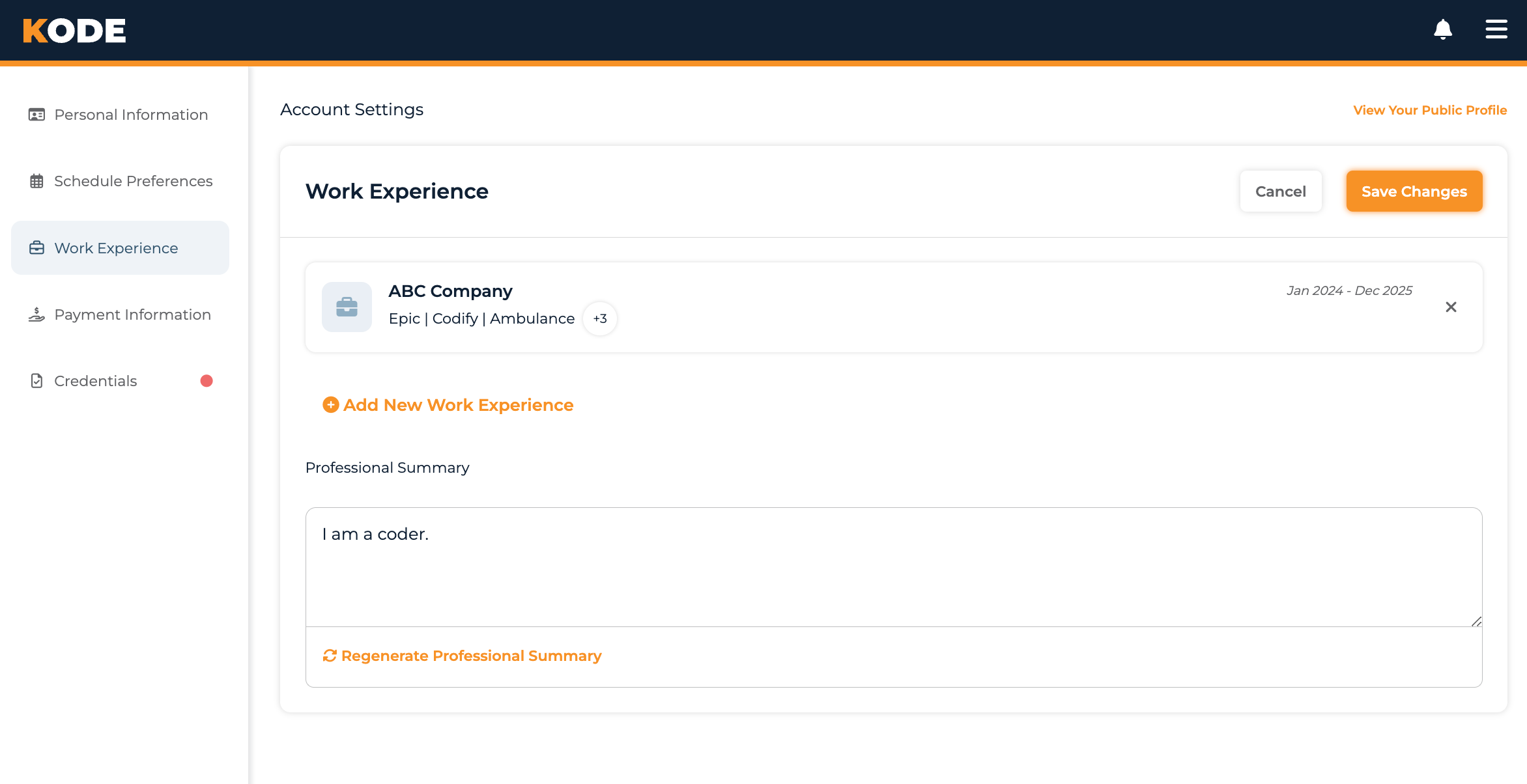
Work Experience page with the list of entries and the Professional Summary section
Why Work Experience Matters
- Team matching — your work experience (especially the coding types, EMR, and encoder you've used) is one of the signals KODE uses to surface Qualified Opportunities
- Klient review — when you apply to a team, the team lead reviews your work experience as part of your public profile
- Professional Summary — your bio is shown on your public profile and is one of the first things Klients read
The Work Experience Page
Each entry shows up as a card with edit and delete controls:
- Click anywhere on the card to open the Edit modal
- Click the X icon on the right of the card to delete the entry
The Add New Work Experience button below the list opens the Add modal.
Entries are sorted by end date, most recent first (your current job is at the top when you mark "I currently work here").
Adding a Work Experience Entry
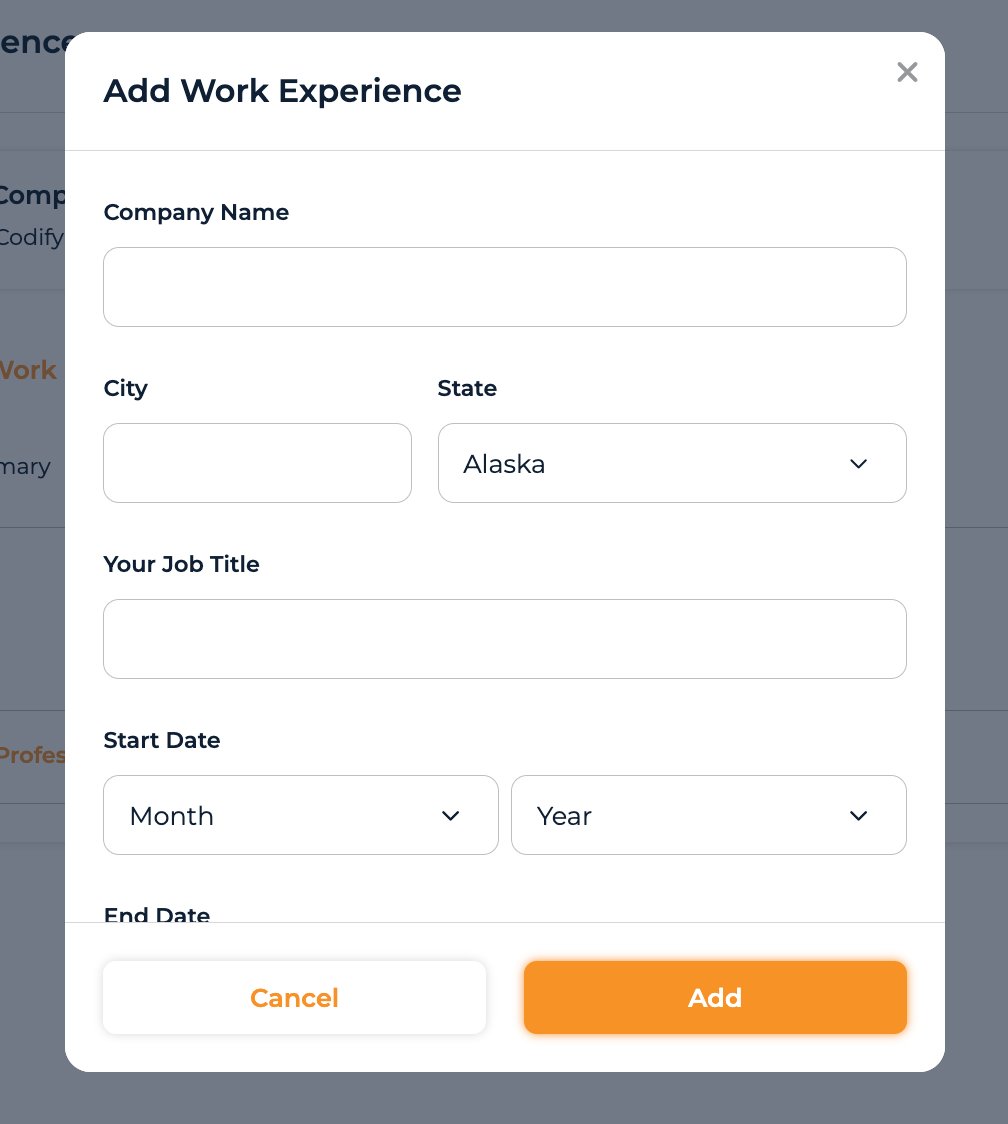
Add New Work Experience modal with company, dates, coding types, EMR, and encoder fields
Click Add New Work Experience. The form has these fields:
| Field | Notes |
|---|---|
| Company Name | Text |
| City / State | Two fields side-by-side. State is a US-states dropdown |
| Your Job Title | Text |
| Start Date | Month dropdown + Year dropdown (years go back 50 years from today) |
| End Date | Month dropdown + Year dropdown. Disabled when "I currently work here." is checked |
| I currently work here. | Checkbox. Clears and disables the End Date fields when checked |
| Job Description | Textarea, 1000 characters max |
| Select the Types of Coding You Did at this Job | Multi-select from the platform's coding-type taxonomy. The help text reads: "This will connect you with Clients needing specialized coders." |
| EMR Used at this Job | Single select (one EMR per job). Options: Epic, Cerner, Athena, GE Centricity, Meditech, CPSI, Allscripts, MedHost |
| Encoder Used at this Job | Single select. Options: 3M Codefinder, Optum360 EncoderPro, TruCode, Find-A-Code, Codify, 3M 360 Encompass |
Hit Add to save the entry. It appears immediately in the list.
If you used multiple EMRs or encoders at the same job, pick the primary one; you can add additional entries (or break the role into separate entries) to capture the others.
Editing an Entry
Click anywhere on a card to open the Edit modal. The same fields are editable. Click Update to save.
Deleting an Entry
Click the X icon on the right side of the entry's card and confirm. The entry is removed immediately. (There's no "Delete" button — just the X.)
Professional Summary

Professional Summary section with the bio textarea and Regenerate Professional Summary action
Below the work experience list is a Professional Summary section with a textarea for your bio. This bio is shown on your public coder profile (the one Klients see when they review your application).
How the bio gets generated
KODE can generate a Professional Summary for you from your work experience entries:
- Auto-generation on first save — when you save your first work experience entry and your bio is still blank, KODE automatically kicks off a generation in the background
- Manual regeneration — click Regenerate Professional Summary (with the rotate icon) under the textarea to ask KODE to generate a new one
When you click Regenerate Professional Summary, a confirm prompt asks: "Anything that was previously written will be discarded. Do you wish to proceed?" Confirm to overwrite the textarea with a fresh AI-generated summary.
When the Regenerate button is disabled
The button is disabled in two cases:
- Your bio is already filled in. To use Regenerate over existing text, clear the textarea first, save, then hit Regenerate
- You've reached the rate limit — 5 regeneration attempts in any 3-minute window. The limit resets as the older attempts age out
Editing manually
You can also just type or paste your own bio into the textarea — no Regenerate needed. Click Save Changes in the header to persist. The button stays grayed out until something on the page changes — including when a generated summary finishes streaming in, since it isn't saved until you click Save.
Common Questions
Q: How many work experience entries should I add?
Add every relevant role. Each entry contributes to matching, so older positions still count if they cover coding types or systems that match team needs.
Q: What if I used multiple EMRs or encoders at the same job?
The form takes one of each per entry. Pick the primary one. If you want to capture multiple, create separate entries (e.g., one per phase of the role) or pick the most relevant for matching.
Q: My coding specialty isn't in the "Types of Coding" list — what now?
The list is platform-managed. If a category you regularly code is missing, reach out to support — they can ask for it to be added.
Q: Why is the Regenerate Professional Summary button greyed out?
Either your bio textarea has content (clear it first) or you've used your 5 regeneration attempts in the last 3 minutes (wait a few minutes).
Q: Can I edit the AI-generated summary?
Yes — the textarea is fully editable. Generate something, then refine or rewrite as needed. Just save your changes when you're done.
Q: Can I list non-coding healthcare jobs?
Yes, if they're relevant. The form doesn't restrict by job title — anything you can add as a Job Title works.
Q: Will Klients see my work experience?
Yes. Work experience and the Professional Summary are both on your public profile, which Klients review when you apply to a team.
Tips
- Add Encoder and EMR for every entry — these are direct matching signals
- Pick the right "Types of Coding" — this is the multi-select that connects you to specialty-specific teams
- Save your first entry before the bio generates — the auto-generation only runs when the bio is blank and you save
- Don't waste regenerations — you only get 5 in a 3-minute window; if you want to refine, prefer editing the existing bio over regenerating